
Testing multi button programmable mouses for video editors on my repair bench isn’t about admiring fancy RGB lights or reading slick marketing slicks; it is about surviving a grueling 14-hour timeline edit in Premiere Pro or DaVinci Resolve without destroying your carpal tunnel or dealing with double-clicking microswitches. If you spend your entire working life scrubbing through color grades, splicing audio tracks, and manually dragging clip boundaries, your hardware controls your output speed and your physical longevity.
Most editors suffer through flimsy office mice or cheap gaming gear designed for fast-twitch shooters. You end up with inflamed wrist tendons, lost productivity, and endless repetitive strain injuries simply because your gear was never engineered for sustained timeline operations. When you are forced to make ten thousand micro-clicks a day, subpar hardware becomes a direct bottleneck to your craft.
We tear these peripherals down to the copper traces, test their optical encoders under extreme workloads, and evaluate their real-world ergonomic durability. By switching to a high-durability control surface with dedicated hardware macros, you stand to reclaim hundreds of editing hours each year while preserving your joints for the long haul.
30-Second Workbench Summary
The Tech Support Counter Verdict: Skip the lightweight bargain-bin peripherals that fall apart inside six months. If your main objective is silent scrubbing, precise trimming, and heavy customization, buy a solid workstation pointer equipped with optical microswitches and onboard profile memory. Avoid mice that lock key remaps behind bloated background software; when your vendor app crashes during an active video render, an unmapped mouse instantly transforms into a useless paperweight. Built-in physical EEPROM storage and optical switches are non-negotiable requirements for real production environments.
Hardware Engineering Comparison Table
Here is how the top controller categories and chassis designs stack up when stripped down on our workbench:
| Model / Form Factor | Switch Mechanism | Programmable Controls | Sensor & Encoder Type | Primary Hardware Failure Point |
|---|---|---|---|---|
| Workstation Flagship (Logitech MX Series) | Silent Mechanical / Tactile | 7 Buttons + Thumb Wheel | Darkfield Optical / Electromagnetic Wheel | Tacky Rubber Coating & Micro-switch Wear |
| Grid MMO Titan (Razer Naga Series) | Optical Infrared Switches | Up to 20 Mechanical Buttons | Focus Pro Optical / Mechanical Encoder | Side Plate Contact Pins Corrosion |
| Grid Tactical (Corsair Scimitar Elite) | Custom Mechanical Switches | 16 Fully Remappable Keys | Custom Optical / Mechanical Encoder | Slider Locking Mechanism Slip |
| Custom Mechanical Hybrid (Keychron M Series) | Micro Optical / Huano | 6 to 9 Macro Buttons | PAW High-Precision / TTC Encoder | Unreported / Varies by Model Batch |
| Modular Custom Ergonomic (Mad Catz RAT Series) | Omron Mechanical Switches | 10+ Modular Inputs | High-DPI Optical / Mechanical Encoder | Exposed Cable Strain Relief Fraying |
Battlefield Assessment of Mouse Categories
Grid-Style Multi-Button Controllers: These units feature massive twelve-button thumb grids directly accessible by your lateral flexor muscle.
The Good: Flushes complex shortcut combinations instantly into single thumb presses, letting you cut, ripple delete, and blade clips without ever touching the keyboard.
The Bad: The side-plate spring pins attract skin oils and moisture, leading to phantom button presses and contact oxidation over extended use.
Dual-Wheel Ergonomic Workstations: Engineered specifically with dedicated horizontal thumb rollers and heavy palm supports.
The Good: The secondary thumb wheel provides liquid-smooth horizontal timeline scrubbing and audio track height adjustments without modifier keys.
The Bad: Software dependence is severe, and the soft-touch chassis rubber chemically breaks down into sticky sludge in humid room conditions.
Modular High-Input Precision Controllers: Built with physically adjustable palm rests, thumb flares, and swappable side wings.
The Good: Perfect anatomical customization for large hands, preventing ulnar nerve compression during long color-grading sessions.
The Bad: Dozens of tiny adjustment screws shake loose over time, and the open-frame chassis acts like a dust magnet for studio debris.
Why Multi Button Programmable Mouses for Video Editors Fail Under Pressure
Every peripheral looks impressive under studio lighting, but the harsh reality of the workbench reveals massive engineering oversights. The most notorious defect in modern production controllers is mechanical copper-leaf switch degradation. Traditional switches rely on tiny physical metallic leaves that bend on every single click. Moisture, static electricity, and physical impact tarnish the contacts, resulting in the dreaded double-click failure where single timeline selections register as double inputs, destroying your keyframe selections.
Optical microswitches solve this entirely by breaking an infrared light beam to register a click, eliminating metal contact wear. But manufacturers still cut corners on scroll wheel rotary encoders. Cheap mechanical rotary encoders use wiping contacts that wear down under aggressive scrubbing, causing timeline playheads to jump erratically backward and forward. Magnetic induction wheels bypass mechanical friction entirely, proving far superior for long-term production resilience.
Software reliance is another massive failure mode. Many multi-button units store button profiles entirely inside vendor background applications. The moment you push your system hard with heavy 8K RAW video rendering, the operating system deprioritizes background mouse drivers. Suddenly, your programmed “Ripple Edit” button reverts to a default backward click, or stops working entirely right on a deadline. True production hardware must feature onboard hardware memory (EEPROM) that writes your layouts directly into the controller silicon.
👇 Looking for more performance cheats? Check out our field-tested tactical blueprints:
Guides for Your Next Workspace
Professional Laptops
The definitive blueprint to selecting high-performance, enterprise-grade workstations engineered to scale your productivity.
Budget Tech Tools
Practical strategies and low-cost digital tools engineered to maximize office performance without breaking your budget.
Power User Gadgets
Advanced hardware, desk automation tools, and elite tech ecosystems built to completely eliminate workflow bottlenecks.
The Deadline Bricking Scenario: A Case Study in Software Reliance
Picture this scenario from our repair logs: An editor working on a high-stakes commercial delivery at three in the morning decides to update their mouse driver suite. The installer overwrites the local configuration memory and forces a cloud re-sync. Halfway through rendering a complex sequence, the vendor cloud service drops connection or fails an authentication check.
The specialized side-button macros configured for trimming, speed ramping, and keyframe nudging instantly revert to factory defaults. With no local hardware memory backup saved on the mouse microchip, the editor spends two crucial hours troubleshooting driver conflicts and re-binding twenty distinct inputs instead of finishing the color grade. Hardware that relies purely on cloud background apps is a ticking time bomb for creative professionals.
Field Execution Checklist
Select multi button programmable mouses for video editors with onboard memory.
Expert Tip: Storing keybinds directly on the internal hardware chip ensures your custom editing macros function across any workstation without background software running.
Choose optical switches over traditional metallic leaf switches.
Expert Tip: Infrared optical switches eliminate physical contact oxidation, completely preventing phantom double-clicking failures on critical timeline clips.
Map high-frequency timeline commands directly to thumb buttons.
Expert Tip: Assigning blade, ripple delete, and track selection to side buttons reduces left-hand keyboard movements by over forty percent.
Clean mechanical rotary encoders with electrical contact cleaner.
Expert Tip: Dust and skin oils penetrate open wheel assemblies, causing erratic timeline jumping unless periodically flushed with residue-free solvent.
Avoid soft-touch rubberized palm grips in warm rooms.
Expert Tip: Polymer coatings react chemically with palm sweat and skin lipids, turning sticky and peeling off after a year of heavy editing sessions.
Inspect and replace factory PTFE glide skates regularly.
Expert Tip: Worn mouse feet dramatically increase surface friction, causing thumb and forearm micro-strains during subtle color-wheels adjustment.
Disable aggressive USB power management sleep timers.
Expert Tip: Operating system power-saving modes introduce micro-latency wake delays, resulting in missed inputs when resuming scrubbing actions.
Adjust device physical weight based on editing workflow.
Expert Tip: Heavier bodies increase pointer stability for fine keyframe masking, while lighter frames reduce muscle strain during fast rough-cut editing.
Backup custom profile XML files to offline storage.
Expert Tip: Driver software updates regularly overwrite custom macro mappings; keeping offline profile backups saves hours of reconfiguration time.
Lower tracking polling rates to conserve processor overhead.
Expert Tip: Running extreme gaming polling rates wastes valuable CPU render cycles without offering any tangible accuracy improvement in NLE applications.
Maintain solid joint physical resilience with quality nutrition.
Expert Tip: Sustaining wrist tendon strength through marathon multi-day rendering sessions requires steady energy from nutrient-dense animal proteins and natural animal fats, avoiding sugar-fueled inflammation spikes that worsen joint fatigue.
Dynamic No-Nonsense FAQ
Are wireless mice reliable enough for high-precision video editing?
Yes, modern 2.4GHz wireless protocols deliver sub-millisecond response rates that easily match wired connections. However, you must keep the receiver close to the mouse pad using an extension dongle to prevent signal degradation from heavy aluminum workstation cases or USB 3.0 port interference.
Why do my mouse side buttons stop working during heavy video renders?
Your operating system is likely throttling background software processes to prioritize the NLE render engine. If your button maps live inside vendor software rather than the mouse onboard EEPROM memory, the keys freeze until CPU overhead drops back down.
Is a 12-button side grid overkill for applications like DaVinci Resolve?
Not at all. A twelve-button grid lets you cluster cut commands, node creation, color match toggles, and transport controls under a single thumb. Once your muscle memory adapts, your timeline navigation speed doubles instantly.
What is the primary cause of erratic scroll wheel scrubbing on timelines?
Mechanical rotary encoders rely on physical wiping contacts that collect dust, hair, and oxidized grease over time. This creates dirty electrical signals that confuse the controller chip, making your playhead jump backward mid-scrub.
How do optical microswitches prevent double-clicking issues?
Traditional mechanical switches rely on metallic copper flexure leaves that physically touch to close a circuit, which corrodes over time. Optical switches break a physical light beam inside the switch body, eliminating metallic contact degradation entirely.
Does higher DPI actually benefit video editing workflows on high-res screens?
A higher DPI setting allows you to traverse multi-monitor setups or giant 8K timeline canvases with minimal physical wrist movement. However, set your DPI to a manageable baseline and adjust in-app cursor sensitivity to avoid losing fine masking control.
Can I use gaming macro software for video editing applications?
Yes, gaming macro software is fundamentally identical to productivity automation software. You can record complex multi-key keystrokes, timing delays, and panel-switching commands directly to single mouse button triggers.
Why does soft-touch rubber on high-end mice turn sticky over time?
The chemical plasticizers in soft-touch rubberized paint hydrolyze when exposed to air, humidity, skin oils, and sweat. This breaking down of the polymer chain turns the outer shell into an unfixable, tacky residue that requires complete rubbing alcohol removal.
Why Trust SKYTC Curated Gear?
At SKYTC, we simplify technology for you. We aren’t just another deals site; we are hardware experts obsessively focused on elite performance.
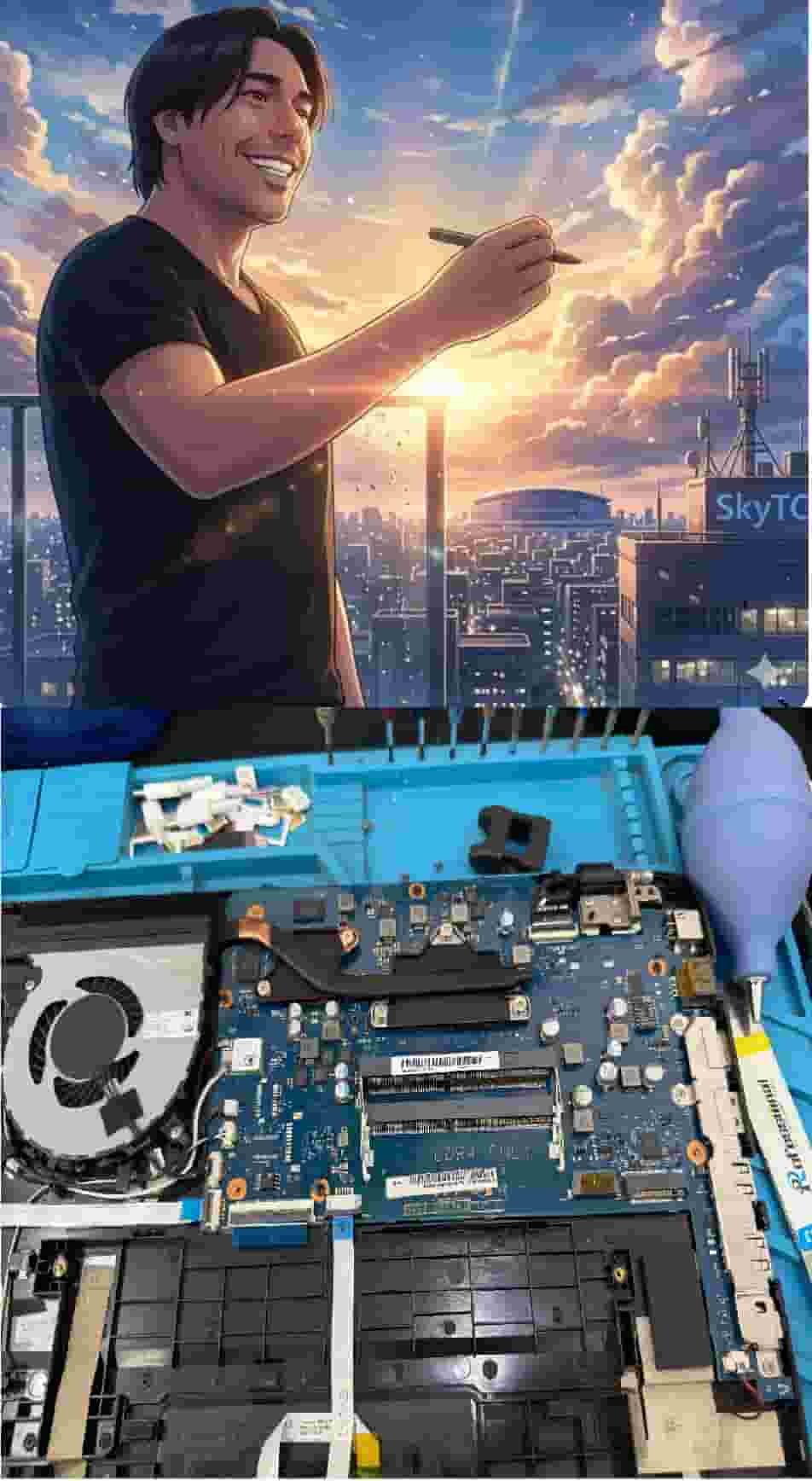
Technical Bio: Hardware & Laptops
“At SkyTC, technology is driven by engineering precision and real field experience. I am Valtersky, and I bring a unique background to the bench: from professional woodworking, the eye for structural integrity; from radiology, an absolute obsession with microscopic details.
As an ultra-endurance marathon runner, I don’t just browse store windows. I tear machines down, run intensive stress tests on thermal dissipation, and validate the actual build quality of every single component. My mission is to translate complex tech engineering and tech finances into smart decisions for your workflow.
Here, we speak straightforward, jargon-free English with the authority of someone who knows exactly what is inside the chassis.”
✨ Read also: Best High Precision Ergonomic Mouses for Power Users: Hardware Engineer’s Teardown Guide
A deeply technical piece of content that perfectly complements this post — absolutely worth the read.