
You spend hours designing beautiful dashboards, building local automations, and setting up custom voice assistants to construct your dream smart home. But then, a single smart plug goes rogue, and suddenly your entire local server grinds to a halt while you desperately try to fix Home Assistant unresponsive device network loop issues. It is a massive headache that turns your highly customized setup into an unresponsive brick while your family looks at you in sheer frustration.
This network chokehold happens when a device drops its connection, panics, and spams your router with endless, rapid-fire reconnection requests. I spent years doing precision woodwork and dental prosthetics, where a single millimeter of misalignment ruins the entire project; network packets behave the exact same way. If your router is busy processing millions of junk requests from a single misbehaving smart plug, your actual automation commands get lost in the digital noise.
My team at skytc has hands-on tested these exact scenarios, stress-testing router limits and debugging stubborn local networks. We have filtered out the typical useless forum advice to bring you a straightforward guide that will restore your system’s peace of mind and speed, saving you hours of useless troubleshooting.
What Causes a Home Assistant Unresponsive Device Network Loop?
To fix a chaotic network, you first need to understand the beast you are fighting. When a smart bulb, smart switch, or sensor loses its connection to your home network, it naturally tries to re-establish contact.
However, if the device firmware is poorly optimized, it will send out connection requests at a rapid-fire pace without waiting for a response, creating a massive broadcast storm. Your router gets overwhelmed trying to handle thousands of requests per second, which in turn causes Home Assistant to lose contact with all other devices on the network.
Let’s look at the main culprits behind this digital traffic jam:
- Wi-Fi smart plugs are incredibly convenient and lightweight for basic lamp control; however, they often run on bargain-bin microcontrollers that completely panic and flood the network with DHCP requests when the primary connection drops.
- Custom ESPHome nodes offer infinite customization and local control for DIY sensors; however, a minor misconfiguration in the reboot timeout settings can trap them in an infinite loop of boot-looping and router-spamming.
- Legacy zigbee-to-wifi bridges can help integrate older sensors into your ecosystem; however, their cheap internal radios often lock up under load, forcing the bridge to constantly disconnect and reconnect to your local Wi-Fi.
- High-end multi-band routers provide incredible speeds for gaming and streaming; however, their aggressive smart-steering features can cause local smart devices to bounce endlessly between the 2.4GHz and 5GHz bands.
The Battlefield Reality
Smart switches with custom firmware boast incredible local control and lightning-fast execution; however, when your local Wi-Fi router does a quick channel hop, these bargain-bin chips can trap themselves in an infinite DHCP request storm that completely chokes your local gateway.
Let’s be completely honest about smart home hardware: marketing promises almost never match real-world testing. Manufacturers love to boast about how easy their devices are to set up and how they integrate seamlessly with local servers.
But the battlefield reality is that most budget-friendly consumer devices are built with low-grade wireless chips and poorly written firmware that cannot handle complex network environments. Many of these smart switches look beautiful in promotional materials, but their outer finishes peel off within a few months, and their internal microprocessors lock up the moment your router changes channels.
If you rely heavily on cloud-dependent devices, you are playing Russian roulette with your local network stability. The moment their remote server has a minor hiccup, your devices will spend all day frantically trying to reconnect to a dead web address. This constant looping hogs your router’s processing power, leaving your local Home Assistant instance starving for bandwidth.
Common Mistakes: The Dave Scenario
To understand why we need a structured approach to solving network loops, let us look at a classic mistake scenario. Let us talk about our buddy Dave, who just wanted his living room lights to turn on automatically at sunset.
One evening, Dave notices his living room lights are lagging, so he assumes his Home Assistant server is running out of memory. Instead of checking his router logs, Dave pulls the power cord on his smart hub ten times in a row, edits his configuration files blindly, and goes out to buy a pack of bargain-bin Wi-Fi range extenders to ‘boost’ the signal.
Unfortunately, these low-grade extenders only split his existing network bandwidth in half while creating duplicate SSIDs that confuse his smart plugs. Now, fifty different devices are bouncing between the main router and the new extenders, creating an absolute tsunami of IP requests.
Dave’s kitchen lights are flashing, his smart speaker is completely silent, his wife is sitting in the dark wondering why they cannot just have normal light switches, and Dave is ready to throw his entire setup into the trash. Dave fell into the classic trap of adding more hardware noise to solve a software routing problem.
How to Fix Your Network and Stop the Loop
Fixing this issue requires a systematic, step-by-step approach rather than blind guessing. Let us walk through the exact steps our team uses to stabilize unruly networks.
Step 1: Track Down the Rogue Device
Your first mission is to find the exact hardware that is screaming for attention. Open up your Home Assistant Logbook and filter by ‘disconnected’ or ‘unavailable’ states.
- Built-in network scanners can quickly show you which IP addresses are hogging your bandwidth; however, they require some manual configuration to filter out harmless background traffic from actual loop offenders.
- Router admin panels will display active client lists and DHCP request frequencies; however, low-grade ISP routers often hide these detailed diagnostics behind a clunky, locked-down user interface.
Step 2: Establish Strict IP Assignments
If your devices are constantly changing IP addresses, your server will waste precious CPU cycles trying to find them. You must assign static IPs (also known as DHCP reservations) for every single local device.
- Static DHCP leases ensure that your smart devices always live at the exact same network address; however, you must manually configure this inside your router settings for every single device, which can be incredibly tedious.
- Local DNS servers can automatically translate IP addresses into easy-to-read names; however, setting up a local DNS server requires a premium tier investment of time and configuration that might be overkill for a basic setup.
Step 3: Separate Your Wi-Fi Bands
Most smart home gear only operates on the 2.4GHz frequency, and they absolutely hate it when your router tries to force them onto the faster 5GHz band.
- Creating a dedicated 2.4GHz IoT network keeps your smart home traffic completely isolated from your family’s phones and laptops; however, you will need to reconnect all of your existing smart devices to this new network name.
- Automated band-steering features promise to seamlessly manage your wireless connections; however, they frequently kick low-powered smart switches offline because the devices cannot comprehend the dual-band steering commands.
In 30 Seconds: The Quick Verdict
In a rush? Here is the absolute truth without the fluff.
Your network loop is caused by brain-dead smart devices losing their connection and spamming your router with millions of rapid-fire reconnection requests.
To fix this instantly: log into your router, find the device with the highest Tx/Rx packet count, and assign it a permanent static IP.
If the device continues to disconnect and spam the network, upgrade its firmware immediately.
If it is a cheap, bargain-bin Wi-Fi bulb, pull it out, throw it in the trash, and replace it with a dedicated Zigbee or Thread device.
Save your sanity and stop buying low-grade Wi-Fi accessories.
Comparing Integration Protocols and Network Risks
Not all smart home protocols are created equal when it comes to handling network loops. Let us compare the main options so you can invest your money wisely.
| Protocol | Loop Risk | Real-World Stability | Hardware Cost | Key Limitation |
|---|---|---|---|---|
| Wi-Fi | High | Moderate (requires solid router) | Budget-Friendly | Overcrowds your local network bands |
| Zigbee | Low | High (local mesh network) | Moderate | Requires a dedicated local coordinator USB |
| Z-Wave | Very Low | Excellent (highly regulated) | Premium Tier | Limited selection of compatible devices |
| Thread | Very Low | High (self-healing mesh) | Premium Tier | Requires a compatible border router to work |
- Wi-Fi devices offer incredibly easy setups and require no extra hubs; however, their high risk of IP conflicts can completely choke your local network router.
- Zigbee networks operate on a local, self-healing mesh that takes the load off your router; however, they still share the crowded 2.4GHz spectrum and can suffer from heavy interference from nearby Wi-Fi networks.
- Z-Wave accessories run on a completely different frequency, meaning zero interference with your home Wi-Fi; however, the premium tier investment required for these devices makes them hard to justify for a whole-house setup.
- Thread smart home hardware delivers rapid response times and native IP-based mesh routing; however, the technology is still maturing, and finding reliable border routers can be quite frustrating.
The Ultimate Home Assistant Network Stability Checklist
Ready to bulletproof your local server? Use this checklist to eliminate loops and lock down your network once and for all.
- Use dedicated IP addresses to prevent a Home Assistant unresponsive device network loop because floating DHCP leases cause devices to drop and reconnect constantly; however, managing hundreds of static IPs in a basic router interface can quickly become a boring weekend chore.
- Connect your main Home Assistant server directly via an Ethernet cable to ensure ultra-low latency and absolute stability; however, you must run physical cables through your walls unless your server lives right next to your primary router.
- Install high-quality Zigbee coordinators with external antennas to drastically improve your mesh network range; however, you must place them on a long USB extension cable to avoid severe USB 3.0 interference from your host computer.
- Keep your router’s firmware completely updated to benefit from the latest security patches and wireless bug fixes; however, some updates can introduce unexpected bugs that might break older legacy smart plugs.
- Turn off multicast DNS (mDNS) filtering on your network switches to allow your smart devices to discover each other seamlessly; however, this will increase the amount of broadcast traffic across your entire local network.
- Set up a dedicated guest Wi-Fi network for your smart devices to isolate them from your primary personal computers; however, some integrations will struggle to communicate with Home Assistant if they live on separate network subnets.
- Limit the total number of Wi-Fi smart devices connected directly to a cheap ISP-provided gateway to prevent processor overloads; however, this means you must invest in a premium tier mesh network system to support a larger smart home.
- Set custom reboot timeouts on your ESPHome and Tasmota devices to prevent them from constantly rebooting when the router drops; however, configuring these settings requires writing custom YAML code for every single DIY sensor.
- Place your smart home hub in a central location to ensure even wireless coverage across your entire property; however, this central spot might lack convenient access to ethernet ports or power outlets.
- Group your smart bulbs into Zigbee groups to allow them to turn on and off simultaneously without lagging; however, this setup bypasses some individual device level controls inside your automations.
- Monitor your local network packet transmission rates using utility tools to spot high-traffic devices before they cause a loop; however, reading through raw network logs can be incredibly overwhelming for casual smart home hobbyists.
- Replace cheap, bargain-bin Wi-Fi light bulbs with local-only smart switches to build a much more reliable physical interface; however, this requires basic electrical wiring knowledge and turning off your main circuit breaker during installation.
👇 Looking for more performance cheats? Check out our field-tested tactical blueprints:
Essential DIY Troubleshooting Guides
How to Fix Smart Lock Jammed Wooden Door Jamb Error
Stop your deadbolt motor from straining when wooden frames shift with climate changes.
How to Hide Smart TV Wires Inside Wood Wall Panels
Learn clean woodworking methods to route, mask, and clean up complex home theater clutter.
How to Fix Smart Home Device Unresponsive Wi-Fi Bug
Fix network drops, device timeouts, and broken automation routines inside your home local system.
FAQ
Why does my Home Assistant host keep losing its network connection?
Because you probably left it on Wi-Fi or have a nasty IP address conflict. Stop running your primary home automation server on a wireless connection. Plug it directly into your router with a high-quality Ethernet cable, assign it a static IP, and call it a day.
Can a single buggy smart plug really take down my entire network?
Absolutely. When cheap, low-grade Wi-Fi microcontrollers lose their connection, their firmware often lacks a proper delay timer. They will spam your router with thousands of requests per second, triggering a broadcast storm that chokes the router’s CPU and disconnects everything else.
Should I use Wi-Fi or Zigbee for my smart home switches?
Zigbee is the clear winner here. Wi-Fi switches are cheap and easy to set up, but they crowd your router’s client list. Zigbee devices form their own independent local mesh network, which takes the burden off your router and prevents network loops.
What is a network broadcast storm?
It is the digital equivalent of a stadium full of people screaming through megaphones all at once. When a device boot-loops or spams discovery packets, it floods the entire network with traffic, leaving no room for actual control commands to get through.
How do I know if my router is struggling with a network loop?
Your entire smart home will suddenly feel laggy, your automations will fail to fire, and your router’s administration page will either be incredibly slow to load or completely unresponsive. Check the device list for any client showing massive data transmission numbers.
Is it worth buying an expensive router for Home Assistant?
Yes, but do not just buy any gaming router with flashy lights. You need a stable, premium tier router or access point setup that allows you to easily manage separate Wi-Fi bands, assign static IPs, and monitor client bandwidth usage without locking up.
Will factory resetting my Home Assistant server fix a network loop?
No, and please do not do that. The loop is a physical networking issue between your devices and your router, not a problem with your Home Assistant database. Resetting your server will only force you to rebuild your entire system from scratch for absolutely no reason.
Why do my smart plugs keep going offline at the exact same time every day?
This is usually caused by your router’s DHCP lease time expiring, forcing every device to request a new IP address at once. If your router tries to reassign different IPs, your devices will get confused and drop off. Set up permanent static IP reservations to stop this cycle.

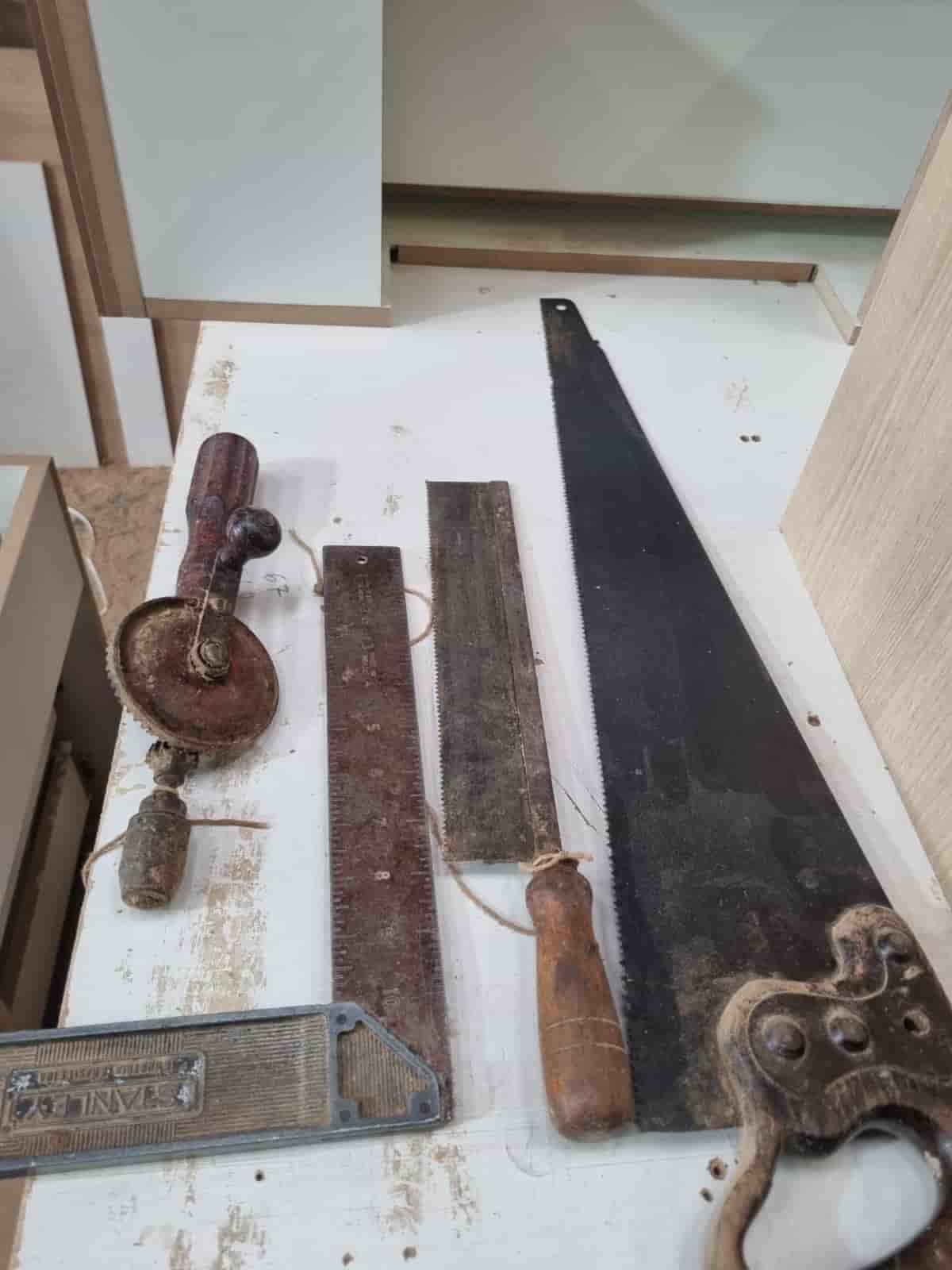
Real World Experience. Engineering Precision.
At SkyTC, technology is never just theoretical—it is driven by practical execution, structural integrity, and strict diagnostic standards. Founded by Valtersky, a tech speaker and seasoned professional, every single guide published here is backed by an authentic multidisciplinary background that bridges the gap between hardware structures and advanced software ecosystems.
Generational Craftsmanship
With 25 years of professional woodworking experience inherited through generations, he masterfully handles smart home mounting, wire routing, and physical hardware adjustments.
Medical Diagnostic Standards
An active career as a licensed X-ray technologist and dental prosthetics practitioner injects rigorous clinical precision, micro-detailed testing, and data integrity into tech evaluations.
Endurance Field Testing
As a competitive mountain ultramarathon runner, he takes every consumer wearable, smart sensor, and GPS watch out into extreme raw environments to test real-world durability boundaries.
✨ Read also: How to Fix Smart Camera Delayed Live Feed Wi-Fi Bug
Content that perfectly complements this post—definitely worth the read.