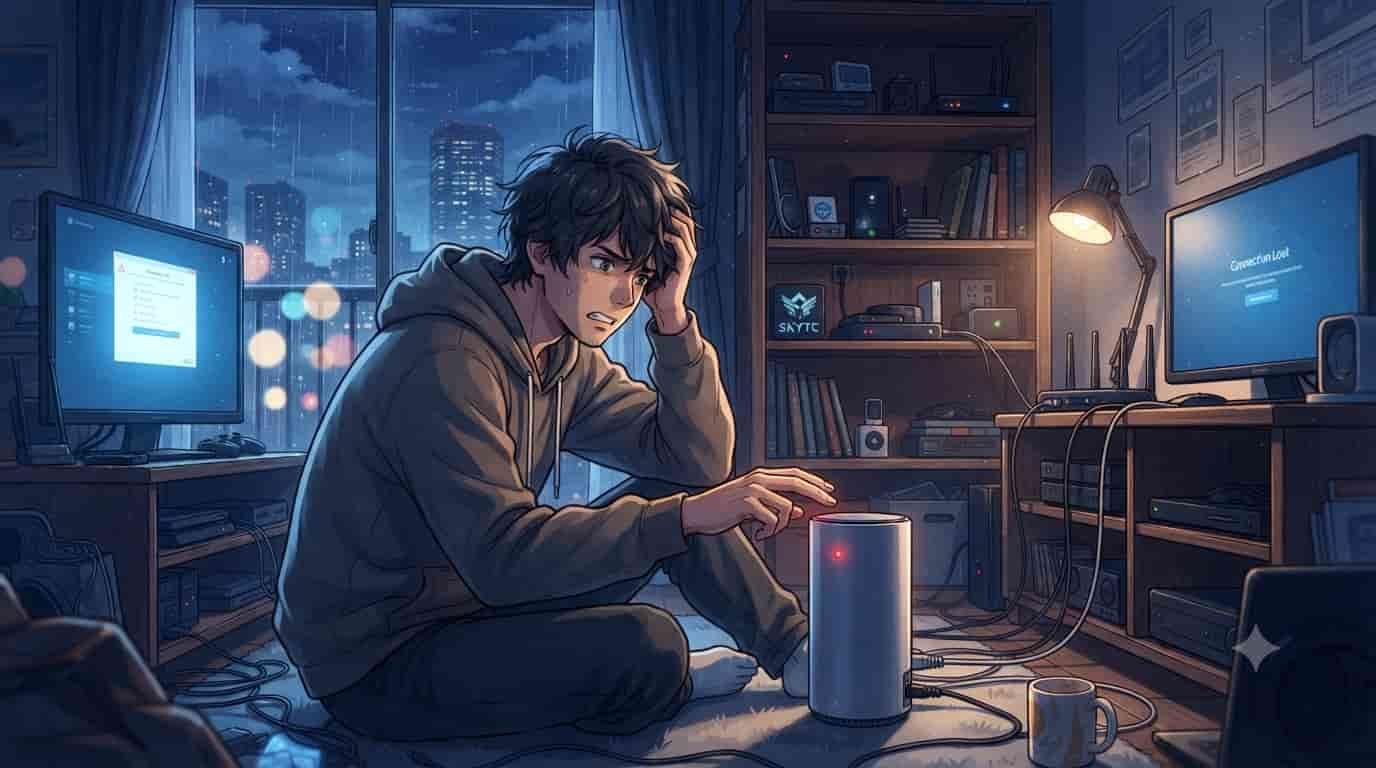
You go to bed with a fully functioning smart home, but when you wake up, your morning routine is completely broken. The smart coffee maker didn’t start, your bedroom lights didn’t fade in, and your phone screen is littered with offline device alerts. If you have ever experienced this frustrating cycle, you have probably spent a frantic morning wondering why smart home hub disconnects from router at night. Getting your network to play nice when the sun goes down is a common headache, but it is entirely fixable once you understand the nighttime quirks of modern home networks.
I am Valtersky, and I have spent twenty-five years in professional woodworking and two years in dental prosthetics, which means I spent a massive amount of my life working seated and analyzing microscopic details. Our team at skytc hands-on tests all this gear, and we have lived through the exact same smart home frustrations you are facing. We have spent endless nights tracking dropped packets and testing smart home hubs to find the real reasons behind these midnight network drops, bypassing all the useless boilerplate advice.
Waking up to a smart home that actually works every single morning brings absolute peace of mind and keeps your morning workflow on track. You do not need to be a network engineer to solve this, and you certainly do not need to throw away your current devices. Let’s dig into the invisible nighttime events that happen inside your router and how you can permanently lock down your hub’s connection.
Bruno’s Midnight Automation Loop: A Cautionary Tale
Let me tell you about a common mistake made by our buddy Bruno. Bruno bought a high-end, premium tier smart home hub and paired it with a brand-new router. Every single night at exactly 2:00 AM, the hub went completely offline, disabling his security cameras and morning alarms. Bruno assumed the hub’s wireless card was defective, packed it up, returned it, and bought a totally different brand, only to experience the exact same nightly disconnect at 2:00 AM.
Bruno spent days arguing with customer support and almost ended up rewiring his entire office, thinking the plaster walls were blocking the signal. It turned out the real issue had nothing to do with the hub hardware at all. His cheap ISP-provided router was performing a mandatory IP address cleanup every night, and because the hub did not have a reserved network address, the router simply dropped the connection and forgot how to talk to it. Bruno could have saved a mountain of frustration and returned packages by simply turning on a single setting in his router configuration.
The Battlefield Reality
Let’s look at the products you find on the shelves and what actually happens during real-world testing when the household goes to sleep. Smart home hubs are incredibly convenient for managing all your Zigbee and Thread devices locally; however, even though they centralize your smart home, their weak internal Wi-Fi antennas are highly prone to dropping connections if your router runs automatic nightly channel optimizations.
Mesh Wi-Fi systems do a spectacular job of blanketing your entire home in high-speed coverage; however, even though they eliminate dead zones, their seamless band-steering software often forcibly boots legacy 2.4GHz smart hubs offline during quiet nighttime hours in a misguided attempt to clean up the network.
ISP-provided routers save you the upfront cost of buying dedicated network hardware; however, even though they are budget-friendly options, their low-grade components easily freeze or crash during nightly automated carrier firmware updates, requiring a manual power cycle.
Investigating Why Smart Home Hub Disconnects From Router at Night
When the sun goes down, your home router does not just sit there idle. It performs several automated maintenance tasks that are designed to keep your internet fast, but these tasks are highly disruptive to smart devices that require a constant, unbroken connection. Here are the four primary culprits.
1. Nightly DHCP Lease Renewals
Every device on your network needs an IP address, which acts like a mailing address. Your router hands these out on temporary leases. During the quiet hours of the night, many routers run a routine to clear out old leases and assign new ones.
When your smart home hub—which, even though it’s lightweight and sits quietly on a shelf, requires constant local communication—tries to renew its lease, a cheap router’s processor can struggle to complete the handshake in time. The hub gets booted off the network, and because it lacks the intelligence of a computer, it often fails to reconnect on its own until you manually unplug it.
2. Auto-Channel Optimization and Frequency Shifts
Your neighbors’ routers are constantly fighting for wireless space, especially on the crowded 2.4GHz band. To combat this, modern routers are programmed to scan the airwaves at night and automatically switch to a less congested wireless channel.
While your laptop and smartphone can seamlessly follow the router to a new channel, older smart home hubs cannot. When the router suddenly jumps from channel 1 to channel 6 at 3:00 AM, the smart hub gets left behind on the old channel, blinking its red disconnect light until morning.
3. Green Ethernet and Eco-Friendly Sleep Modes
To meet energy savings standards, many modern routers and smart switches feature “Green Ethernet” or eco-friendly power-saving modes. When the router detects zero internet traffic from your computers and streaming boxes late at night, it automatically lowers the power output to its ethernet ports or puts its wireless radios into a low-power sleep state.
This minor drop in power is enough to break the delicate connection to your smart home hub. Because the hub only sends tiny packets of data, the sleepy router assumes the port is inactive and completely shuts down the connection until you wake up and start browsing on your phone.
👇 Looking for more performance cheats? Check out our field-tested tactical blueprints:
Essential DIY Troubleshooting Guides
How to Fix Smart Lock Jammed Wooden Door Jamb Error
Stop your deadbolt motor from straining when wooden frames shift with climate changes.
How to Hide Smart TV Wires Inside Wood Wall Panels
Learn clean woodworking methods to route, mask, and clean up complex home theater clutter.
How to Fix Smart Home Device Unresponsive Wi-Fi Bug
Fix network drops, device timeouts, and broken automation routines inside your home local system.
How to Permanently Fix Your Hub’s Nighttime Connection
You do not have to accept nightly disconnects as a normal part of smart home ownership. Here are the most effective, battle-tested solutions to keep your hub online twenty-four hours a day.
Step 1: Lock in a Static IP Reservation
Log into your router’s administration page, locate your smart home hub in the connected device list, and assign it a permanent static IP address. This guarantees that no matter how many times your router clears its DHCP leases at night, your hub’s “mailing address” will never change, preventing lease-negotiation dropouts.
Step 2: Separate Your Wi-Fi Bands
If you are using a dual-band router, go into the settings and split your network into two distinct names: one for 5GHz and one for 2.4GHz. Connect your smart home hub strictly to the dedicated 2.4GHz network and disable auto-channel switching, forcing the router to stay on a single, permanent channel (ideally channel 1, 6, or 11).
Step 3: Disable Energy-Saving Features
Search your router’s settings for terms like “Green Ethernet,” “EEE (Energy Efficient Ethernet),” or “Eco-Mode” and toggle them completely off. Your router will consume an imperceptible amount of extra electricity, but it will keep its ports fully powered and awake all night.
Step 4: Ditch Wi-Fi and Use a Wired Connection
Whenever possible, connect your smart home hub to your router using a physical Ethernet cable—which, even though it offers flawless physical connections, running them through walls is a real pain. A physical wire completely bypasses Wi-Fi interference, auto-channel shifts, and band-steering issues, making nighttime disconnects a thing of the past.
Smart Hub Connection Methods Compared
| Connection Type | Nighttime Reliability | Setup Complexity | Interference Resistance | Best For |
|---|---|---|---|---|
| Ethernet Cable | Extremely High | Low | Flawless | Hubs placed near the main router |
| Dedicated 2.4GHz Wi-Fi | High | Medium | Medium | Large homes with split Wi-Fi bands |
| Shared Dual-Band Wi-Fi | Low | Very Low | Low | Basic setups without many smart devices |
| Powerline Adapters | Medium | Medium | High | Hubs placed far away from the router |
Pros and Cons of Network Adjustments
- Pros:
- Eliminates the frustration of waking up to broken automations and unresponsive smart home scenes, saving you time every morning.
- Improves the overall stability of all your connected devices by optimizing your home router’s wireless environment.
- Extends the battery life of your connected battery-powered smart sensors, which drain their power quickly when constantly searching for a disconnected hub.
- Cons:
- Splitting your Wi-Fi bands provides excellent smart home stability; however, you will need to manually reconnect some of your older smart plugs—which, even though they make any dumb appliance smart, can easily block neighboring wall outlets unless you buy slim designs.
- Assigning static IP addresses requires logging into your router’s administrative backend; however, the menu layouts vary widely by model, making the settings tricky to find on some bargain-bin accessories.
- Disabling eco-modes prevents network port sleep cycles; however, it slightly increases the idle power draw of your networking hardware over the course of the year.
In 30 Seconds
Your smart home hub isn’t broken. It disconnects at night because your router is performing automated maintenance tasks, like changing wireless channels, clearing temporary IP addresses, or putting its ethernet ports into an eco-friendly sleep mode. To fix it instantly, log into your router’s settings, assign your smart hub a permanent Static IP address, and disable any “Green Ethernet” or sleep modes. If the hub supports it, connect it to your router with a physical Ethernet cable to completely bypass wireless instability.
Your Master Checklist for Nighttime Network Stability
- Why Smart Home Hub Disconnects From Router at Night is often solved by setting a static IP reservation; however, keep in mind you must do this inside your router’s advanced settings rather than on the smart hub itself.
- Connect your hub with a physical Ethernet cable whenever possible; however, ensure you do not pinch the wire behind heavy furniture or route it over sharp metal brackets.
- Disable the auto-channel optimization setting on your router; otherwise, the router will jump to a new wireless frequency at night and leave your smart hub stranded.
- Turn off all eco-friendly “Green Ethernet” or sleep modes in your router’s settings; otherwise, the router will shut down power to your hub’s connection during quiet hours.
- Set up a dedicated 2.4GHz network specifically for your smart devices; however, make sure your phone is temporarily connected to this same band when pairing new smart plugs.
- Place your smart hub at least three feet away from your main router; even though they need to communicate, placing them too close can cause signal overload and dropouts.
- Avoid budget-friendly options when choosing a main home router; instead, invest in a premium setup with a powerful processor that can handle dozens of concurrent connections.
- Keep your router’s firmware updated to prevent security vulnerabilities; however, be prepared to manually power cycle your smart hub after any automated router updates.
- Check if your smart hub is plugged into a smart plug that has an active night-timer automation; otherwise, the plug might be cut-off power to the hub without you realizing it.
- Check your router’s DHCP lease time setting and increase it to several days; this simple tweak reduces the frequency of nighttime IP address renegotiations.
- Avoid placing your smart hub inside closed metal cabinets; even though it keeps your entryway looking tidy, the metal acts as a shield and severely degrades the wireless signal.
- Test your network stability using a ping tool during the evening; this helps you pinpoint whether the disconnect is caused by signal range or router processing issues.
FAQ
Why does my hub disconnect at the exact same time every night?
This is almost always caused by a scheduled router task. Most routers run automated maintenance routines, such as IP address lease renewals, auto-channel optimizations, or carrier firmware updates, between midnight and 4:00 AM when network traffic is lowest.
Will a mesh Wi-Fi system fix my nighttime disconnects?
Not necessarily. While mesh systems provide excellent wireless coverage, their band-steering software often tries to force 2.4GHz smart hubs onto the 5GHz frequency. If you use a mesh system, ensure you can lock your smart hub to a specific node and frequency band.
Is it safe to leave my smart hub connected via Ethernet all the time?
It is highly recommended. Ethernet is the most reliable, secure connection method available. It completely eliminates wireless interference, channel-hopping issues, and signal degradation, ensuring your hub remains online twenty-four hours a day.
Why do my battery-powered smart sensors die so fast when the hub disconnects?
When your smart hub goes offline, your battery-powered sensors do not go to sleep. Instead, they enter a high-power search mode, constantly broadcasting signals to find the missing hub. A single night of hub disconnection can drain weeks of sensor battery life.
What is DHCP and how does it affect my smart home?
DHCP is the protocol your router uses to assign temporary IP addresses to your devices. When the lease expires, the device must request a new address. If your router is overloaded or performs this cleanup at night, the smart hub can fail to secure a new address and drop offline.
Should I buy a new router to fix this issue?
Only if you are using a cheap, low-grade ISP-provided router. These bargain-bin units have weak processors that easily freeze when managing more than a dozen smart home devices. Upgrading to a dedicated, premium tier router is always a smart investment.
What is band steering and why is it bad for smart hubs?
Band steering is a router feature that automatically pushes dual-band devices to the faster 5GHz network. Because most smart home hubs only have 2.4GHz radios, the router’s constant steering attempts can confuse the hub’s wireless card, causing it to drop the connection.
Can appliance interference at night cause my hub to disconnect?
Yes. Heavy-duty appliances like refrigerators, microwaves, or baby monitors that run continuously at night can cause significant electromagnetic interference on the 2.4GHz band. Keep your smart hub elevated and away from large metal household appliances.


Real World Experience. Engineering Precision.
At SkyTC, technology is never just theoretical—it is driven by practical execution, structural integrity, and strict diagnostic standards. Founded by Valtersky, a tech speaker and seasoned professional, every single guide published here is backed by an authentic multidisciplinary background that bridges the gap between hardware structures and advanced software ecosystems.
Generational Craftsmanship
With 25 years of professional woodworking experience inherited through generations, he masterfully handles smart home mounting, wire routing, and physical hardware adjustments.
Medical Diagnostic Standards
An active career as a licensed X-ray technologist and dental prosthetics practitioner injects rigorous clinical precision, micro-detailed testing, and data integrity into tech evaluations.
Endurance Field Testing
As a competitive mountain ultramarathon runner, he takes every consumer wearable, smart sensor, and GPS watch out into extreme raw environments to test real-world durability boundaries.
✨ Read also: Fix Smart Switch Unresponsive Status inside HomeKit