
If you have spent the last hour unplugging and replugging your smart outlet only to watch it blink green and fail again, you are probably tearing your hair out wondering why my smart plug keeps dropping wi-fi connection. It is an incredibly annoying struggle that turns a convenient home automation setup into a tedious daily chore. You just wanted to automate your coffee maker or desk lamp, but instead, you are stuck staring at a greyed-out “Device Offline” screen.
But don’t throw that little plastic cube out of the window just yet. Our skytc team has spent years hands-on testing these exact scenarios in real-world environments. I am Valtersky, and with 25 years of experience in woodworking, plus 2 years in dental prosthetics, I spent a ton of time working seated, which made me obsess over microscopic precision. Over at skytc, we apply that same obsessive, detail-oriented testing to smart home gear so you do not have to waste your time or hard-earned cash.
We have run into every single network drop imaginable, and we know exactly how to fix them. By following this guide, you will finally achieve a rock-solid connection for your smart devices, giving you back hours of wasted troubleshooting time and the ultimate peace of mind.
In 30 Seconds: The Quick Verdict
Here is the quick answer to your network headaches without any technical fluff:
- Your smart plug is dropping connection because modern dual-band routers constantly try to force its simple 2.4 GHz radio onto a 5 GHz frequency it cannot handle; however, you can easily solve this by logging into your router settings, splitting your network into two separate Wi-Fi names (one for 2.4 GHz and one for 5 GHz), and locking your smart plug onto the 2.4 GHz network permanently.
- If you separate the bands and the plug still drops, the physical hardware is either too far from your router, blocked by dense wall materials, or running on low-grade components that overheat under load, meaning it is time to upgrade to a premium tier investment that handles network changes gracefully.
The Hypothetical Common Mistake
Let me tell you about a classic mistake that almost everyone makes when they first start building out their automated home. Imagine a busy work-from-home parent who buys a bulk pack of budget-friendly smart plugs, even though these bargain-bin accessories are built with cheap, unshielded internal chips. They want to control a heavy-duty space heater under their wooden desk and a decorative lamp tucked behind a massive metal filing cabinet in the basement office.
They plug everything in, complete the quick setup, and feel like a tech wizard. But within two days, the basement plug goes completely dark. They spend hours resetting the plug, screaming at their phone, and rebooting their main router, which temporarily fixes the issue for about ten minutes before it drops again.
The real mistake here was twofold: they placed a low-power smart plug behind a massive metal barrier that acts like a shield against Wi-Fi signals, and they overloaded the local IP pool of a cheap router provided by their internet provider. They blamed the software, but the actual culprit was physical placement and cheap hardware limitations. Once we moved the plug away from the metal cabinet and assigned it a dedicated spot on the network, the connection stayed solid.
The Battlefield Reality
Let’s talk about the harsh truth behind the marketing promises on the retail boxes. Manufacturers love to promise “seamless, instant connectivity” and “zero-effort setup” to get you to buy their gear; however, the battlefield reality is that most budget smart plugs use low-grade components that struggle to handle the high-traffic demands of a modern household network.
- Smart plugs, even though they offer incredible convenience for scheduling your appliances, are notorious for having microscopic, unshielded antennas that lose their grip on your Wi-Fi signal at the first sign of interference.
- Smart power strips, even though they allow you to control multiple outlets individually, usually share a single cheap wireless receiver inside that easily chokes and disconnects when multiple high-draw appliances are active.
- High-end mesh routers, even though they blanket your entire house in strong wireless coverage, often fail to handle the basic hand-off protocols for static smart home devices, causing the plugs to freeze while trying to switch between router nodes.
The Root Causes: Why My Smart Plug Keeps Dropping Wi-Fi Connection
To fix the issue permanently, you need to understand exactly what is happening behind the scenes in your home network.
The 2.4 GHz vs 5 GHz Tug-of-War
Almost all smart plugs on the market rely exclusively on the older 2.4 GHz frequency because it travels further and penetrates walls better than 5 GHz; however, modern smart routers use a feature called band steering to combine both frequencies under a single Wi-Fi name.
When your router sees your smart plug, it tries to optimize the network by forcing the plug onto the faster 5 GHz band. Because the smart plug does not have the hardware to talk to 5 GHz, it gets utterly confused, drops its IP address, and goes completely offline.
Router IP Address Expiration
Your router acts like a traffic cop, handing out temporary identification cards (called IP addresses) to every device in your house. These temporary cards have an expiration date, which is known as the DHCP lease time.
When the lease expires, your laptop or phone quickly requests a new one without you ever noticing; however, cheap smart plugs often have terrible firmware that fails to renew the lease automatically, leaving the plug stranded without a network identity until you physically power-cycle it.
Local Network Congestion
The standard router provided by your internet service provider is usually designed to handle a handful of devices like a couple of phones and a TV; however, as you add smart bulbs, smart plugs, and smart assistants, the router’s memory gets completely overloaded.
Once the router hits its limit, it will start kicking off the weakest, quietest devices on the network to save memory for high-priority tasks like gaming or streaming, and your smart plug is usually the first victim to get booted.
Smart Plug Protocol Comparison
To help you understand how different smart plug technologies stack up when it comes to connection stability, here is a quick breakdown based on our hands-on testing at skytc:
| Protocol Type | Setup Difficulty | Router Network Overhead | Signal Range Obstruction | Offline Stability |
|---|---|---|---|---|
| Standard Wi-Fi Plugs | Very low and direct | High (clogs your router) | Medium (varies by model) | Poor (drops often on dual-band) |
| Bluetooth Hybrid | Simple initial pairing | High (uses Wi-Fi for control) | Low (requires close hub) | Average (prone to range drops) |
| Zigbee Plugs | Medium (requires a hub) | Extremely low | Long (creates a mesh) | High (rarely drops offline) |
| Thread / Matter Plugs | Medium (needs border router) | Near zero | Long (creates a mesh) | Excellent (instant recovery) |
Step-by-Step Fixes to Stabilize Your Connection
If you want to stop the endless cycle of unplugging and replugging your smart outlets, follow these proven troubleshooting steps.
Step 1: Separate Your Router’s Wi-Fi Bands
The most effective way to keep your smart plugs online is to stop your router from trying to force them onto the wrong frequency.
- Log into your router’s admin panel by typing its gateway IP address into a web browser.
- Locate the wireless settings and find the option for “Band Steering” or “Smart Connect.”
- Disable this feature so you can edit the 2.4 GHz and 5 GHz networks individually.
- Rename your networks so they are distinct (for example, “HomeNetwork_2G” and “HomeNetwork_5G”).
- Reconnect your smart plug specifically to the new 2.4 GHz network name.
Step 2: Assign a Static IP Address (DHCP Reservation)
This stops your router from changing your smart plug’s IP address and cutting off its communication.
- Open your router settings and find the DHCP client list to locate your smart plug’s MAC address.
- Navigate to the “Address Reservation” or “Static IP” section.
- Click add new, select your smart plug from the list, and lock its current IP address to its physical MAC address.
- Save the settings and reboot both your router and the smart plug.
The Ultimate Smart Plug Stability Checklist
Use this quick-action checklist to audit your smart home setup and eliminate connection drops for good.
- First check why my smart plug keeps dropping wi-fi connection by ensuring it is locked to a dedicated 2.4 GHz channel; however, dual-band auto-switching will constantly kick the plug offline if the networks share the exact same name.
- Check the distance between your smart plug and the main router; however, even though some brands claim long-range coverage, cheap internal antennas struggle to penetrate more than two standard drywall barriers.
- Keep your smart plug firmware updated through its native application; however, avoid updating multiple devices at the same time as this can crash your local network gateway.
- Avoid placing smart plugs near large metal appliances like refrigerators or microwaves; however, even if your Wi-Fi signal looks strong on your phone, these metal surfaces act as physical shields that block low-power smart home signals.
- Audit the number of active clients connected to your ISP-provided router; however, these basic routers are only built to handle a few high-bandwidth devices and will automatically boot quiet smart accessories when overloaded.
- Invest in a dedicated, budget-friendly mesh router system to offload your smart home traffic; however, make sure you configure the mesh nodes to handle static devices without constantly forcing them to roam between access points.
- Set your router’s 2.4 GHz channel width specifically to 20 MHz; however, leaving it on auto or 40 MHz will introduce heavy signal interference from neighboring Wi-Fi networks.
- Verify that your smart plug is not drawing more power than its maximum rated amperage; however, overloading the physical outlet can cause internal heat build-up that temporarily disables the plug’s wireless chip.
- Change your router’s wireless channel from auto to a fixed, non-overlapping channel like 1, 6, or 11; however, do not use channel 11 if you have heavy Zigbee interference in the exact same area.
- Delete and reinstall the smart plug’s controlling application if you experience local syncing issues; however, make sure you clear the app’s cache first to prevent old, corrupted configuration data from reloading.
- Ensure your router’s local lease time is set to a longer duration like 7 days; however, setting this lease time too short will force your simple smart plug to constantly renegotiate its network connection.
- Switch to Zigbee or Thread smart plugs if your Wi-Fi network remains completely saturated; however, remember that these alternative protocols require you to purchase a compatible smart home hub or border router to function.
👇 Looking for more performance cheats? Check out our field-tested tactical blueprints:
Essential DIY Troubleshooting Guides
How to Fix Smart Lock Jammed Wooden Door Jamb Error
Stop your deadbolt motor from straining when wooden frames shift with climate changes.
How to Hide Smart TV Wires Inside Wood Wall Panels
Learn clean woodworking methods to route, mask, and clean up complex home theater clutter.
How to Fix Smart Home Device Unresponsive Wi-Fi Bug
Fix network drops, device timeouts, and broken automation routines inside your home local system.
Frequently Asked Questions from a Tired Tech Veteran
Can I run my smart plugs on a 5 GHz Wi-Fi network?
No, and stop trying to make it happen. Almost all standard smart plugs only contain a cheap 2.4 GHz radio chip to keep manufacturing costs down. If your phone is connected to 5 GHz during setup, the app will usually fail to transfer the network credentials to the plug. Always use 2.4 GHz.
Why does my smart plug work fine in the living room but drops offline in the bedroom?
It is all about the building materials. Your living room likely has a clear line of sight to the router, whereas your bedroom might be separated by concrete walls, copper pipes, or heavy wooden wardrobes. Smart plugs have incredibly weak, low-power antennas that simply cannot punch through heavy physical barriers.
Will performing a factory reset fix my dropping smart plug?
Only temporarily. A factory reset clears out corrupted network configurations, which will get you back online for a little while; however, if your underlying issue is router congestion or band-steering confusion, the plug will drop offline again within a few days once the network conditions change.
Can other wireless devices in my house interfere with my smart plugs?
Absolutely. Baby monitors, microwave ovens, cordless phones, and even your neighbor’s old Wi-Fi router all operate on the crowded 2.4 GHz frequency band. Every time you turn on a microwave near a cheap, unshielded smart plug, it can completely drown out the Wi-Fi signal and force the plug to disconnect.
Do I need to buy an expensive router to fix this?
Not necessarily. You do not need a high-end setup designed for competitive gaming, but you do need to stop using the bargain-bin router that your internet provider gave you. A mid-tier, budget-friendly mesh router system will easily handle dozens of smart home devices without breaking a sweat.
Why does my smart plug say “Local Only” in the app?
This means your smart plug is successfully connected to your local router, but the router is blocking the plug from talking to its cloud servers. This usually happens due to aggressive firewall settings, a temporary internet outage from your provider, or because the manufacturer’s external cloud servers are currently down.
Is it safe to leave a smart plug that keeps disconnecting plugged in?
While a simple wireless drop is not an immediate safety hazard, a plug that constantly disconnects and reconnects can cause wear on the internal physical relay. Furthermore, if the disconnect is caused by the internal micro-controller overheating, it is a sign of low-grade components, and you should replace it immediately.
What is the absolute best alternative if I hate Wi-Fi smart plugs?
Switch to Zigbee or Thread. These protocols do not use your router’s Wi-Fi network at all. Instead, they talk directly to a dedicated local hub and form a self-healing mesh network where every single plug acts as a repeater, resulting in near-instant response times and zero drops.

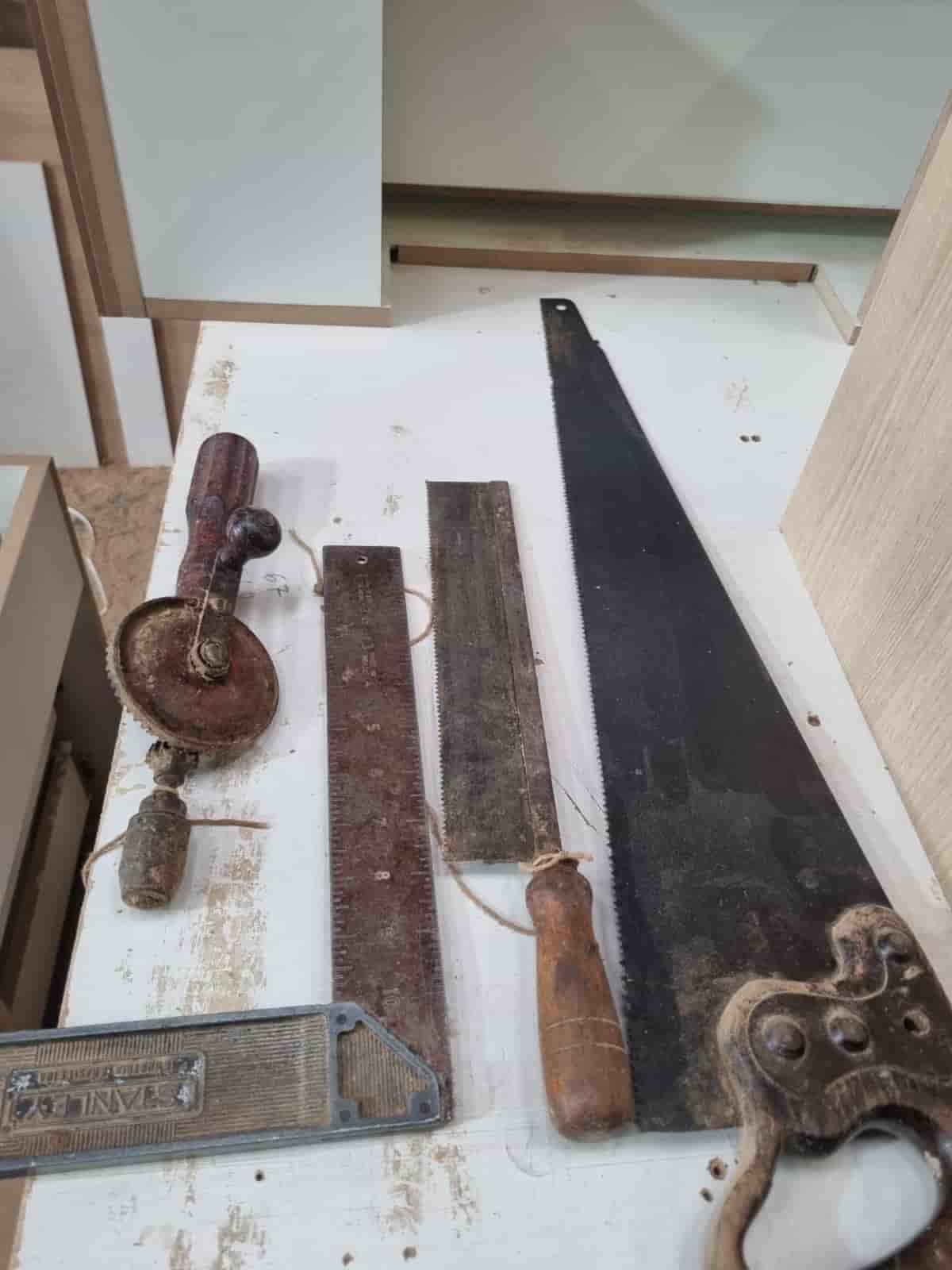
Real World Experience. Engineering Precision.
At SkyTC, technology is never just theoretical—it is driven by practical execution, structural integrity, and strict diagnostic standards. Founded by Valtersky, a tech speaker and seasoned professional, every single guide published here is backed by an authentic multidisciplinary background that bridges the gap between hardware structures and advanced software ecosystems.
Generational Craftsmanship
With 25 years of professional woodworking experience inherited through generations, he masterfully handles smart home mounting, wire routing, and physical hardware adjustments.
Medical Diagnostic Standards
An active career as a licensed X-ray technologist and dental prosthetics practitioner injects rigorous clinical precision, micro-detailed testing, and data integrity into tech evaluations.
Endurance Field Testing
As a competitive mountain ultramarathon runner, he takes every consumer wearable, smart sensor, and GPS watch out into extreme raw environments to test real-world durability boundaries.
✨ Read also: Fix Alexa Echo Saying Device Is Offline But App Works