
You are sitting at your desk six hours into a marathon coding session or report draft, feeling a dull, persistent ache building in your finger knuckles and wrists while your fingers crash against a rock-hard plastic surface. Big tech reviewers constantly pitch flashy RGB glowing toys, but finding the best budget keyboards for comfortable long hour typing comes down to switch actuation force curves, bottom-out shock absorption, and ergonomic mounting architecture.
In my repair bay, Valtersky and my dedicated support team regularly teardown cheap input devices and cracked circuit boards. I see firsthand what happens when professionals spend years pounding away on mushy membrane boards or harsh tray-mounted plastic decks: inflamed hand tendons, collapsed rubber domes, double-typing key chatter, and complete wrist fatigue that ruins daily work velocity.
Upgrading to a properly engineered, budget-friendly keyboard architecture transforms your daily typing stamina, protects your hand health, and increases your daily output. Adopting this lab-tested hardware approach saves you from chronic repetitive strain injuries, eliminates frustrating equipment failures, and gives you a rock-solid typing setup that lasts for years without costing a fortune.
30-Second Tech Support Counter Talk: The Zero-Fluff Verdict
Look, stop buying cheap, hollow office membrane keyboards or rigid tray-mount mechanical boards with stiff clicky switches. If you type thousands of words every day, hitting a hard plastic bottom-out flexes your finger joints and stresses your tendons. Look for gasket-mounted mechanical keyboards with pre-lubricated linear or light tactile switches, or well-damped low-profile scissor-switch boards. Prioritize physical wrist alignment and soft impact dampening over useless RGB lighting. Done.
Hardware Architecture Breakdown: Budget Keyboard Mounting Types
Before purchasing an office keyboard, you must understand how different mounting architectures transfer kinetic energy into your fingers. Our laptop hardware specialist evaluates typing devices strictly on bottom-out shock absorption, keycap material density, and PCB board flex.
| Keyboard Mounting Architecture | Market Classification | Bottom-Out Shock Damping | Ergonomic Joint Fatigue Rating | Long-Term Chassis Durability |
|---|---|---|---|---|
| Gasket-Mounted Mechanical | Budget-Friendly Option | Superior (Poron Foam Dampening) | Exceptional (Low Joint Strain) | 9.5/10 |
| Low-Profile Scissor-Switch | Budget-Friendly Option | Moderate (Short Travel Distance) | High (Minimal Wrist Extension) | 8.2/10 |
| Integrated Tray-Mount Mechanical | Low-Grade Components | Poor (Harsh Metal/Plastic Impact) | Moderate (High Bottom-Out Force) | 6.0/10 |
| Standard Rubber Dome Membrane | Bargain-Bin Accessories | Critical (Mushy Variable Resistance) | Poor (High Finger Tendon Strain) | 3.5/10 |
| Ergonomic Split Membrane Board | Budget-Friendly Option | Fair (Soft Rubber Cushioning) | High (Natural Wrist Pronation) | 7.0/10 |
Why the Best Budget Keyboards for Comfortable Long Hour Typing Protect Your Joints
When you type continuously for eight to ten hours, your fingers strike individual keycaps roughly forty thousand times per day. If your keyboard lacks internal shock absorption, every single keystroke sends a micro-impact shockwave right back up your finger bones and hand tendons.
Just as an athlete relies on nutrient-dense meat and its natural fat to rebuild connective joint tissue and sustain endurance rather than relying on sugary filler, your hands require proper mechanical energy absorption and natural palm alignment to withstand millions of keystrokes without inflammation. A properly engineered budget keyboard uses dampening foams and flexible mounting plates to cushion every impact.
Here is how the primary budget keyboard categories perform when subjected to real-world workplace grinding rather than brief store display tests:
1. Gasket-Mounted Mechanical Keyboards
Battlefield Assessment: Mechanical boards where the internal plate and circuit board hover inside soft foam or silicone gaskets rather than being screwed directly into hard plastic posts.
The Good: Exceptional bottom-out shock absorption, customizable switch options, deep muted acoustic sound, and easily replaceable parts that extend operational life indefinitely.
The Bad: Slightly thicker chassis profile that requires a soft palm rest or proper desk height adjustment to avoid wrist extension.
2. Low-Profile Scissor-Switch Keyboards
Battlefield Assessment: Slim chiclet-style keyboards using mechanical scissor clips over membrane contacts, offering ultra-short key travel similar to high-end laptops.
The Good: Ultra-thin profile eliminates wrist bending, near-silent operation in shared office environments, and rapid key actuation requiring minimal finger effort.
The Bad: Minimal key travel provides little cushioned bottom-out room, and keycaps cannot be easily swapped or deeply cleaned if liquids spill inside.
3. Traditional Rubber Dome Office Keyboards
Battlefield Assessment: Mass-produced cheap office keyboards relying on a single sheet of silicone rubber domes underneath thin plastic keycaps.
The Good: Extremely low initial acquisition cost and lightweight plastic construction that is simple to replace if damaged.
The Bad: Rubber domes degrade quickly under heat and sweat, becoming stiff and mushy, forcing you to press harder on every key and causing severe finger fatigue.
The Realities of the Battlefield
Modern keyboard manufacturers flood the market with cheap, brightly lit peripherals boasting impressive features like wireless multi-device switching and mechanical feel switches on glossy sales pages.
However, beneath that marketing hype lies a mechanical engineering nightmare: cheap ABS keycaps that polish into greasy slick plastic within weeks, flimsy fold-out plastic feet that snap under heavy typing pressure, and hollow plastic cases that amplify hollow pinging sounds.
In our repair bay, we frequently diagnose broken budget input devices. On cheap tray-mount mechanical boards, the switch socket solder points are stressed every time you bottom out hard against rigid metal standoffs. Over time, that constant physical flexing cracks the microscopic solder legs connecting the socket to the printed circuit board, resulting in keys that skip inputs or register double characters during important work tasks.
Additionally, cheap thin ABS keycaps wear down quickly, losing their textured surface grip. As keycaps grow slick, your fingers slip slightly on every keystroke, forcing your hand muscles to work twice as hard to maintain alignment. Investing in budget hardware that features high-density PBT keycaps and structural foam dampening keeps your setup comfortable and reliable over long-term office use.
Hypothetical Failure Scenario: The Cheap Office Membrane Trap
Consider a remote copywriter or software developer who works ten hours a day on a basic stock membrane keyboard that came free with an office desktop tower. To make typing “easier,” the worker flips out the thin plastic tilt legs on the back of the board, forcing their wrists into a sharp upward angle while resting their palms flat on a hard wooden desk edge.
Because the aging rubber domes inside the keyboard have hardened from sweat and dust exposure, the typist must hit each key with extra force to actuate the switch. After six months of pounding away on mushy, stiff keys with bent wrists, the typist develops severe tendonitis in their forearms and sharp shooting pains in their thumb joints.
To make matters worse, the spacebar rubber dome tears, causing missing spaces in documents and constant backspacing. The worker loses hours of productivity, suffers daily physical pain, and faces medical expenses—all because they relied on a low-grade, worn-out rubber dome board instead of an ergonomically damped keyboard setup.
👇 Looking for more performance cheats? Check out our field-tested tactical blueprints:
Guides for Your Next Workspace
Professional Laptops
The definitive blueprint to selecting high-performance, enterprise-grade workstations engineered to scale your productivity.
Budget Tech Tools
Practical strategies and low-cost digital tools engineered to maximize office performance without breaking your budget.
Power User Gadgets
Advanced hardware, desk automation tools, and elite tech ecosystems built to completely eliminate workflow bottlenecks.
Actionable Execution Checklist
Follow this field-tested tactical cheat code to optimize your typing comfort, prevent joint strain, and select long-lasting budget hardware:
- Select the best budget keyboards for comfortable long hour typing today.
Pro-Tip: Prioritize gasket-mounted mechanical boards or low-profile scissor switches over cheap tray-mounted plastic cases to absorb impact energy before it reaches your knuckles. - Choose high-density PBT keycaps over cheap ABS plastic.
Pro-Tip: Textured PBT plastic resists finger oil shine and maintains surface grip, preventing your fingers from slipping during fast typing sessions. - Keep keyboard tilt legs flat to maintain neutral wrist angles.
Pro-Tip: Angling the keyboard upward forces your wrists into backward extension, pinching median nerves and causing carpal tunnel strain. - Opt for pre-lubricated linear or light tactile switches.
Pro-Tip: Smooth lubricated switch stems reduce mechanical friction, requiring less finger force to actuate keys smoothly during long sessions. - Install a firm foam or wooden palm rest in front of high-profile boards.
Pro-Tip: Supporting the base of your palms keeps your wrists straight, keeping hand tendons relaxed while hovering over mechanical keycaps. - Verify hot-swappable PCB sockets before purchasing mechanical keyboards.
Pro-Tip: Hot-swap sockets allow you to replace a single failing switch in two minutes without needing micro-soldering tools. - Ensure internal Poron or EVA dampening foam is present inside the case.
Pro-Tip: Internal case foam absorbs hollow acoustic echoes and cushions key bottom-out shock, protecting finger joints. - Clean dust and skin debris out of key switches quarterly.
Pro-Tip: Accumulated dirt inside mechanical switches increases slider friction, making key presses feel stiff and inconsistent. - Select keyboards with detachable USB-C cables over fixed wires.
Pro-Tip: A damaged cable on a fixed-wire keyboard ruins the entire device, while a detachable port allows instant cable replacement. - Lubricate stabilizer wire contacts to stop loud spacebar rattle.
Pro-Tip: High-viscosity grease on spacebar and shift key wire ends eliminates harsh acoustic pinging and stabilizes long key travel. - Position your elbow joints at a ninety-degree angle relative to the desk surface.
Pro-Tip: Proper seat height adjustment relieves upper shoulder tension and keeps forearm muscles relaxed during marathon typing hours.
Dynamic No-Nonsense FAQ
Are expensive mechanical keyboards necessary for comfortable typing?
No. You do not need high-end custom boards. Many budget-friendly gasket-mounted mechanical keyboards offer exceptional foam dampening, smooth switches, and PBT keycaps at a fraction of high-end custom prices.
Why do my finger joints hurt after typing on a cheap mechanical keyboard?
Because cheap mechanical boards use rigid tray-mount designs where the switch plate is screwed directly into hard plastic posts. Every time you bottom out, the impact shock hits your finger joints directly.
Should I choose clicky, tactile, or linear switches for long hour typing?
Linear or light tactile switches are best. Clicky switches require higher actuation force and create loud, high-pitched noise that causes finger fatigue and annoys coworkers during long work hours.
Is a wrist rest mandatory when using a low-profile keyboard?
Not usually. Low-profile chiclet and scissor-switch keyboards sit flat against the desk surface, allowing your wrists to stay in a natural, neutral position without needing elevated palm support.
Why do rubber dome office keyboards become harder to type on over time?
Rubber domes dry out, lose elasticity, and harden when exposed to ambient heat, dust, and hand oils. As the rubber degrades, actuation force increases, causing severe finger strain.
Do split ergonomic keyboards actually reduce wrist pain?
Yes. Split keyboards allow you to separate the two halves, keeping your forearms in a natural shoulder-width alignment and preventing uncomfortable wrist pronation.
Can I make a cheap, hollow plastic keyboard sound and feel better?
Yes. You can open the case, insert dense packaging foam beneath the circuit board, and apply painter’s tape to the back of the PCB (the tape mod) to absorb ping and soften impact shock.
Are wireless budget keyboards reliable for heavy daily typing?
Yes, provided they use 2.4GHz wireless dongles or solid wired connections. Avoid relying solely on cheap Bluetooth connections, which can drop inputs or lag during fast typing bursts.
Why Trust SKYTC Curated Gear?
At SKYTC, we simplify technology for you. We aren’t just another deals site; we are hardware experts obsessively focused on elite performance.
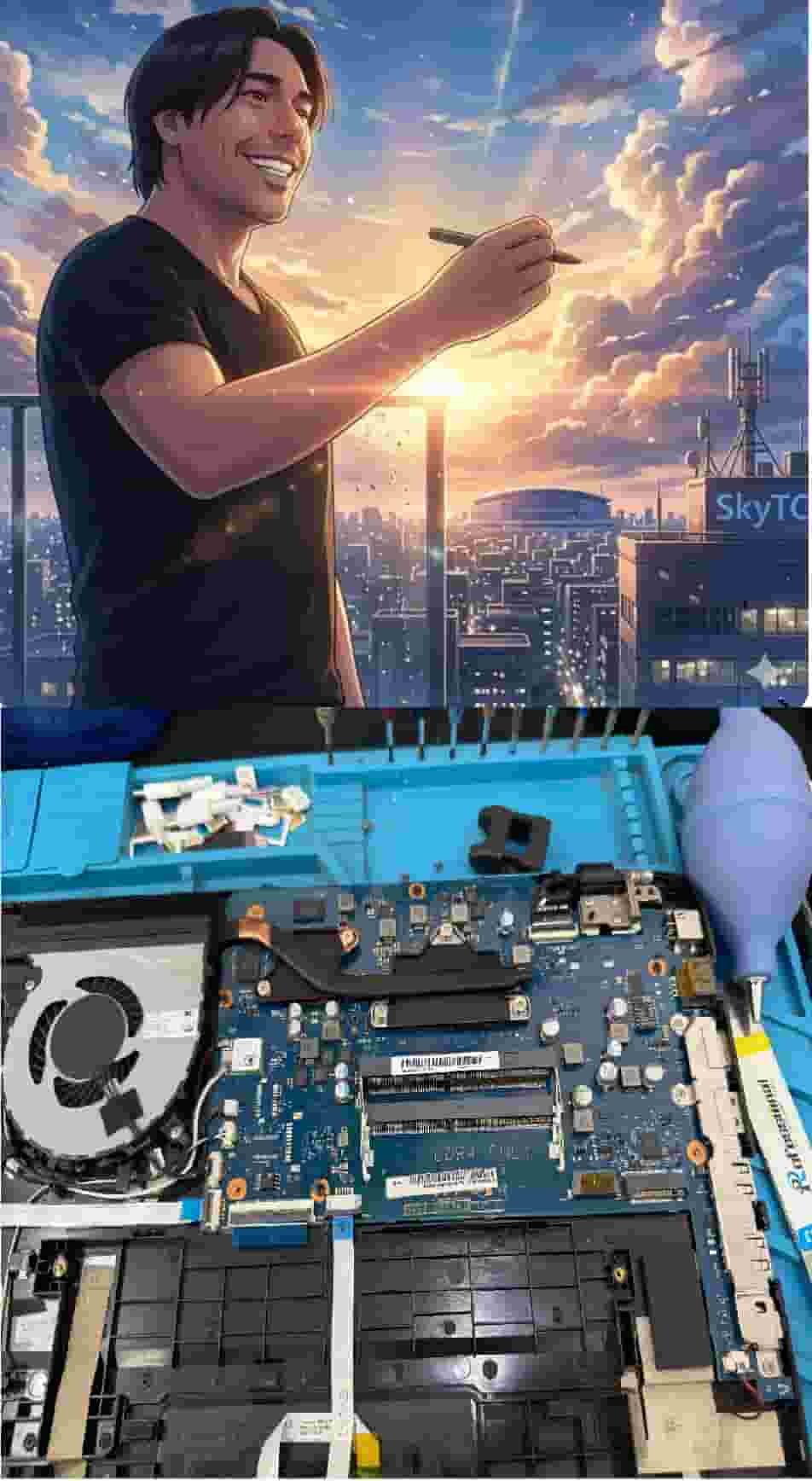
Technical Bio: Hardware & Laptops
“At SkyTC, technology is driven by engineering precision and real field experience. I am Valtersky, and I bring a unique background to the bench: from professional woodworking, the eye for structural integrity; from radiology, an absolute obsession with microscopic details.
As an ultra-endurance marathon runner, I don’t just browse store windows. I tear machines down, run intensive stress tests on thermal dissipation, and validate the actual build quality of every single component. My mission is to translate complex tech engineering and tech finances into smart decisions for your workflow.
Here, we speak straightforward, jargon-free English with the authority of someone who knows exactly what is inside the chassis.”
✨ Read also: (How Budget Tech Tools Improve Daily Business Efficiency: Hardware Architect’s Unfiltered Field Guide)
A deeply technical piece of content that perfectly complements this post — absolutely worth the read.