
Have you ever felt completely buried under an avalanche of tasks, watching your day vanish while you jump between ten different browser tabs? Finding the best budget tech tools for efficient time management is a major headache because the internet is flooded with overpriced junk and complex software that takes weeks to master. We have all been there, staring at a frozen screen, feeling like we are throwing money down the drain just to stay organized.
As someone who leads a dedicated support team alongside our laptop hardware specialist, I see clients make these mistakes daily. Just last week, a frantic freelance designer came to our shop after spending a ridiculous amount of money on a high-end, dual-screen setup, only to realize his older laptop couldn’t even run the screen management software without overheating. His expensive investment was literally sitting on his desk as a glorified paperweight.
That is exactly why we are here today. You do not need a premium tier investment or a high-end setup to reclaim your day. With the right, highly focused tools, you can easily save hours of frustration, streamline your workflow, and achieve absolute peace of mind without costing a fortune.
In 30 Seconds: The Blunt Truth
Quit buying high-end productivity hubs and massive multi-monitor setups that only serve to distract you. Real time management comes from lightweight, laser-focused hardware and minimalist software integrations. Invest in a solid, tactile macro pad, get a physical desk timer that keeps your eyes off your phone, and stick to free, open-source scheduling engines. The goal is to reduce cognitive friction, not add more cords and chargers to your desk. Keep it simple and keep your money in your pocket.
The Danger of Productivity Traps & The Sluggish Hardware Trap
We love shiny new toys, but standard productivity setups are often total traps. Let’s look at a common hypothetical error scenario to show you exactly what I mean. Imagine a home-office worker who buys a bargain-bin multi-port adapter to hook up three different monitors, a physical Pomodoro clock, and a wireless mechanical keyboard.
He boots up his machine, but because he used low-grade components, his system bus gets overloaded, causing his laptop to lag, freeze, and drop the Wi-Fi signal mid-meeting. His expensive monitors are now blank, his workflow is completely broken, and he ends up wasting his entire afternoon troubleshooting drivers instead of finishing his project.
This is why our laptop hardware specialist always warns against overloading your ports with unvetted hub accessories. When you are looking for the best setup, you have to prioritize reliable, lightweight, and isolated tools that do not drain your system resources or your bank account.
Every time you add a cheap tech category to your desk, you introduce new points of failure. For example, although portable secondary monitors are excellent for spreading out your workspace, their cheap plastic kickstands feel fragile and easily tip over on uneven surfaces. Similarly, although a wireless mechanical keyboard is excellent for productivity due to its tactile response, the key noise might disturb video meetings unless you use silent switches.
Core Features of the Best Budget Tech Tools for Efficient Time Management
When you are hunting down tech accessories to optimize your daily routine, you do not need flashy RGB lights or complex AI assistants. You need simple, bulletproof solutions that perform a single task flawlessly. Let’s break down the essential gear categories that actually work, applying our strict rule of looking at both sides of the coin.
Physical Countdown Timers
A dedicated, gravity-sensing desk timer keeps your focus locked on a single task without requiring you to open your smartphone, which is a hotbed of notification distractions.
- The Good Side: It instantly triggers a hyper-focused work session and completely removes the temptation to check social media notifications;
- The Downside: The physical alarm beep can be incredibly jarring in a quiet office setting unless you buy a model with a silent flashing light mode.
Programmable Macro Pads
These mini mechanical keypads let you map complex keyboard shortcuts, app launches, or mute toggles to a single physical button press on your desk.
- The Good Side: It saves hundreds of repetitive keystrokes daily and automates annoying software navigation with a satisfying, tactile click;
- The Downside: Configuring the keymapping software is often highly confusing for beginners, and cheap models tend to lose their memory settings after a system reboot.
Blue-Light Blocking E-Ink Desksides
An auxiliary electronic paper display sits on your desk, pulling your calendar events, task lists, and daily schedules directly from your primary computer.
- The Good Side: It provides a highly readable, glare-free layout that reduces eye strain and displays your schedule constantly without draining your main monitor space;
- The Downside: The screen refresh rate is agonizingly slow, making it entirely useless for any kind of dynamic video or fast-moving animations.
The Reality of the Battlefield
Many entry-level mechanical productivity keypads and time-tracking devices deserve praise for their clever tactile interfaces, compact desktop footprints, and highly customizable software profiles. But the hard truth is that their cheap plastic finishes peel off within a few months of daily contact, the physical buttons frequently wobble out of alignment, and their proprietary syncing applications crash constantly whenever your computer installs a standard system security update.
Sales reps love to show you slick promotional videos of pristine, minimalist oak desks featuring gorgeous budget gadgets. However, once you get these bargain-bin accessories into your actual workspace, you realize the cables are way too short, the rubber feet slip on polished wood, and the battery life lasts a fraction of what was promised. If you buy a device that requires constant recharging and troubleshooting, it isn’t saving you time; it is actively stealing it.
Smart Software and Lightweight Alternatives
If you want to organize your schedule without costing a fortune, stop looking at heavy desktop suites. Our tech support team always advises clients to stick to low-overhead web apps or native OS utilities. Every background helper tool you install drains a little bit of RAM and CPU power, which eventually slows down your machine.
Keep your digital footprint incredibly light. Although cloud-based calendar aggregators offer excellent cross-device syncing, their mobile app layouts feel cluttered and hard to navigate, which can induce micro-frustrations during a busy workday.
Use physical notebooks for raw brain dumps and lightweight, single-purpose hardware keys to secure your logins rather than complex security suites that hog your system resources. By keeping your hardware minimal and your software lean, you protect your computer’s lifespan and keep your focus where it belongs.
Comparative Tech Item Performance
No two work setups are identical. Choose a tool category that fits your specific workflow bottlenecks without overloading your system.
| Tech Tool Category | Best Suited For | Key Feature | Structural Risk | Maintenance Level |
|---|---|---|---|---|
| Physical Pomodoro Timers | Home Office & Students | Gravity-Sensing Start | Thin battery covers that break easily | Low (Battery swaps) |
| Tactile Macro Pads | Engineers & Creatives | Custom Hotkeys | Lost firmware settings on system reboot | Varies by Model |
| E-Ink Scheduling Panels | Digital Nomads & Professionals | Glare-Free Display | Extremely fragile glass substrates | Not Informed |
| Mechanical Keypads | Gamers & Writers | Hot-Swappable Switches | Port connections wearing out over time | Varies by Model |
Actionable Checklist for Peak Focus
Ready to build a lean, high-efficiency desk setup? Use this step-by-step checklist to systematically eliminate distractions and hardware latency.
- Audit your daily workflow using the best budget tech tools for efficient time management to see where you are bleeding minutes: Pro-tip: Don’t guess your time usage; use a physical tracker for one week to see your actual distraction patterns.
- Ditch your smartphone timers and swap them for an isolated desk clock: Pro-tip: Every time you look at your phone to check a timer, you run the risk of getting sucked into social media feeds for twenty minutes.
- Configure a simple macro pad to handle your daily copy-paste actions: Pro-tip: Mapping complex key combinations to a single hardware button keeps your hands relaxed and prevents wrist fatigue over long work hours.
- Avoid buying cheap USB hubs that do not feature external power adapters: Pro-tip: Unpowered bargain-bin accessories can draw too much power from your motherboard, causing system lag and port failures.
- Map a physical mute toggle switch on your desktop setup: Pro-tip: Having a dedicated physical button to kill your microphone is a lifesaver during unexpected home-office interruptions.
- Keep your daily to-do lists on a low-tech E-ink screen or a physical pad: Pro-tip: Having your schedule constantly visible in your peripheral vision keeps you on track without hogging valuable monitor space.
- Turn off all non-essential computer system notifications during deep work blocks: Pro-tip: Modern operating systems have built-in focus modes that can silence chat apps automatically so you do not lose your momentum.
- Use silent tactile switches on any mechanical keyboard you bring into a shared office space: Pro-tip: While mechanical keys feel amazing, your coworkers will quickly grow to hate you if your typing sounds like a machine gun.
- Secure your desk cables with simple silicone organizers instead of expensive channels: Pro-tip: Keeping your charging lines sorted prevents physical clutter, which dramatically lowers your daily work anxiety.
- Avoid software that requires permanent cloud syncing for basic offline notes: Pro-tip: Local-first text files open instantly and never leave you stranded when your internet connection drops.
- Opt for a laptop stand with open mesh venting rather than a fully sealed plastic riser: Pro-tip: Good airflow keeps your processor cool, which directly prevents thermal throttling and keeps your machine running fast.
- Test your physical hardware tools on a secondary machine before installing proprietary drivers on your main rig: Pro-tip: Cheap time-management gadgets often ship with bloated, unoptimized software that can easily mess up your primary registry.
👇 Looking for more performance cheats? Check out our field-tested tactical blueprints:
Guides for Your Next Workspace
Professional Laptops
The definitive blueprint to selecting high-performance, enterprise-grade workstations engineered to scale your productivity.
Budget Tech Tools
Practical strategies and low-cost digital tools engineered to maximize office performance without breaking your budget.
Power User Gadgets
Advanced hardware, desk automation tools, and elite tech ecosystems built to completely eliminate workflow bottlenecks.
Frequently Asked Questions from Exhausted Tech Workers
Are physical desk timers actually better than free smartphone apps?
Yes, because your phone is a distraction trap. The second you pick it up to start a timer, you check email or social feeds. A dumb physical clock keeps your attention locked in.
Why do cheap macro pads always disconnect from my computer?
Because they use low-grade microcontrollers and loose USB ports. One tiny nudge of your cable breaks the connection. Spend slightly more on a model with a reinforced USB-C port.
Do I need to buy a premium mechanical keyboard for office work?
No, you don’t. While they feel great to type on, high-end boards are an expensive rabbit hole. A basic, budget-friendly option with quiet switches does the exact same job without costing a fortune.
Is an E-ink calendar display worth the investment?
Only if you are easily distracted by extra monitor tabs. Otherwise, it is an expensive luxury. If you want a cheap alternative, just write your daily schedule on a physical index card.
Can a bad USB hub slow down my computer’s processing speed?
Yes, absolutely. Cheap hubs overload your system’s USB controller, which forces your CPU to work harder trying to identify glitched devices. Buy powered hubs to protect your hardware.
Are automatic time-tracking software tools safe for my privacy?
Most of them are absolute spyware. They log your keystrokes, track your browser history, and send your data back to corporate servers. Stick to manual, local-first trackers instead.
How do I prevent my custom keyboard shortcuts from resetting?
Stop using cloud-based utility apps to map your keys. Use hardware-level programming (like VIA or QMK) that stores your layouts directly on the device’s physical memory chip.
Why do budget productivity gadgets stop working after system updates?
Because the manufacturers use generic, unvetted drivers. When your OS updates its security, it blocks those shady drivers. Stick to plug-and-play devices that don’t require weird software.
Why Trust SKYTC Curated Gear?
At SKYTC, we simplify technology for you. We aren’t just another deals site; we are hardware experts obsessively focused on elite performance.
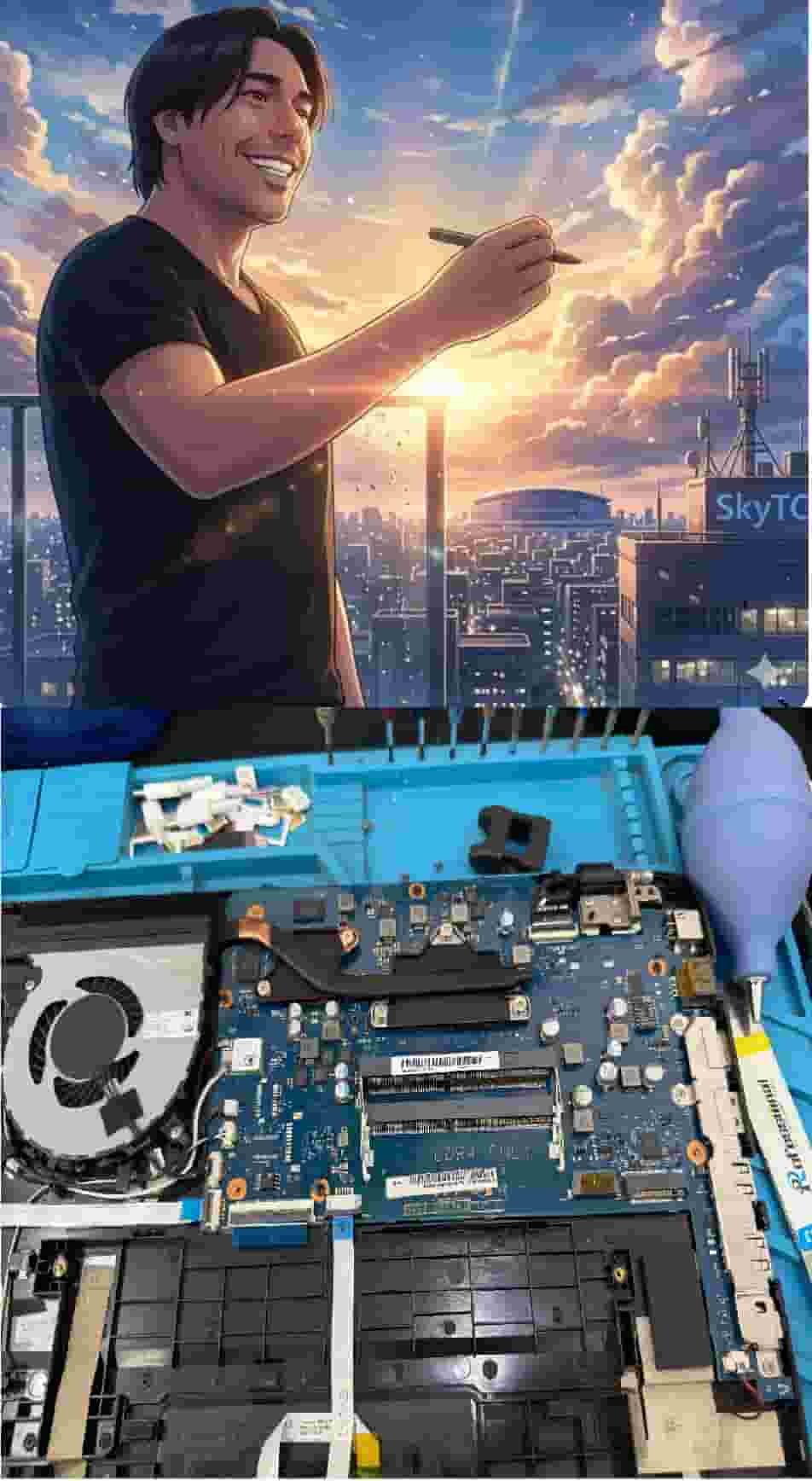
Technical Bio: Hardware & Laptops
“At SkyTC, technology is driven by engineering precision and real field experience. I am Valtersky, and I bring a unique background to the bench: from professional woodworking, the eye for structural integrity; from radiology, an absolute obsession with microscopic details.
As an ultra-endurance marathon runner, I don’t just browse store windows. I tear machines down, run intensive stress tests on thermal dissipation, and validate the actual build quality of every single component. My mission is to translate complex tech engineering and tech finances into smart decisions for your workflow.
Here, we speak straightforward, jargon-free English with the authority of someone who knows exactly what is inside the chassis.”
✨ Read also: Why High Cost Tech Tools Are Not Always Best for Work
Content that perfectly complements this guide — highly recommended reading.