

You are five hours into a parametric assembly drawing in SolidWorks or Revit, trying to select a hairline edge fillet, and your cursor jumps three pixels past the snap point. Your wrist aches from clenching a generic office clicker like a vise grip, your forearm flexors are burning, and your workflow slows to a dead crawl. Investing in the best high resolution sensor mouses for CAD engineering is not about vanity flexes or chasing gamer lighting; it is about stopping microscopic cursor jitter before it destroys your drafting precision and wrecks your carpal tunnel tendons.
Most CAD operators and design engineers make the mistake of picking up whatever bargain-bin pointer corporate IT dropped on their desk, or worse, falling for flashy gaming mice that boast absurd DPI numbers while running aggressive sensor smoothing algorithms under the hood. In mechanical design, smoothing is cancer—it averages out your micro-movements, adding latency and robbing you of true raw pixel-to-vector fidelity.
Upgrading to an industrial-grade optical sensor with flawless one-to-one tracking saves hundreds of frustrating misclicks every day, wipes out hours of micro-correcting vector snaps, and preserves your hands for a thirty-year engineering career without requiring orthopedic wrist surgery.
On our repair bench, we strip these mice down to bare FR4 fiberglass, probe their optical illumination angles, and replace broken click micro-switches under high magnification. I am Valtersky, and together with our dedicated support team and in-house laptop hardware specialist, we have fixed thousands of failed input peripherals and thermal-throttled CAD laptops. Let’s dig into the silicon and mechanical guts of what actually makes a CAD mouse survive real engineering hell.
The Repair Shop Counter: The Intake Specification
Listen to the bench reality: ninety percent of mice marketed for “productivity” are e-waste waiting to fail. They ship with cheap mechanical micro-switches that develop double-clicking chatter within eight months because the factory shaved fractions of a cent on contact plating.
The tactical cheat code for CAD work is simple: look for an optical tracking engine with high native counts per inch (CPI), zero onboard angular prediction, zero hardware acceleration, and optical infrared micro-switches that literally cannot double-click. Pair that with a dedicated middle mouse button so you are not wearing down your scroll wheel axle while panning viewport geometry twelve hours a day. Settle for less, and you are just burning billable hours fighting your own hardware.
| Mouse Sensor & Chassis Class | Optical Tracking Engine | Native CPI / DPI Ceiling | Switch Actuation Mechanism | CAD Axis Tracking Deviation |
|---|---|---|---|---|
| Dedicated Ergonomic CAD Pointer | Custom PixArt Precision Core | High-Resolution Native CPI | Reinforced Mechanical Leaf | <0.5% (Zero Jitter Snap) |
| Flagship Esports Optical Mouse | Flawless PixArt PAW Engine | Extreme High-Resolution Tier | Infrared Optical Micro-Switches | <0.1% (Raw 1:1 Vector Passthrough) |
| Heavy Glass-Tracking Productivity Mouse | Darkfield Laser/Optical Hybrid | Moderate Native Resolution | Standard Mechanical Leaf | 1.5% to 3.0% (DSP Smoothing Present) |
| Bargain-Bin Office Mouse | Low-Grade Red LED Optical | Bargain-Bin Tier Ceiling | Budget Unbranded Tactile | >5.0% (Severe Pixel Skipping) |
| Heavyweight Desktop Trackball | Quadrature Bearing Sensor | Mid-Tier Fixed Resolution | Sealed Industrial Switches | 1.0% to 2.0% (Inertial Rolling Drift) |
The Bare-Metal Trial: Pros, Cons, and Real-World Wear
Every mouse architecture carries physical tradeoffs that slick marketing brochures deliberately omit. Dedicated CAD mice featuring a separate middle mouse button isolate the pan-and-orbit function entirely from the scroll wheel, saving your index finger from repetitive mechanical stress.
The Good: Dedicated middle button mechanics save your knuckles during ten-hour SolidWorks sessions, and ergonomic thumb scoops keep your hand anchored in a neutral skeletal position. The Bad: They weigh as much as an entire set of calipers; sliding that heavy chassis across an unpadded desk pad eight hours a day will blow out your shoulder rotators if you do not pair it with ultra-slick virgin PTFE feet.
On the other hand, ultra-lightweight esports mice house the most technologically advanced optical sensors on the planet. Their microprocessors calculate position updates at extreme polling rates without applying a single microsecond of artificial trajectory smoothing.
The Good: Phenomenal sub-millimeter cursor placement makes tracing complex splines and landing precise edge constraints feel effortless. The Bad: Featherweight honeycomb shells creak aggressively under heavy palm pressure, trap machine-shop metal shavings inside open chassis holes, and completely lack the auxiliary thumb gestures engineering workflows demand.
Why the Best High Resolution Sensor Mouses for CAD Engineering Kill Sensor Smoothing
Consumer peripheral marketing loves pushing absurd resolution numbers, but high CPI means nothing if the onboard digital signal processor (DSP) ruins the feed. When looking for the best high resolution sensor mouses for CAD engineering, the single most critical specification is the complete absence of sensor smoothing.
Cheap sensor controllers cannot handle high tracking velocities without generating signal noise. To hide this noise, manufacturers bake smoothing filters into the sensor firmware, which averages cursor coordinates over consecutive frames. In 3D modeling environments, that artificial averaging introduces noticeable motion lag and rounds off sharp, crisp cursor movements. The lab macete is locking your sensor into its native, non-interpolated resolution envelope where raw optical framing directly mirrors physical hand travel without algorithm interference.
Scratch Risk: Chassis and Hinge Durability
Manufacturers love wrapping mouse chassis in matte, velvety soft-touch rubber coatings that feel amazing right out of the retail packaging. But after six months of exposure to skin oils, coffee splashes, and rubbing against desktop surfaces, that porous rubberized paint undergoes chemical breakdown, turning into a sticky, dust-grabbing slime that impossible to clean off.
Underneath the surface, scroll wheel hinge assemblies represent another catastrophic point of mechanical failure. To cut production costs, brands mount heavy rubberized scroll wheels on paper-thin plastic hexagonal axles that slot directly into mechanical rotary encoders. When an engineer repeatedly mashes the scroll wheel sideways to pan complex 3D assemblies, that plastic axle experiences severe shear torque. Eventually, the plastic stem snaps flush inside the encoder bore, leaving the wheel wobbling uselessly inside the chassis shell.
The Vector Snap Hallucination: A Field Post-Mortem
Let us look at a real drafting floor disaster we investigated: an aerospace tool designer was drafting an injection mold cavity using an inexpensive wireless mouse with a low-grade sensor featuring aggressive built-in angle snapping. Angle snapping is a hardware cheat designed to help users draw straight horizontal lines by forcibly ignoring minor vertical micro-movements.
While zooming in to align an ejector pin borehole tangent to an angled drafted face, the mouse sensor interpreted the tiny manual micro-adjustment as unintentional hand tremor. The internal firmware forcibly flattened the cursor’s path, snapping the hole centerline off-axis by less than a fifth of a millimeter. The operator clicked confirm, the drawing passed unnoticed to multi-axis CNC tooling, and the prototype mold block bound up permanently during testing—scraping a massive steel billet and destroying weeks of machine shop scheduling.
Guides for Your Next Workspace
Practical laptop guides covering performance, hardware, troubleshooting, care, and everyday productivity.
Professional Laptops
The definitive blueprint to selecting high-performance, enterprise-grade workstations engineered to scale your productivity.
Budget Tech Tools
Practical strategies and low-cost digital tools engineered to maximize office performance without breaking your budget.
Power User Gadgets
Advanced hardware, desk automation tools, and elite tech ecosystems built to eliminate workflow bottlenecks.
Diagnose Laptop Hardware Faults
The official bench guide for identifying, testing, and diagnosing common laptop hardware faults with practical troubleshooting methods.
Maximize Laptop Performance
An ultimate tuning guide for improving laptop speed, efficiency, responsiveness, and overall performance.
Extend Laptop Lifespan
The ultimate care guide for protecting laptop hardware, preventing premature wear, and extending device longevity.
The Assembly Line: High-Yield Deployment Checklist
- Select the best high resolution sensor mouses for CAD engineering.
Expert Tip: Ensure the optical sensor firmware provides completely raw tracking output without hardware-level angle snapping or predictive smoothing. - Prioritize mice featuring dedicated middle mouse buttons.
Expert Tip: Decoupling pan-and-orbit gestures from the scroll wheel axle eliminates index finger strain and stops axle snapping. - Configure native CPI steps instead of software multipliers.
Expert Tip: Adjusting Windows pointer speed sliders introduces coordinate skipping; leave OS settings at neutral and adjust sensor DPI natively. - Replace stock factory feet with pure virgin PTFE skates.
Expert Tip: High-grade PTFE skates lower static friction, preventing microscopic cursor stutter when initiating delicate drafting micro-movements. - Choose infrared optical micro-switches over traditional mechanical leaves.
Expert Tip: Optical switches use light beams to register clicks, making electrical contact oxidation and accidental double-clicks impossible. - Lock polling rates to a stable balance frequency.
Expert Tip: Extreme polling frequencies can hammer laptop CPU execution threads without providing measurable visual benefits on 60Hz design monitors. - Avoid peripherals coated in rubberized soft-touch matte paint.
Expert Tip: Bare textured PBT or raw ABS plastic shells survive hand sweat and solvent wipes without degrading into sticky residue. - Calibrate sensor lift-off distance to its lowest operational cutoff.
Expert Tip: A low lift-off distance stops cursor drift whenever you pick up and reposition the mouse across tight drafting desks. - Map secondary viewport controls to tactile thumb rocker clusters.
Expert Tip: Assigning zoom-to-fit or orthographic view toggles to thumb buttons saves hundreds of round-trip screen sweeps every hour. - Deploy stiff braided paracord or isolated wireless connections.
Expert Tip: Heavy, stiff rubber cables drag against desk edges, introducing mechanical resistance that throws off delicate vector point placement. - Clean optical sensor aperture cavities using low-pressure dry air.
Expert Tip: Loose lint or dust particles trapped in the optical lens hood refract illumination light, causing erratic tracking jumps.
Forensic Breakdown: Microscopic Hardware Answers
Does high DPI actually matter for CAD modeling?
Yes, but not for raw speed. Higher DPI sensors capture micro-movements with granular resolution, letting you select tiny vector vertices without stepping or skipping screen pixels.
Why do mechanical mouse switches start double-clicking on CAD workstations?
CAD panning involves holding click switches under sustained mechanical pressure. This deforms the copper leaf spring inside cheap switches, causing contact chatter that the controller reads as rapid double-clicks.
Is an ergonomic vertical mouse good for high-precision drafting?
Vertical mice are fantastic for forearm tendonitis, but their altered grip angle forces you to pinch the body when clicking. That lateral click force can nudge the sensor off delicate vector snap points.
Why are laser sensors inferior to modern optical tracking sensors?
Laser sensors read surface dust and deep pad textures, producing unpredictable acceleration spikes. Modern optical sensors take microscopic surface snapshots, delivering flawless one-to-one positional fidelity.
Can high mouse polling rates lag my CAD workstation?
Yes. Ultra-high polling rates flood your operating system with thousands of hardware interrupts every second. On a laptop already thermal-throttling under heavy finite element analysis, this causes noticeable cursor stutter.
What is the best way to clean a sticky mouse chassis?
If the rubberized soft-touch coating has liquefied, wipe it down aggressively with isopropyl alcohol and a microfiber towel. It will strip the degraded rubber down to bare, clean plastic.
Are heavy metal scroll wheels durable for engineering apps?
The metal rim is tough, but the underlying plastic drive axle is still a weak failure point. Avoid heavy metal wheels that lack steel support shafts, or the internal axle will snap under shock load.
Should I disable angle snapping in my mouse configuration software?
Immediately. Angle snapping forces your cursor into straight lines by discarding natural diagonal micro-drifts. It completely breaks your ability to draft organic curves or align angled chamfers.
Why Trust SKYTC Curated Gear?
At SKYTC, we simplify technology for you. We aren’t just another deals site; we are hardware experts obsessively focused on elite performance.
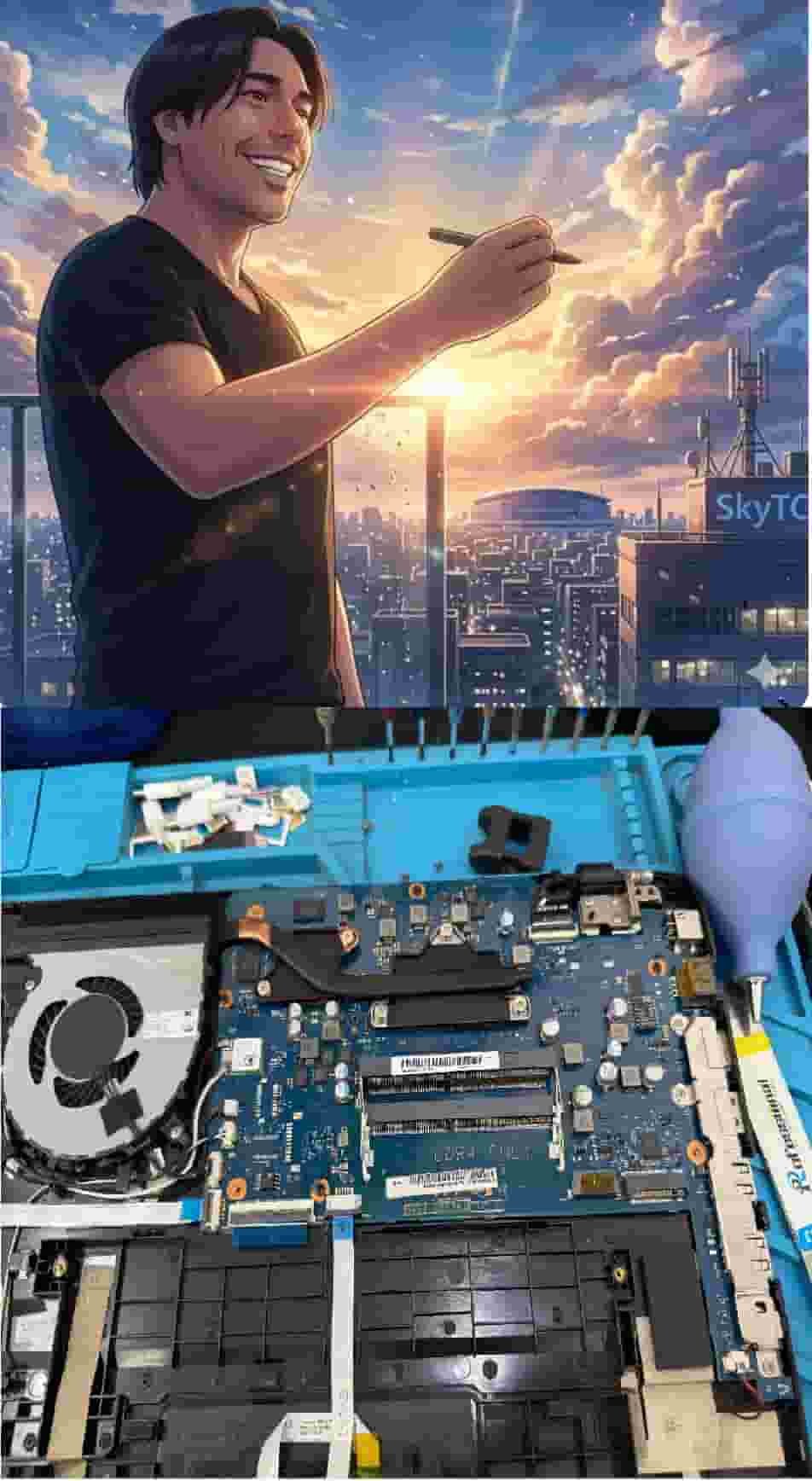
Technical Bio: Hardware & Laptops
“At SkyTC, technology is driven by engineering precision and real field experience. I am Valtersky, and I bring a unique background to the bench: from professional woodworking, the eye for structural integrity; from radiology, an absolute obsession with microscopic details.
As an ultra-endurance marathon runner, I don’t just browse store windows. I tear machines down, run intensive stress tests on thermal dissipation, and validate the actual build quality of every single component. My mission is to translate complex tech engineering and tech finances into smart decisions for your workflow.
Here, we speak straightforward, jargon-free English with the authority of someone who knows exactly what is inside the chassis.”
Read also: Why Power Users Invest in Dedicated Macropad Keyboards: The Hardware Architect’s Blueprint
RAW REPAIR BENCH WARNING: Banging heavy, ungrounded peripherals into laptop chassis ports discharges destructive electrostatic voltage directly into the USB controller, causing micro-arcing that blows input power rails and melts adjacent motherboard copper planes.