

You are ten hours deep into a brutal vector branding sprint, your wrist feels like someone poured battery acid into your carpal tunnel, and your high-end designer mouse suddenly double-clicks on its own, wrecking an intricate path. Discovering why budget trackpads save money for creative designers is not about settling for cheap, sluggish plastic; it is about dodging the planned obsolescence traps engineered into mechanical peripherals while saving your tendons from career-ending repetitive strain injuries.
Creative pros get seduced by design agencies into believing they must spend a fortune on motorized scrub wheels, ergonomic vertical mice, and luxury graphics tablets. Most of those high-maintenance gadgets end up on my repair bench within eighteen months, choked with burnt micro-switch contact leaves, decaying rubberized coatings, and torn ribbon cables that snap the moment you try opening the chassis.
A dedicated touch surface bypasses mechanical failure points entirely, swapping out fragile copper leaf springs for a solid-state grid of capacitive copper traces. Adopting an affordable standalone touch surface eliminates the continuous cycle of replacing broken mice, frees your wrist from unnatural pronation, and keeps hundreds of billable hours from vanishing into hardware troubleshooting and physical fatigue.
The Repair Shop Counter: The Intake Specification
Toss that malfunctioning mouse into the electronics scrap bin and let me talk to you straight. Designers burn serious capital replacing luxury mice every single year because mechanical micro-switches use copper leaves rated for millions of clicks that fail after six months of aggressive timeline scrubbing and Bezier dragging. The lab macete is straightforward: an external budget trackpad with multi-touch gesture support eliminates physical switch failure, removes carpal tunnel torque, and stops laptop battery swelling from wrecking your workflow.
Stop falling for glossy peripheral marketing that charges you an arm and a leg for zero real-world reliability. Procure an affordable external capacitive glass or composite touch slab, keep your wrists flat on the desk, and get back to exporting client deliverables without your forearms screaming in pain before the weekend hits.
Why Budget Trackpads Save Money for Creative Designers in the Real World
A traditional mouse forces your forearm into an unnatural pronated posture, requiring constant micro-contractions of the extensor muscles to hold and steer a plastic shell. Over months of detailed editing, that tension inflames your tendons, forcing many creative professionals into expensive physical therapy and ergonomic wrist braces.
An external touch controller lets your hand rest in an open, relaxed posture while your fingertips glide across a low-friction surface. Navigating timelines, zooming canvases with pinch gestures, and rotating layouts become seamless muscle memories, cutting down interface friction and speeding up your creative execution.
Technical Comparison of Creative Input Architectures
Analyzing input hardware requires looking past marketing buzzwords and examining the physical sensor matrix, bus interface latency, and mechanical failure vectors. The table below compares the primary input devices found on modern creative desks.
| Input Hardware Platform | Mechanical Failure Point | Bus Interface / Polling | Ergonomic Strain Profile | Lifecycle Sustainability |
|---|---|---|---|---|
| Standalone Capacitive Glass Pad | None (Solid-state copper grid) | Low-latency USB / Bluetooth | Minimal wrist pronation | Premium tier longevity |
| Mechanical Diving-Board Laptop Pad | Worn tactile dome & pivot pin | Direct I2C / SMBus bus | Moderate hand cramping | Low-grade components |
| Solid-State Haptic Surface | Piezo / Linear actuator driver | High-speed USB HID | Neutral hand posture | High-grade operational yield |
| High-End Ergonomic Mouse | Oxidized copper micro-switches | High-polling RF / Optical | Severe lateral wrist friction | Budget-unfriendly churn |
| Digitizer Pen Display Tablet | Worn nibs & frayed tether wires | Proprietary digitizer link | Low strain, high desk clutter | Varies by model |
The Bare-Metal Trial: Pros, Cons, and Real-World Wear
Every peripheral manufacturer claims their hardware offers flawless productivity, but our repair benches tell a different story once dust, sweat, and daily workloads enter the picture. Here is the unvarnished breakdown of common input categories.
Standalone Capacitive Touch Slabs
The Good: Zero moving mechanical parts, instant multi-finger desktop navigation, and fluid two-finger canvas panning that turns timeline scrubbing in video editing suites into second nature.
The Bad: Budget wireless variants occasionally experience brief micro-stutters when waking from battery-saving sleep states, and sweaty palms on humid studio afternoons can temporarily confuse edge-detection algorithms.
Integrated Diving-Board Mechanical Laptop Trackpads
The Good: Built directly into your portable chassis, requiring zero extra cables or desk space when editing on location.
The Bad: The mechanical cantilever hinge collects biscuit crumbs, coffee vapor, and lint until the click mechanism jams solid, forcing you to dismantle the battery, motherboard, and shield brackets just to clean a stuck switch.
Haptic Solid-State Surfaces
The Good: Uses electromagnetic linear actuators to simulate tactile clicks beneath rigid glass, providing consistent click feedback across the entire surface without mechanical wear.
The Bad: If the controller firmware crashes or the internal battery voltage sags, the haptic actuator stops firing completely, leaving you tapping on what feels like an unresponsive sheet of cold granite.
Ergonomic Vertical Mice
The Good: Keeps your forearm in a handshake position, reducing median nerve compression and helping avoid carpal tunnel flare-ups.
The Bad: Pixel-level precision in vector layout software feels clunky because moving your entire forearm lacks the delicate dexterity of fingertip manipulation, slowing down high-precision mask work.
Scratch Risk: Chassis and Hinge Durability
Laptop chassis designers love bragging about unibody magnesium-aluminum enclosures, sleek anodized finishes, and glass-smooth palmrests. But underneath that cosmetic veneer, your daily typing and mousing habits exert constant mechanical leverage directly against the laptop’s most vulnerable structural points.
When you rest heavy palms on an ultra-thin laptop base to use the built-in trackpad, you introduce subtle downward chassis deflection that presses the keyboard keycaps directly against the delicate glass display panel when the lid closes. Over time, that constant contact grinds skin oils and micro-abrasives permanently into the anti-reflective coating, leaving permanent keyboard imprint scratches across the screen.
Worse, the heat generated by your hands combines with the thermal exhaust trapped inside the palmrest, baking the lithium-ion pouch cells directly beneath the trackpad. As those battery cells age, they begin off-gassing and swelling, pushing the trackpad upward until the glass cracks or the trackpad jams against the chassis rim. Using an external budget trackpad keeps your hands, sweat, and physical pressure off the laptop frame entirely, preserving your hinges and protecting your machine from thermal housing warping.
Hypothetical Failure Scenario: The Swollen Pouch Trap
Consider a familiar studio disaster: an overworked freelance motion designer works on a compact notebook perched on a desk stand, using the built-in trackpad for complex animation keyframing while connected to an external 4K monitor. The laptop runs hot constantly, chewing through GPU rendering cycles while charging at maximum power delivery.
Because the designer leans their palms heavily on the lower chassis edge, thermal airflow beneath the battery bay is blocked. The battery cells begin to degrade and expand, slowly exerting upward pressure against the underside of the integrated trackpad assembly.
One evening, the trackpad stops clicking down on the bottom-left corner. Thinking it is just stuck on dirt, the designer presses down firmly with their thumb. The internal mechanical switch bracket snaps through the weakened plastic retention clips, puncturing the outer pouch of an expanded battery cell. A hiss of toxic chemical vapor fills the room, the safety circuit triggers a thermal shutdown, and the designer’s main production machine is out of commission for a week right before a critical client deadline.
Guides for Your Next Workspace
Practical laptop guides covering performance, hardware, troubleshooting, care, and everyday productivity.
Professional Laptops
The definitive blueprint to selecting high-performance, enterprise-grade workstations engineered to scale your productivity.
Budget Tech Tools
Practical strategies and low-cost digital tools engineered to maximize office performance without breaking your budget.
Power User Gadgets
Advanced hardware, desk automation tools, and elite tech ecosystems built to eliminate workflow bottlenecks.
Diagnose Laptop Hardware Faults
The official bench guide for identifying, testing, and diagnosing common laptop hardware faults with practical troubleshooting methods.
Maximize Laptop Performance
An ultimate tuning guide for improving laptop speed, efficiency, responsiveness, and overall performance.
Extend Laptop Lifespan
The ultimate care guide for protecting laptop hardware, preventing premature wear, and extending device longevity.
The Assembly Line: High-Yield Deployment Checklist
- Deploy budget trackpads save money for creative designers strategically.
Expert Tip: Positioning an external touch slab beside your keyboard keeps your arms close to your body core, eliminating shoulder rotator cuff fatigue. - Select trackpads featuring etched matte glass touch surfaces.
Expert Tip: Budget plastic touch surfaces wear down into shiny, sticky spots within months, ruining smooth finger glide and precision tracking. - Disable physical tap-to-click if your hardware supports it.
Expert Tip: Light capacitive tapping prevents you from exerting physical downward force, completely eliminating micro-trauma to your fingertip joints. - Connect the external trackpad via direct wired USB cables.
Expert Tip: Bypassing Bluetooth polling avoids 2.4GHz wireless interference spikes from studio Wi-Fi routers and nearby wireless headphones. - Clean the touch surface exclusively with pure isopropyl alcohol.
Expert Tip: Household window cleaners contain harsh ammonia that strips the oleophobic coating off glass trackpads, leaving them permanently grippy. - Configure custom three-finger swipes for workspace desktop navigation.
Expert Tip: Mapping virtual desktop switching to multi-touch gestures eliminates dozens of daily keyboard shortcuts and mouse drags. - Keep conductive metal jewelry and steel watch straps away.
Expert Tip: Metal watch bands will scratch the anodized chassis edges and cause erratic ghost inputs when contacting capacitive sensor grids. - Adjust pointer acceleration curves inside your operating system settings.
Expert Tip: Setting a linear tracking speed gives you predictable pixel-by-pixel accuracy when tweaking fine vector anchor points in Illustrator. - Inspect internal laptop battery health profiles every three months.
Expert Tip: Catching a swelling lithium-ion pouch cell early prevents it from pushing against the trackpad and warping your laptop’s mainboard. - Mount your input surfaces at elbow height on your desk.
Expert Tip: Keeping forearms completely parallel to the floor eliminates pressure on your ulnar nerve where it crosses your desk’s front edge. - Store your mobile touch surfaces inside padded sleeve pouches.
Expert Tip: Tossing a bare glass trackpad into a backpack pocket with chargers and keys will chip the perimeter edges and cause micro-fractures.
Forensic Breakdown: Microscopic Hardware Answers
Do budget trackpads offer enough precision for vector design?
Yes. Modern capacitive touch controllers operate on high-resolution grid matrices that read sub-millimeter finger shifts easily. Once you set a balanced acceleration curve, vector nudging is as accurate as any standard optical mouse.
Why do mechanical mice fail so quickly in creative workflows?
Creative software demands heavy click-and-drag operations that keep constant pressure on microscopic copper spring contacts. That pressure causes metal fatigue and contact oxidation, triggering the infamous double-click glitch.
Can an external trackpad help protect my laptop’s internal battery?
Yes. Resting your warm hands on a laptop chassis traps internal heat inside the battery compartment. Using an external trackpad lets the palmrest act as a natural passive heat radiator, keeping battery temperatures down.
Is Bluetooth latency noticeable when doing precision illustration?
On cheap, unbranded Bluetooth controllers, yes. You will see micro-stutters when making rapid strokes. Plug the trackpad in with a high-quality USB-C cable to force continuous, low-latency polling.
Do glass trackpads crack easily if dropped from desk height?
Cheaper tempered glass can chip along bare perimeter edges if it strikes a hardwood floor directly. Look for models with protective aluminum or composite perimeter bezels that shield the glass corners.
What is the lab macete for fixing erratic trackpad cursor jumping?
Nine times out of ten, erratic cursor jumping is caused by dirty ground contacts or poor power delivery from an ungrounded USB hub. Plug the device into an isolated motherboard port and wipe away any skin oil film.
Should I replace my graphics drawing tablet with a budget trackpad?
No. If you do freehand digital painting or 3D sculpting requiring pressure sensitivity, you need a stylus. A trackpad is built for layout, UI design, vector typography, and timeline editing.
Why are replacement integrated laptop trackpads so expensive to install?
Because modern manufacturers glue trackpad brackets directly to the upper top-case assembly beneath the keyboard. Replacing it means transferring the entire motherboard, cooling loop, and battery to a brand-new palmrest chassis.
Why Trust SKYTC Curated Gear?
At SKYTC, we simplify technology for you. We aren’t just another deals site; we are hardware experts obsessively focused on elite performance.
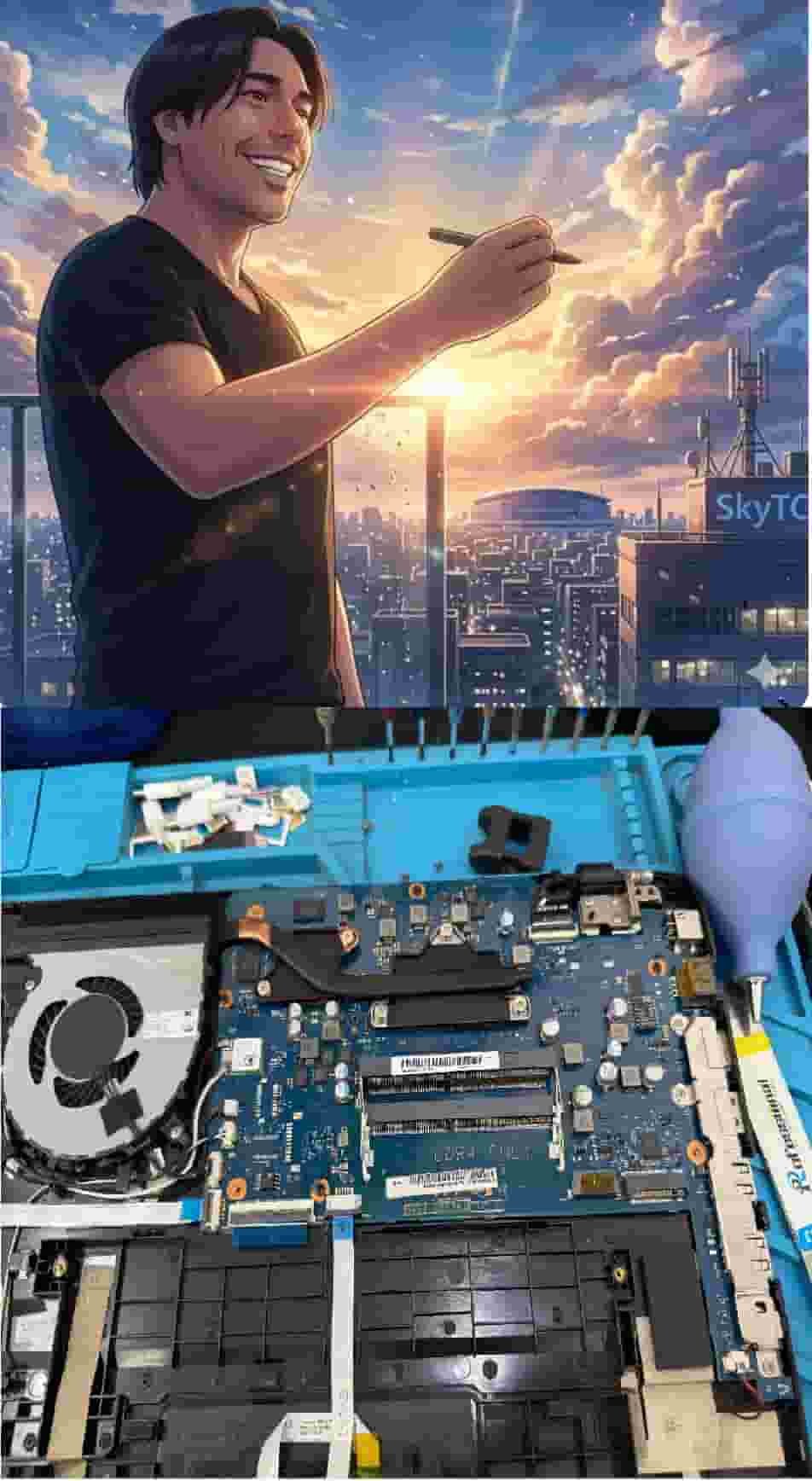
Technical Bio: Hardware & Laptops
“At SkyTC, technology is driven by engineering precision and real field experience. I am Valtersky, and I bring a unique background to the bench: from professional woodworking, the eye for structural integrity; from radiology, an absolute obsession with microscopic details.
As an ultra-endurance marathon runner, I don’t just browse store windows. I tear machines down, run intensive stress tests on thermal dissipation, and validate the actual build quality of every single component. My mission is to translate complex tech engineering and tech finances into smart decisions for your workflow.
Here, we speak straightforward, jargon-free English with the authority of someone who knows exactly what is inside the chassis.”
Read also: Top Affordable Monitor Mounts for Small Workspace Desks: The Hardware Architect’s Rigging Guide
BENCH REPAIR WARNING: Excessive monitor vibration from unstable desk clamps shakes your display panel violently, fatiguing internal ribbon cables and causing micro-soldering BGA joint separations on the T-Con board that manifest as permanent vertical blue-line dropouts across your screen.