

You drop top tier money on a high-spec mobile workstation, hook up your dual displays, NVMe arrays, and audio interfaces through a single cable, and immediately get slapped in the face with flickering screens, dropped USB packets, and an enclosure hot enough to sear meat. Hunting down the best thunderbolt four docking stations for power users is not about counting marketing badges on a glossy box; it is about keeping your setup from frying under continuous load.
Most tech reviews treat docks like magic plug-and-play plastic bricks, completely ignoring the complex silicon traffic jams happening inside. When a dock cheapens out on voltage regulation modules or shoves a high-bandwidth controller into a sealed plastic coffin without heat dissipation, you pay the price in blown power circuits.
Nothing kills a studio workflow or engineering sprint faster than an unconditioned power surge backfeeding into your machine or an unshielded controller causing your external peripherals to choke mid-render.
In our lab, we tear these stations down to bare copper and lead-free solder. Getting the hardware choice right guarantees stable 40Gbps PCIe data tunneling, rock-solid power delivery, and saves you from a fatal logic board short circuit that turns your prized rig into a paperweight.
The Repair Shop Counter: The Intake Specification
Step up to the counter and drop the tech-influencer nonsense right now. If a dock feels lighter than a deck of cards, packs a no-name power supply, and claims it can handle full workstation throughput without an aluminum heat-sink chassis, leave it on the shelf. That thing is a micro-soldering disaster waiting to land on my diagnostic table.
True power users need dedicated 32Gbps PCIe data architecture, rock-solid Intel Goshen Ridge controllers, independent DC-to-DC buck converters for downstream ports, and verified 90W to 100W Power Delivery that will not dip when all ports are fully loaded.
Here is the intake verdict straight from the soldering bench: CalDigit TS4 rules the roost for raw port density and passive aluminum heat dissipation, despite running noticeably warm. If you run corporate fleets with brutal multi-monitor demands, Dell and Lenovo offer bulletproof enterprise architectures, though their proprietary cables and loud internal fans can drive audio engineers crazy. Skip bargain-bin plastic hubs entirely—their power filtering is non-existent, and their transient spikes will smoke your laptop’s surface-mount charging chips.
Architecting Workstations: Why the Best Thunderbolt Four Docking Stations for Power Users Prevent Motherboard Casualties
| Station Model | Host Controller Silicon | Downstream Bandwidth Allocation | Host Power Delivery | Thermal Management Architecture | Power Isolation Topology |
|---|---|---|---|---|---|
| CalDigit TS4 | Intel Goshen Ridge (JHL8440) | 3x Thunderbolt 4 (40Gbps) / 32Gbps PCIe | Up to 98W (Dynamic) | Heavy Extruded Aluminum Heat Sink Chassis | Discrete TVS Diodes & Polyfuses per Port |
| OWC Thunderbolt Dock | Intel Goshen Ridge (JHL8440) | 3x Thunderbolt 4 / 32Gbps PCIe | 96W (Certified) | Dual-Layer Metal Shielding / Passive Dissipation | Independent Buck Regulators on USB Rails |
| Kensington SD5700T | Intel Goshen Ridge (JHL8440) | 3x Thunderbolt 4 / 32Gbps PCIe | 90W (Fixed) | All-Metal Enclosure with Internal Thermal Pads | Dedicated Overcurrent & Surge Protection |
| Dell WD22TB4 | Intel Goshen Ridge + Realtek Hubs | Modular I/O / Dual DP 1.4 Streams | Up to 100W (Non-Dell) / High-Tier Proprietary | Active Internal Blower Fan with Ducting | Enterprise Grounding with Shielded Subframe |
| Lenovo ThinkPad TB4 Workstation | Intel Goshen Ridge (JHL8440) | Dual DP 1.4 + HDMI 2.1 / Mixed Bus | Up to 100W Standard / Split Dual-Plug System | Internal Stamped Steel Spreader & Vents | Fused Rail Topology with Split Power Inputs |
The Bare-Metal Trial: Pros, Cons, and Real-World Wear
Every single dock on the market makes an engineering compromise somewhere. Let us peel back the casing, expose the component selections, and evaluate what survives real-world field deployment.
Heavyweight Aluminum Workstation Docks (CalDigit TS4)
The Good: Massive thermal mass. The entire ribbed outer enclosure acts as a giant extruded heat sink bonded directly to the Intel JHL8440 silicon via thick, industrial-grade thermal gap pads. It offers eighteen ports with independent DC-DC converters, so plugging in a bus-powered audio interface does not cause your display to cut out.
The Bad: It gets hot enough to warm your coffee mug during sustained 40Gbps NVMe transfers. If you trip over the oversized external power brick’s heavy barrel connector, the soldered DC jack inside the chassis will crack its through-hole solder joints immediately.
Modular Enterprise Workhorses (Dell WD22TB4)
The Good: The modular Thunderbolt connector module can be unscrewed and replaced in two minutes flat if an employee snaps a pin or shears the cable. Dual native DisplayPort streams bypass MST limitations for multi-screen Linux and Windows workstations with zero latency.
The Bad: It uses an active cooling fan that emits a sharp, high-frequency whine in quiet studio environments. Furthermore, the thick captive host cable is stiff, bulky, and acts like a rigid pry bar against your laptop’s fragile Type-C receptacle.
Compact Multi-Thunderbolt Splitters (OWC & Kensington Series)
The Good: Pure, unadulterated quad-Thunderbolt topology that lets you daisy-chain external PCIe enclosures, ultra-fast storage, and high-resolution monitors without running into lane allocation choke points.
The Bad: Zero native legacy video outputs—you are forced to clutter your desk with USB-C to DisplayPort dongles. The glossy exterior faceplates look slick on unboxing day, but scratch the second a stray USB connector brushes against them.
Scratch Risk: Chassis and Hinge Durability
Precision-milled anodized aluminum enclosures look incredible sitting on a minimalist walnut desk. But when you mate heavy industrial metal docks with stiff, braided 40Gbps cables, they transform into brutal mechanical levers against your workspace and your machine.
High-speed Thunderbolt cables have practically zero bend flexibility due to dense internal coaxial shielding and thick copper ground planes. As you adjust your laptop or move the dock, that stiff cable exerts continuous torsional torque directly onto the surface-mount Type-C receptacle on your laptop’s motherboard.
At the same time, unweighted docks slide across the desk, grinding their sharp metal chamfers into premium desk finishes. Worse, the constant upward tension on your laptop’s side ports stresses the chassis hinge assembly, flexing the thin aluminum subframe until microscopic solder joints under the display circuitry crack.
What starts as a sleek desktop setup ends with stripped anodized coatings, twisted chassis tubs, and wobbly Type-C ports that disconnect your external drives if someone walks heavily past your desk.
Hypothetical Failure Scenario: The Hot-Plug Inrush Catastrophe
Picture this classic studio failure: You have a high-draw docking station running dual 4K panels, an external bus-powered RAID enclosure, and a high-tier mobile workstation pulling a continuous ninety watts of Power Delivery. You are late for a client meeting, so you rip the Thunderbolt cable out at a sharp forty-five-degree angle while data is still flying across the PCIe lanes.
That violent sideways pull does two things instantly. Mechanically, it tears the surface-mount anchor pads clean off the motherboard PCB. Electrically, it disconnects the ground plane a microsecond before the twenty-volt power delivery pins disengage.
That brief disconnect creates an inductive kickback spike across the tiny Configuration Channel (CC) data pins. The high-voltage arc leaps right past cheap, undersized TVS protection diodes and lands directly on the laptop’s USB-PD controller chip.
The silicon controller dies instantly with a quiet snap. The next time you sit down and plug in, the dock refuses to negotiate power, the displays stay completely dark, and you are staring at a multi-layer board replacement because a cheap transient circuit could not clamp the inrush current.
Guides for Your Next Workspace
Practical laptop guides covering performance, hardware, troubleshooting, care, and everyday productivity.
Professional Laptops
The definitive blueprint to selecting high-performance, enterprise-grade workstations engineered to scale your productivity.
Budget Tech Tools
Practical strategies and low-cost digital tools engineered to maximize office performance without breaking your budget.
Power User Gadgets
Advanced hardware, desk automation tools, and elite tech ecosystems built to eliminate workflow bottlenecks.
Diagnose Laptop Hardware Faults
The official bench guide for identifying, testing, and diagnosing common laptop hardware faults with practical troubleshooting methods.
Maximize Laptop Performance
An ultimate tuning guide for improving laptop speed, efficiency, responsiveness, and overall performance.
Extend Laptop Lifespan
The ultimate care guide for protecting laptop hardware, preventing premature wear, and extending device longevity.
The Assembly Line: High-Yield Deployment Checklist
- Deploy the best thunderbolt four docking stations for power users.
Expert Tip: Always verify that the dock incorporates the Intel Goshen Ridge JHL8440 controller chip to guarantee dedicated 32Gbps PCIe data tunneling rather than shared, throttled USB data lanes. - Anchor the upstream host cable using rigid desktop strain relief.
Expert Tip: Eliminating sideways mechanical torque on the host cable protects the microscopic through-hole solder pins of your laptop’s Thunderbolt port from shearing off the motherboard. - Maintain three inches of open clearance around aluminum dock enclosures.
Expert Tip: Passively cooled docks use their entire metal chassis as a heat sink; suffocating them under papers raises internal thermals, inducing PCIe lane throttling and sudden peripheral drops. - Audit total connected peripheral wattage against power brick ratings.
Expert Tip: Running an undersized dock power brick forces the internal buck converters to run at maximum thermal capacity, which introduces high-frequency ripple voltage into sensitive audio gear. - Use certified active 40Gbps cables for runs exceeding point-eight meters.
Expert Tip: Cheap passive cables over three feet long experience severe signal attenuation, dropping display refresh rates down to thirty hertz and kicking drives off the bus. - Isolate high-draw bus-powered drives onto native downstream Thunderbolt ports.
Expert Tip: Connecting bus-powered NVMe enclosures to standard shared USB-A ports overdraws the five-volt power rails, causing sudden drive unmounts and catastrophic file system corruption. - Ground the desktop setup to avoid static-induced dock disconnects.
Expert Tip: Walking across a synthetic carpet and touching a metal-bodied dock discharges thousands of static volts directly into the chassis, which trips the dock’s internal safety cutouts if ungrounded. - Flash dock firmware directly using manufacturer enterprise maintenance tools.
Expert Tip: Updating the dock’s low-level PD firmware resolves known sleep-wake handshaking failures that can cause external displays to stay black after your laptop wakes up. - Separate wireless dongles from active Thunderbolt four ports with extension cables.
Expert Tip: High-speed 40Gbps differential data lines emit unshielded broadband radio frequency noise around 2.4GHz, causing severe mouse stutter and keyboard dropouts. - Inspect the host Type-C port contacts regularly under magnification.
Expert Tip: Accumulated pocket lint and carbon pitting from live hot-plugging increase contact resistance, generating intense localized heat that melts the plastic connector tongue. - Disable operating system PCIe link power management for critical workflows.
Expert Tip: Aggressive operating system power savings cause the PCIe controller to enter low-power sleep states, resulting in dropped audio buffers and micro-stutter during real-time rendering.
Forensic Breakdown: Microscopic Hardware Answers
Why do high-end Thunderbolt 4 docks run so hot to the touch?
Because they are engineered to use their heavy aluminum chassis as a direct heatsink. The Intel Goshen Ridge controller, PCIe bridge chips, and internal DC-to-DC converters dump massive thermal energy into the case to prevent internal silicon degradation. Hot aluminum means the internal heat pipes and thermal pads are doing their job.
Can a poorly built Thunderbolt dock destroy my laptop’s motherboard?
Yes. If a dock cuts corners on transient voltage suppression (TVS) diodes and reverse-current protection, an electrical short or power surge can backfeed high voltage directly into the laptop’s 3.3V or 5V rails, frying the embedded controller and central processor instantly.
Why does my 2.4GHz wireless mouse stutter when plugged into the dock?
Thunderbolt 4 moves data at 40Gbps, which creates massive electromagnetic interference across the 2.4GHz spectrum. That noise leaks from unshielded ports and jams the tiny antennas inside wireless mouse and keyboard receivers. Always use a short USB extension cable to move the dongle away from the dock.
Does macOS support dual extended displays across all Thunderbolt 4 docks?
Only if the dock provides separate downstream Thunderbolt ports or native display outputs, and your Mac processor natively supports multiple external displays. Standard base-tier Apple silicon processors lack dual external display pipelines, forcing external screens to mirror unless using software-emulated DisplayLink workarounds.
What is the functional difference between Titan Ridge and Goshen Ridge?
Titan Ridge (Thunderbolt 3) only supports a single upstream host connection and one downstream daisy-chain port. Goshen Ridge (Thunderbolt 4) acts as a true multi-port switch, allowing up to three independent downstream Thunderbolt branches with dedicated 32Gbps PCIe bandwidth allocation.
Why do some docks cause connected external monitors to flicker randomly?
Flickering usually stems from signal degradation across passive display cables, DisplayPort Multi-Stream Transport (MST) negotiation failures, or power sag on the dock’s internal 3.3V rail. Upgrading to certified high-bandwidth active cables or updating the dock’s VMM display firmware typically fixes the issue.
Is a captive, non-removable host cable a dealbreaker on a pro dock?
For longevity, absolutely. A non-removable cable is an engineered point of failure. If your chair rolls over that cable or the plug gets bent, the entire high-tier docking station must be thrown away or taken apart for bench-level micro-soldering repairs.
Do I need an active cooling fan inside a Thunderbolt 4 dock?
No, provided the dock has enough extruded aluminum mass to passively sink the heat. Active fans keep internal thermals slightly lower, but their tiny impellers suck in airborne dust, collect lint, and inevitably develop noisy bearing rattle over several years of continuous desk duty.
Why Trust SKYTC Curated Gear?
At SKYTC, we simplify technology for you. We aren’t just another deals site; we are hardware experts obsessively focused on elite performance.
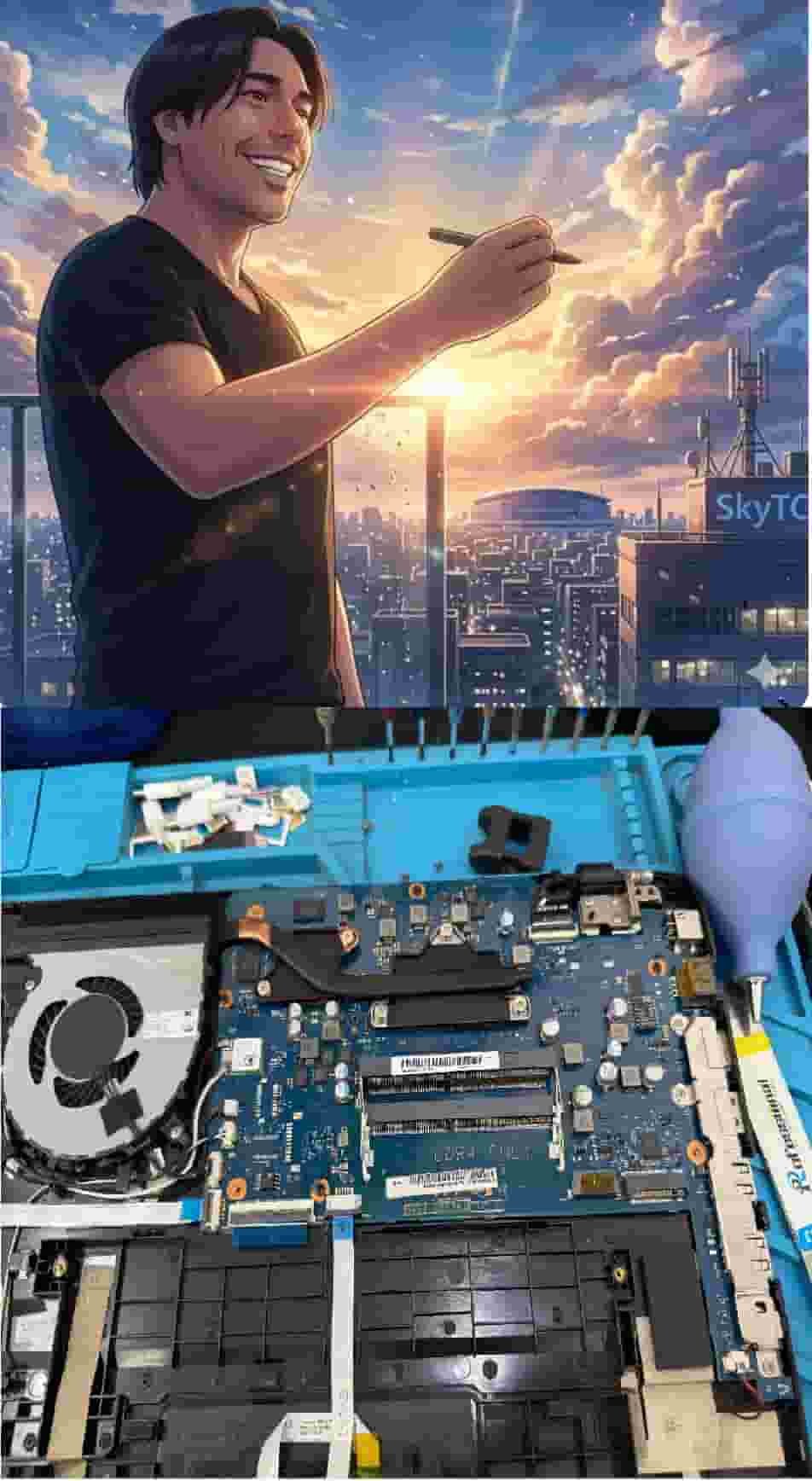
Technical Bio: Hardware & Laptops
“At SkyTC, technology is driven by engineering precision and real field experience. I am Valtersky, and I bring a unique background to the bench: from professional woodworking, the eye for structural integrity; from radiology, an absolute obsession with microscopic details.
As an ultra-endurance marathon runner, I don’t just browse store windows. I tear machines down, run intensive stress tests on thermal dissipation, and validate the actual build quality of every single component. My mission is to translate complex tech engineering and tech finances into smart decisions for your workflow.
Here, we speak straightforward, jargon-free English with the authority of someone who knows exactly what is inside the chassis.”
Read also: How Programmable Side Buttons Accelerate Tech Workflows
Warning from the bench: Straining rigid 40Gbps cables without port strain relief shears surface-mount connector pads, cracking adjacent multi-layer circuit traces and sending thirty-volt backlight transients straight into your laptop’s low-voltage data bus.