

That dull, burning ache radiating through your wrist extensor tendons at three in the afternoon is not a badge of honor. You spend eight to twelve hours a day jumping between command-line terminals, code repositories, complex timelines, and multi-layered CAD viewports. When you understand how programmable side buttons accelerate tech workflows, you stop treating your mouse like a dumb plastic pointing rock and start treating it like a hardware coprocessor wired directly to your motor reflexes.
In our repair shop, Valtersky and our laptop hardware specialist tear down input hardware every single week. We see the biological carnage: elite software engineers, architects, and creators coming in with rigid wrist splints and inflamed carpal tunnels, all clutching standard office-grade plastic bricks. They drop serious capital on high-core-count laptops and custom split keyboards, yet they steer their heavy production stacks with mushy two-button mice that require ridiculous physical gymnastics just to perform a simple copy-paste or branch checkout.
Here is the cold reality from behind the microscope: repetitive micro-trauma from awkward finger contortions destroys your nerves far faster than lifting heavy iron ever will. By offloading your most violent keystroke combinations and layer switches off the keyboard and straight onto dedicated thumb switches, you reclaim upwards of forty minutes of pure friction-free execution every single shift while saving your median nerve from early retirement.
The Repair Shop Counter: The Intake Specification
Drop your coffee and listen to the bench diagnosis: stop falling for marketing hype about twenty-six thousand DPI sensors. That spec is completely useless for real engineering and design work. What matters under the hood is non-volatile on-board EEPROM memory so you can deploy hardware-level macros without corporate IT blocking your background drivers.
You need high-cycle switches mounted to a rigid internal sub-frame, an ergonomic rake angle that prevents scaphoid bone compression, and zero pre-travel mush. If the thumb cluster flexes when you squeeze it, the internal flex circuit is doomed to break. Get hardware that commits actions on the bare silicon level, map your primary terminal and editing macros to your thumb, and never look back.
Why Programmable Side Buttons Accelerate Tech Workflows Across High-Load Stacks
Every time your hand leaves your mouse to slap a multi-key combo like Ctrl + Shift + Esc or an IDE debug step, your eyes break tracking, your shoulder rotates, and your motor chain resets. That tiny stutter takes a quarter of a second, which adds up to thousands of micro-delays every workday. A thumb click takes four milliseconds.
When you bind repetitive sequence chains—such as docker-compose routines, git commits, or parametric extrusion toggles—to dedicated micro-switches, your working memory stays on the code, not the plastic under your fingers. It is the ultimate tactical cheat code for any high-stress workstation setup.
| Switch Architecture | Actuation Force (gf) | Debounce Latency (ms) | Operational Lifespan | Repairability Score |
|---|---|---|---|---|
| Kailh / TTC Mechanical Micro-Switch | 65 – 75 gf | 4 – 8 ms | 20M – 60M clicks | High (Through-hole pads) |
| Optical Beam-Break Switch | 50 – 60 gf | 0.2 ms | 70M – 90M clicks | Medium (SMD alignment critical) |
| Flat Tactile Metal Dome (SMD) | 80 – 120 gf | 10 – 16 ms | 5M – 10M clicks | Low (Prone to lifted traces) |
| Multi-Button Flex Ribbon Matrix | 55 – 70 gf | 6 – 12 ms | 10M – 20M clicks | Extremely Low (Proprietary ribbon) |
| Analog Thumb Paddle / Encoder | 30 – 45 gf | varies by model | varies by model | Low (Custom mechanical sub-assembly) |
The Bare-Metal Trial: Pros, Cons, and Real-World Wear
Not every layout fits every workload. Let us break down the physical configurations our dedicated support team sees on the test bench, stripping away the shiny packaging promises.
1. The Dual-Button Ergonomic Workhorse
The Good: Instant muscle memory acquisition, zero accidental misclicks, and clean through-hole micro-switches that Valtersky can desolder and replace in under five minutes with leaded solder and a vacuum pump.
The Bad: Severely limited macro real estate; you will quickly run out of physical switches once you start mapping complex command chains across virtual desktops, IDEs, and browser developer tools.
2. The Twelve-Button Thumb Grid
The Good: Massive macro density that lets you run full terminal sequences, window snapping layouts, and complicated editing suites without your left hand ever moving an inch from home row.
The Bad: It feels like gripping a waffle iron, and if you sweat under project deadlines, your thumb will slip and accidentally trigger three shell commands simultaneously, turning your workflow into a disaster zone.
3. The Hybrid Layout with Gesture Rocker
The Good: Provides multi-axis navigation, letting you pan across massive schematics or scrub 4K video timelines horizontally with zero hand repositioning.
The Bad: The rubberized coatings on these thumb paddles degrade into a sticky mess after eighteen months of heavy skin oil exposure, often fouling the tiny tactile switch underneath.
Scratch Risk: Chassis and Hinge Durability
Modern glass-filled ABS and lightweight polymer chassis shells deliver incredible rigidity right out of the box. But when subjected to aggressive thumb torque and natural skin oils, these featherweight plastics tell a completely different story on our repair bench. The matte finish quickly polishes down to an ugly, slick shine that destroys your grip security during long coding or design sessions.
Worse, the internal plastic cantilever arms that actuate the side switches are often paper-thin to save manufacturing weight. Push them too hard at an angle during a high-stress production deadline, and those injection-molded fulcrum pins will snap straight off the internal casing. Once that post shears, the side button drops into the mouse body, turning your premium productivity tool into a rattling plastic maraca.
Hypothetical Failure Scenario: The Sideways Lever Jam
Imagine this: you are working against a brutal server-migration deadline. You want to trigger your mapped compiler shortcut, and instead of pressing the thumb switch straight inward, you mash it at a violent forty-five-degree angle while ripping the mouse across the pad. Under the shell, that side switch sits on an ultra-thin vertical daughterboard held in place by two microscopic surface-mount solder joints.
That diagonal force acts like a crowbar against the copper pads. The solder fractures microscopically. At first, the button works intermittently; you assume it is an operating system hiccup or software lag. You install two more background configuration utilities to fix it, which poll your CPU continuously, drain your laptop battery, and cause micro-stutters. Meanwhile, the copper pad has physically torn away from the substrate. That is how a simple bad physical habit turns into complete hardware destruction.
The Assembly Line: High-Yield Deployment Checklist
- Configure programmable side buttons accelerate tech workflows inside hardware.
Expert Tip: Storing your macro routines directly onto the device’s physical EEPROM memory guarantees zero software overhead and bypasses corporate IT endpoint restrictions on enterprise laptops. - Map universal terminal execution to your primary rear switch.
Expert Tip: Binding your kill commands or common command executions to the rear thumb trigger eliminates hand travel lag during emergency production aborts. - Assign workspace navigation to tilt-wheel horizontal triggers.
Expert Tip: Moving lateral desktop cycling away from your thumb clusters keeps your grip stable during precision vector and schematic placement. - Tune switch debounce times within low-level hardware settings.
Expert Tip: Setting debounce delay under four milliseconds on aging mechanical leaf springs causes signal chatter, leading to dreaded phantom double-clicks. - Clean outer chassis seams with high-purity isopropyl alcohol.
Expert Tip: Ninety-nine percent alcohol clears away dead skin and conductive grime without dissolving the fragile ribbon cables hidden beneath the seam lines. - Eliminate proprietary background software utilities after flashing onboard memory.
Expert Tip: Peripheral companion suites waste system RAM, cause background CPU interrupts, and introduce input latency during intensive render cycles. - Bind universal undo to the forward secondary button.
Expert Tip: Positioning destructive rollback shortcuts on the furthest actuator prevents accidental thumb misfires during high-speed navigation. - Inspect internal solder joints under a stereo microscope.
Expert Tip: Dull or ringed solder rings around through-hole switch legs point to mechanical fatigue caused by repeated sideways thumb pressure. - Calibrate the optical sensor lift-off distance setting.
Expert Tip: Choosing the lowest lift-off threshold cuts out cursor jump when repositioning the mouse across sprawling multi-monitor canvas arrays. - Replace degraded rubber thumb grips with textured tape.
Expert Tip: Factory rubber swells from finger oils over time, eventually rubbing against the side button plastic and jamming switch movement. - Swap mechanical switches for reliable optical micro-switches.
Expert Tip: Optical switches replace physical copper contact leaves with an infrared beam, eliminating oxidation failure and physical bounce wear entirely.
Guides for Your Next Workspace
Practical laptop guides covering performance, hardware, troubleshooting, care, and everyday productivity.
Professional Laptops
The definitive blueprint to selecting high-performance, enterprise-grade workstations engineered to scale your productivity.
Budget Tech Tools
Practical strategies and low-cost digital tools engineered to maximize office performance without breaking your budget.
Power User Gadgets
Advanced hardware, desk automation tools, and elite tech ecosystems built to eliminate workflow bottlenecks.
Diagnose Laptop Hardware Faults
The official bench guide for identifying, testing, and diagnosing common laptop hardware faults with practical troubleshooting methods.
Maximize Laptop Performance
An ultimate tuning guide for improving laptop speed, efficiency, responsiveness, and overall performance.
Extend Laptop Lifespan
The ultimate care guide for protecting laptop hardware, preventing premature wear, and extending device longevity.
Forensic Breakdown: Microscopic Hardware Answers
Are twelve-button thumb grids practical for non-gaming workloads?
No. Unless you spend eight hours a day in data-entry cells or Blender node trees, a twelve-button grid is tactile overkill. You spend more time hunting for the right button with your thumb tip than you would using a standard keyboard shortcut. Stick to two or three distinct, well-spaced tactile switches.
Why do side buttons fail before the main switches?
Cost cutting. Manufacturers place their premium, high-cycle switches under the main left and right clickers. Inside the thumb well, they often solder flat SMD metal domes or cheap sub-tier switches mounted to a flimsy vertical daughterboard. That weaker build fails under heavy daily pressure.
Can I use custom side button macros on a locked corporate OS?
Yes, provided you choose hardware with onboard memory. Configure your macro layers and key bindings on your personal machine first. The firmware stores the instructions directly in the mouse microcontroller’s EEPROM, which will register as standard USB HID inputs on your locked work machine without needing third-party software.
What is the real difference between mechanical and optical side switches?
Mechanical switches use a physical spring leaf that closes a circuit; over time, that metal oxidizes, loses tension, and double-clicks. Optical switches interrupt an infrared light beam. With no physical contact to corrode or deform, optical switches last far longer under intense daily use.
Does running peripheral software in the background hurt laptop battery life?
Absolutely. Most peripheral software suites are bloated Chromium-based apps. They hold wake locks, ping home servers, poll the USB bus at high frequencies, and generate background CPU spikes. That background activity wastes battery power and creates unnecessary internal chassis heat.
How do I fix a sticky or unresponsive side mouse button?
Do not spray random lubricants into the switch housing. Open the chassis, disconnect the battery, and clean the switch directly with high-purity isopropyl alcohol and an ESD-safe brush. If the internal metal dome has collapsed from excessive lateral force, desolder it and install a fresh switch.
Is a side scroll wheel better than traditional thumb buttons?
It depends on your workflow. For spreadsheet auditing, audio production, and video editing, a secondary thumb wheel is unmatched for horizontal scrubbing. For compiling code, window management, or terminal commands, a set of crisp mechanical switches gives you faster, more reliable actuation.
Why do cheap mice develop double-clicks on side buttons so quickly?
Manufacturers skip hardware debounce filtering and use cheap, low-grade contact alloys in their budget hardware tiers. Once moisture and skin salts penetrate the shell, micro-arcing oxidizes the contact plates. The microcontroller then misreads a single mechanical click as multiple inputs.
Why Trust SKYTC Curated Gear?
At SKYTC, we simplify technology for you. We aren’t just another deals site; we are hardware experts obsessively focused on elite performance.
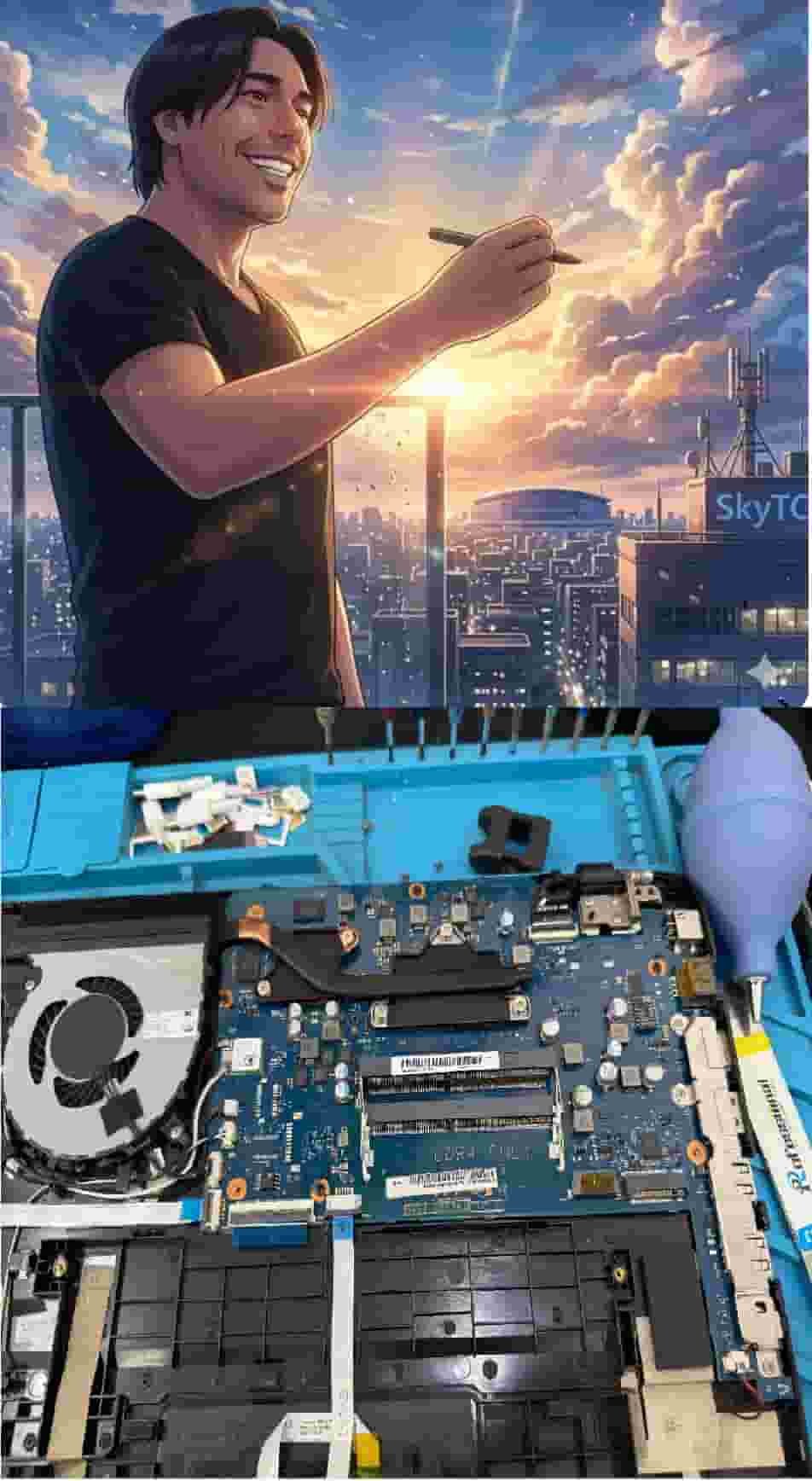
Technical Bio: Hardware & Laptops
“At SkyTC, technology is driven by engineering precision and real field experience. I am Valtersky, and I bring a unique background to the bench: from professional woodworking, the eye for structural integrity; from radiology, an absolute obsession with microscopic details.
As an ultra-endurance marathon runner, I don’t just browse store windows. I tear machines down, run intensive stress tests on thermal dissipation, and validate the actual build quality of every single component. My mission is to translate complex tech engineering and tech finances into smart decisions for your workflow.
Here, we speak straightforward, jargon-free English with the authority of someone who knows exactly what is inside the chassis.”
Read also: Top Ergonomic Mice for Reducing Professional Hand Strain: The Hardware Architect’s Teardown
Bench warning: Poorly engineered, vibrating internal components create mechanical stress that fractures fragile BGA solder balls and cracks microscopic traces across your motherboard.