

You fire up a heavy rendering timeline, launch a compiling pass, or boot an intense gaming match, and for the first three minutes, your machine screams along like a supercar. Then, without warning, your frame rate craters, input latency stutters through your cursor, and the aluminum chassis turns into a diner griddle. You are experiencing the exact moment laptop CPU throttling drops processing speeds down to an agonizing crawl.
It feels like a bait-and-switch scam. You poured your savings into a premium tier investment boasting blisteringly high multi-gigahertz boost frequencies, yet under sustained workloads, it performs worse than a budget-friendly desktop from five years ago. This is not a software bug or an operating system quirk; it is hard-coded silicon triage executing inside the silicon die to stop the processor from literally desoldering itself from the board.
At our repair lab, author Valtersky, alongside our dedicated support team and laptop hardware specialist, diagnoses these thermal choke points under high-magnification microscopes every day. We trace the burnt power planes, replace shorted MOSFETs, and watch micro-solder balls crack under thermal cycling. Understanding what happens when your CPU slams on the brakes is the tactical cheat code to reclaiming lost computing power and stopping expensive hardware decay.
The Repair Shop Counter: The Intake Specification
Here is the raw counter-talk verdict when a client brings in a machine complaining that it crawls under load. Modern thin laptops are built on an engineering lie. Marketing departments demand razor-thin profiles, but silicon manufacturers supply hungry chips that pull massive wattage under transient boost phases. The tiny copper vapor chamber inside simply cannot evacuate that volume of heat energy.
Within thirty seconds of full load, the CPU die blows past its thermal trip point. The internal thermal monitoring logic asserts a hardware interrupt called PROCHOT (Processor Hot), instantly forcing the internal clock multiplier down. If the cooling fins are packed with pet hair or the low-grade factory thermal grease has pumped out into dry crust, the processor drops all the way down to its base frequency—or worse, locks at eight hundred megahertz in an emergency survival state.
The shop verdict is cold and honest: your laptop is dropping speed because its cooling layout is physically overwhelmed. If you do not resolve the thermal resistance between the bare die and the radiator, no amount of software cleanups or operating system tweaks will ever bring those advertised boost clocks back.
Thermal Physics: Why Laptop CPU Throttling Drops Processing Speeds
Silicon processors are essentially billions of microscopic field-effect transistors packed onto a slab of crystal. As electrical current pulses through these nano-scale gates at billions of cycles per second, parasitic resistance generates pure heat. In desktop rigs, a massive nickel-plated copper heat spreader and a half-pound tower of aluminum fins dissipate this thermal load. In your laptop, bare silicon die rests directly against a razor-thin copper block with almost zero thermal mass.
When the CPU sensors detect temperatures approaching the hundred-degree junction limit (Tjunction Max), the clock generator slashes the core frequency to curb thermal runaway. This is governed by Intel’s PL1/PL2 (Power Limit) states and AMD’s PPT (Package Power Tracking) algorithms. When the short-term boost window expires, or heat saturates the chassis, the system drops the chip from its transient power ceiling down to its sustained survival wattage, dropping your clock speeds by thirty to fifty percent.
Worse yet is power delivery throttling. Surrounding the processor are Voltage Regulator Modules (VRMs), inductors, and ceramic filtering capacitors. These power stages convert high-voltage adapter current into sub-one-volt CPU power. When uncooled VRMs breach one hundred and fifteen degrees, they broadcast a BD PROCHOT (Bi-Directional Processor Hot) command across the motherboard bus, forcing the CPU to drop processing speeds even if the processor core itself is running relatively cool.
| Throttling Modality | Trigger Condition | Clock Multiplier Impact | Primary Root Cause | Field Repair Feasibility |
|---|---|---|---|---|
| Core Thermal (PROCHOT) | Core die reaches 95°C to 105°C | Drops 25% to 60% instantly | Dried paste, clogged fin stack | High (Repaste & clean exhaust) |
| Power Limit (PL1 / PPT) | Tau duration timer expires | Steps down to sustained base clock | Firmware power profile limits | Moderate (Software limit tuning) |
| VRM Current Thermal | Power stages exceed 115°C | Emergency clamp to 800 MHz | Uncooled power phases, dried putty | Moderate (High-grade thermal putty) |
| BD PROCHOT Flag Trip | Secondary sensor or GPU heat soak | Locks CPU at lowest P-state | Shared heat-pipe saturation | Complex (Micro-soldering / rebalance) |
| Current Limit (EDP/ICCmax) | Transient amperage draw exceeds rail | Rapid micro-stuttering clock dips | Undersized motherboard power phases | Unreported (Firmware locked) |
| Acoustic Firmware Capping | Fan profiles tuned for low noise | Clocks restricted under medium load | Aggressive quiet fan curves | High (Custom fan curve software) |
The Bare-Metal Trial: Pros, Cons, and Real-World Wear
Factory Silicone Grease vs. Honeywell PTM7950 Phase-Change Material
The Good: Authentic phase-change pads stay solid at room temperature and melt into a high-viscosity thermal bridge only under operational heat. They completely eliminate the notorious pump-out effect that ruins standard thermal pastes on bare laptop silicon dies within months of heavy cyclic gaming.
The Bad: Handling a razor-thin phase-change sheet requires freezing the pad before installation to avoid tearing, and budget-friendly online marketplaces are flooded with useless counterfeit silicone pads that will cook your silicon faster than dried clay.
Integrated Shared Heatsinks vs. Dual-Vapor Chamber Architecture
The Good: Dual-chamber cooling layouts separate processor and graphics thermal paths, preventing GPU thermal bleed from back-feeding into the CPU and triggering bi-directional throttling trips during heavy creative workloads.
The Bad: Vapor chambers add noticeable weight to portable setups, cost significantly more to implement at the factory level, and if a microscopic leak occurs along the sintered copper seam, the entire vacuum drops to atmospheric pressure, rendering the cooler completely useless.
High-Pressure Turbine Cooling Stands vs. Basic Open-Air Laptop Stands
The Good: Sealed-gasket turbine stands force pressurized air directly through tight radiator fin stacks, dropping core temperatures by over ten degrees and allowing CPUs to maintain their peak sustained PL1 clock multipliers indefinitely.
The Bad: They generate an obnoxious high-frequency acoustic whine that ruins studio recording environments, require dedicated power bricks, and force massive amounts of ambient room dust straight into internal motherboard crevices if you do not wash their filters weekly.
Scratch Risk: Chassis and Hinge Durability
Marketing brochures praise lightweight aluminum-magnesium alloy unibody chassis for their structural rigidity and sleek profile. But when a laptop continuously overheats, that internal thermal energy saturates the chassis and compromises the mechanical integrity of the entire shell.
The heat pipes dump superheated exhaust air directly across the display hinges and bottom screen bezel. This continuous heat bakes the high-friction grease inside the steel hinge knuckles, turning smooth lubricant into sticky, grinding paste. At the same time, radiating heat softens the brittle plastic standoffs holding the brass threaded hinge anchors inside the palm rest.
Open and close your lid a few hundred times with locked hinges and softened plastic, and the mechanical leverage snaps the brass mounts right out of the chassis. Furthermore, cyclic expansion and contraction causes the ultra-thin metal bottom cover to warp slightly, popping retaining clips and exposing the delicate embedded DisplayPort (eDP) cable to shearing along the hinge pivot.
The Couch Gaming Meltdown: A Relatable Failure Scenario
Consider this standard Friday night blunder: you pull your high-end gaming laptop onto the sofa to play an intense tactical shooter or render a freelance video project. You place the machine directly on top of a soft fleece blanket or your lap. The fabric conforms to the bottom panel, completely sealing the intake vents shut.
Within sixty seconds, the internal fans ramp to maximum speed, but they cannot pull a breath of ambient air. The copper cooling pipes saturate instantly, hitting ninety-nine degrees. The CPU screams for help, pulling down clock multipliers from four gigahertz to twelve hundred megahertz to prevent physical destruction.
While the CPU’s internal safety circuits keep the silicon die from immediately dying, the surrounding power MOSFETs—which receive zero thermal monitoring from standard software utilities—spike past one hundred and thirty degrees. A high-side power stage suffers thermal junction punch-through, shorting the high-voltage adapter rail directly into the CPU core. The screen goes black, an acrid smell of burnt epoxy fills your living room, and your expensive motherboard is instantly transformed into a total loss.
Guides for Your Next Workspace
Practical laptop guides covering performance, hardware, troubleshooting, care, and everyday productivity.
Professional Laptops
The definitive blueprint to selecting high-performance, enterprise-grade workstations engineered to scale your productivity.
Budget Tech Tools
Practical strategies and low-cost digital tools engineered to maximize office performance without breaking your budget.
Power User Gadgets
Advanced hardware, desk automation tools, and elite tech ecosystems built to eliminate workflow bottlenecks.
Diagnose Laptop Hardware Faults
The official bench guide for identifying, testing, and diagnosing common laptop hardware faults with practical troubleshooting methods.
Maximize Laptop Performance
An ultimate tuning guide for improving laptop speed, efficiency, responsiveness, and overall performance.
Extend Laptop Lifespan
The ultimate care guide for protecting laptop hardware, preventing premature wear, and extending device longevity.
The Assembly Line: High-Yield Deployment Checklist
- Eliminate thermal barriers before laptop CPU throttling drops processing speeds.
Expert Tip: Prop the rear chassis feet up by three-quarters of an inch using solid blocks to cut intake airflow resistance in half without spending capital on bulky accessories. - Clean radiator exhaust fin stacks with reverse-direction air.
Expert Tip: Never blast compressed air through outside exhaust vents without physically locking the cooling fan blades with a plastic pick, or back-EMF voltage will blow out the motherboard fan controller. - Replace low-tier factory paste with phase-change thermal material.
Expert Tip: Phase-change sheets like Honeywell PTM7950 eliminate the direct-die pump-out effect, maintaining stable thermal conductivity across thousands of thermal cycles. - Apply high-performance viscous thermal putty to motherboard VRM components.
Expert Tip: Low-grade thermal pads leave microscopic air gaps due to uneven heatsink mounting pressure, whereas pliable putty flows perfectly to prevent high-side MOSFET saturation. - Step down core voltage curves using software undervolting utilities.
Expert Tip: Lowering core voltage offsets reduces electrical wattage consumption exponentially, granting your CPU extra thermal headroom to hold higher sustained boost multipliers. - Disable dynamic processor boost profiles during lightweight workflow sessions.
Expert Tip: Turning off short-term aggressive turbo spikes during simple office tasks prevents unnecessary thermal cycling and keeps the machine running silently at baseline wattage. - Cap maximum battery charge thresholds at eighty percent in BIOS.
Expert Tip: Keeping lithium-polymer cells pinned at maximum voltage while internal chassis temperatures exceed forty degrees accelerates chemical degassing and pouch swelling. - Never run sustained rendering workloads with the laptop lid closed.
Expert Tip: Modern ultra-thin chassis vent substantial radiant heat upward through the keyboard deck; closing the display panel traps this heat and degrades the display panel layers. - Adjust manufacturer firmware fan curves to prioritize earlier acceleration.
Expert Tip: Forcing internal fans to ramp up before heatsinks hit eighty degrees mitigates rapid heat soak and prevents early PL2 power-limit timeouts. - Inspect and loosen stiff factory screen hinge nuts by a hair.
Expert Tip: Backing off the hinge nut by a sixteenth of a turn relieves massive torsional leverage against thermally fatigued plastic chassis standoffs, preventing blowouts. - Audit startup background software and telemetry bloatware monthly.
Expert Tip: High-frequency background polling from vendor utility suites prevents CPU cores from dropping into low-power C-states, maintaining constant baseline thermal stress.
Forensic Breakdown: Microscopic Hardware Answers
What is the difference between thermal throttling and power-limit throttling?
Thermal throttling is an emergency safety brake triggered when the silicon die hits its maximum junction temperature limit, slashing clocks to prevent melting. Power-limit throttling occurs when the chip reaches its firmware-assigned wattage ceiling, stepping down multipliers after the short-term boost duration expires even if temperatures remain moderate.
Why does my laptop drop clock speeds all the way to 800 MHz?
An eight hundred megahertz lock is an emergency fail-safe mode known as a BD PROCHOT trip. It means a thermal sensor on the motherboard—often monitoring the graphics chip, the charging circuit, or an uncooled VRM—has registered an extreme thermal hazard and forced the processor to idle.
Can thermal throttling permanently damage my laptop processor?
The throttling mechanism itself protects the processor from instant destruction. However, prolonged exposure to high operating heat accelerates electromigration inside the die and causes severe micro-solder fatigue beneath the BGA package, eventually cracking the solder balls connecting the CPU to the motherboard.
Why did repasting my laptop with premium paste make thermals worse?
You likely used a low-viscosity paste designed for desktop processors with integrated heat spreaders. On bare-die laptop assemblies, low-viscosity paste suffers immediate pump-out due to the intense thermal expansion and uneven clamping pressure, leaving the center of the silicon die completely bare within days.
Does undervolting still work on modern high-tier laptop processors?
Many silicon vendors have locked down core voltage registers in modern firmware microcode to mitigate architectural vulnerabilities. However, many gaming-tier platforms still allow voltage-frequency curve adjustments or platform power limit reductions through advanced vendor utility profiles or unlocked BIOS menus.
Why does my CPU throttle even when internal cooling fans sound quiet?
Manufacturers often tune default firmware fan tables to prioritize silent operation over thermal performance in retail display units. The system intentionally throttles clock multipliers to keep internal noise low, sacrificing substantial computing speed to avoid spinning the fans up to their maximum acoustic profile.
Are vacuum-style exhaust clip-on fans safe to use on laptops?
They are a total gimmick and a waste of money. Suction fans clip onto exhaust vents and pull air faster than the internal fans can spin, causing the internal sleeve bearings to over-rev, burn out, and generate back-EMF voltage that can damage motherboard fan headers.
Why does single-channel memory make CPU throttling feel even worse?
Single-channel memory cuts available bandwidth in half, forcing the CPU to spend more clock cycles idling while waiting for data fetches from RAM. When the processor is already throttled down to low clock speeds, this memory bottleneck compounds the slowdown, turning minor dips into massive system lockups.
Why Trust SKYTC Curated Gear?
At SKYTC, we simplify technology for you. We aren’t just another deals site; we are hardware experts obsessively focused on elite performance.
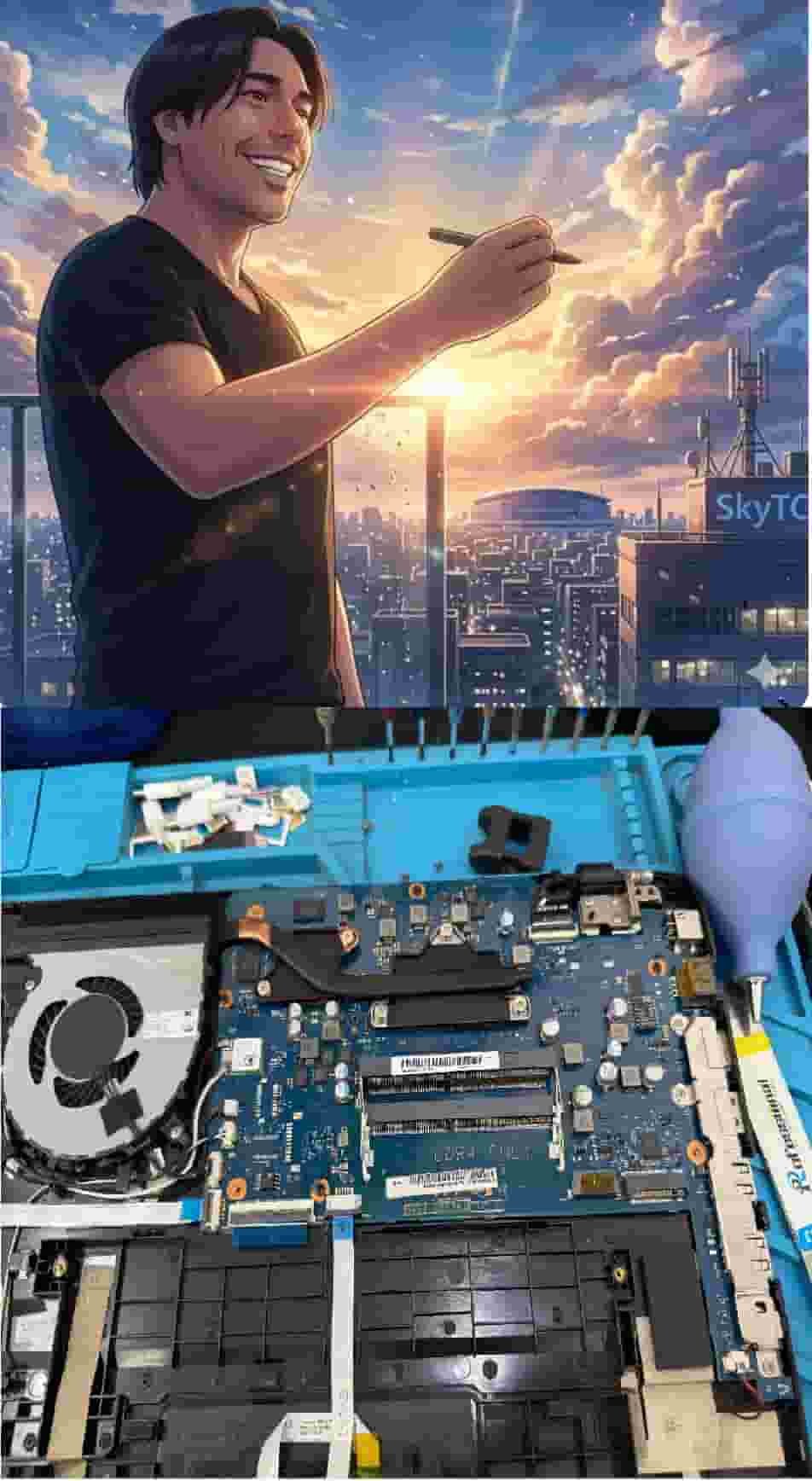
Technical Bio: Hardware & Laptops
“At SkyTC, technology is driven by engineering precision and real field experience. I am Valtersky, and I bring a unique background to the bench: from professional woodworking, the eye for structural integrity; from radiology, an absolute obsession with microscopic details.
As an ultra-endurance marathon runner, I don’t just browse store windows. I tear machines down, run intensive stress tests on thermal dissipation, and validate the actual build quality of every single component. My mission is to translate complex tech engineering and tech finances into smart decisions for your workflow.
Here, we speak straightforward, jargon-free English with the authority of someone who knows exactly what is inside the chassis.”
Read also: How to Maximize Laptop Performance: Ultimate Tuning Guide for Extreme Silicon Output
Warning from the repair bench: chronic thermal throttling cracks microscopic lead-free BGA solder spheres under processor dies, overheats display T-Con drivers into permanent subpixel blue-line dropouts, and shears delicate eDP flex cables inside heat-warped display hinges.