

You know the sensation all too well: your machine sounds like an F-18 spooling up on a carrier deck, your palms are sweating against a blistering aluminum chassis, and your render or frame rate stutters off a cliff. You drop serious money on a cutting-edge rig, only to feel like you are typing on an active stovetop. This is not just a minor usability annoyance; laptop overheating accelerates hardware failure through silent, microscopic physical degradation that slowly murders your machine from the inside out.
Few things are more infuriating than watching an expensive workstation die a premature death right after the factory warranty expires. You did not buy a high-performance machine just to watch it limp through basic workloads while throttling itself into a stupor. You bought it to get real work done, crush deadlines, or game without praying to the silicon gods that your motherboard survives the night.
Here at the repair bench, author Valtersky, supported by our dedicated support team and laptop hardware specialist, sees the aftermath of this design negligence every single day. We spend our lives under stereo microscopes scraping away charred epoxy, repairing broken copper traces, and replacing popped power stages. Understanding the physics of thermal destruction is the ultimate lab macete: it saves your machine from an early grave and stops you from feeding the corporate upgrade racket.
The Repair Shop Counter: The Intake Specification
Let us cut through the marketing fluff right here at the counter. When you bring in a dead machine that “just turned off and never woke up,” nine times out of ten it was not a rogue software update or bad luck—it was chronic thermal suffocation. Silicon chips are designed to endure thermal abuse, but the components surrounding them on the motherboard are built to a razor-thin tolerance.
Solder balls under your graphics chip crack because they are yanked apart by mismatched thermal expansion rates. Power delivery MOSFETs cook until their internal gates fail, sending direct, high-voltage adapter power straight into a fragile CPU core. Meanwhile, the thin lithium pouch battery swells beneath your trackpad because it is acting as a secondary heatsink for a poorly vented chassis.
The shop verdict is absolute: modern ultra-thin laptops prioritize razor-thin aesthetics and acoustic benchmarks over long-term mechanical survival. If you let your machine run pegged near boiling point, you are radically accelerating its countdown to a permanent board-level short. Keep the cooling path clean, monitor VRM thermals, and stop running high-load cycles on soft surfaces.
Thermal Physics: Why Laptop Overheating Accelerates Hardware Failure
Every time your laptop spikes to peak temperature and cools back down to room temp, the materials inside fight each other. Your silicon die, the organic substrate beneath it, the tin-silver-copper (SAC) lead-free solder balls, and the multi-layer FR4 fiberglass motherboard all have radically different coefficients of thermal expansion (CTE). When heated, the motherboard expands at a much faster rate than the brittle silicon die sitting on top of it.
This mismatch creates relentless shear stress on the ball grid array (BGA) joints bridging your CPU and GPU to the motherboard. Over hundreds of thermal cycles, microscopic micro-voids appear inside the solder alloy. These voids coalesce into hairline fractures, tearing electrical continuity and leaving you with random blue screens, artifacting displays, and eventually a totally dead system that cannot pass Power-On Self-Test (POST).
Then there is electromigration. As heat spikes inside the silicon die, the kinetic energy of metal atoms increases. High-density electrical currents passing through nanometer-scale copper traces literally push atoms out of place, creating microscopic voids and whisker-like hillocks. Over time, those voids break traces, while those hillocks create internal short-circuits. Heat is the accelerator pedal for this atomic destruction.
| Component Subsystem | Safe Thermal Ceiling | Critical Failure Temperature | Primary Thermal Destruction Mechanism | Service Replaceability |
|---|---|---|---|---|
| BGA Solder Balls (CPU/GPU) | 75°C – 82°C | 100°C+ Cyclic Load | CTE mismatch shear stress, intermetallic micro-cracks | Complex (Micro-BGA rework required) |
| VRM Power Stages (MOSFETs) | 85°C | 125°C – 150°C | Dielectric breakdown, package desoldering, shoot-through | Moderate (Hot-air micro-soldering) |
| Lithium-Polymer Cells | 35°C | 60°C+ Ambient Trap | Electrolyte degassing, pouch swelling, thermal runaway | Standard Field Swappable |
| T-Con Display Board | 50°C | 80°C (Hinge Exhaust) | Driver IC debonding, gate line COF failure | Extreme (Requires whole panel swap) |
| NVMe SSD Flash Controller | 70°C | 95°C+ Throttle Point | Gate insulator degradation, firmware panic state | Standard Modular Swap |
| Solid Polymer SMD Capacitors | 85°C | 105°C Rating Limit | Electrolyte dry-out, ESR spike, short-to-ground | Moderate (Bench micro-soldering) |
The Bare-Metal Trial: Pros, Cons, and Real-World Wear
Factory Phase-Change Pads vs. Traditional Silicone Thermal Greases
The Good: Industrial-grade phase-change sheets (like Honeywell PTM7950) turn semi-liquid only when the silicon reaches operational heat, settling into micro-grooves without expanding outwards. They maintain high thermal performance across years of heavy abuse without drying out.
The Bad: Traditional budget-tier silicone paste rapidly suffers from the pump-out effect; the constant thermal expansion and contraction of bare silicon dies pushes the compound out to the edges within six months, leaving the center of your CPU completely dry and uncooled.
Sealed-Gasket Forced Air Coolers vs. Standard Multi-Fan Laptop Pads
The Good: Forced-induction cooling stands with airtight silicone seals pressurize the entire laptop intake chamber, dropping operating temperatures across both core silicon and unmonitored VRM power stages by double-digit margins.
The Bad: They generate intense acoustic whine, consume substantial desk space, and pull fine room dust into internal chassis crevices if you fail to clean their intake filters every single week.
Liquid Metal Interconnects vs. High-Viscosity Non-Conductive Pastes
The Good: Liquid metal offers jaw-dropping thermal conductivity, allowing performance-tier processors to dump heat instantly into copper vapor chambers without thermal throttling bottlenecks.
The Bad: Gallium-based alloys eat raw aluminum plates for breakfast, form crusty intermetallic layers on bare copper that need physical scraping, and a single displaced droplet rolling onto surface-mount capacitors will short your entire multi-rail system instantly.
Scratch Risk: Chassis and Hinge Durability
Manufacturers love flexing ultra-sleek, stamped magnesium-alloy and unibody aluminum frames on spec sheets to justify a premium tier investment. But under continuous real-world use, these hyper-thin designs are a mechanical liability waiting to ruin your investment.
Excessive thermal heat does not stay locked inside the heatsink; it saturates the structural chassis. Heat conducts directly into the plastic sub-assemblies holding the brass threaded inserts for your screen hinges. Over time, heat bakes this plastic into brittle glass. Combine baked, fragile plastic with factory-overtightened steel hinges, and the very act of opening your laptop acts like a crowbar snapping the mounting bosses clean off the frame.
Worse yet, designers often dump hot exhaust air straight into the lower display bezel. This continuously cooks the display timing controller (T-Con) board and the delicate copper-on-polyimide ribbon cables bonding your LCD glass. The heat degrades the conductive adhesive, resulting in permanent horizontal lines, subpixel flickering, and complete display blackout.
The Blanket Death: A Relatable Failure Scenario
Consider this standard Friday night mistake: you carry your high-performance laptop into bed to finish a video project or play an online match. You place the machine directly on top of a soft comforter or heavy blanket. It feels comfortable, but beneath the chassis, an engineering nightmare begins.
The plush fabric squishes against the bottom shell, instantly choking the intake cutouts. The twin cooling fans ramp up to maximum speed, but they are pulling zero fresh air; they are simply churning trapped, superheated air inside the case. The cooling assembly saturates in minutes. Your CPU and GPU sensors panic, pulling back their clock speeds to prevent instant meltdown.
However, the VRM power inductors and ceramic filtering capacitors sitting adjacent to the processor do not have active thermal sensors or throttle triggers. While your CPU sits at its throttle limit, those unmonitored power delivery components spike past their maximum rated thresholds. A high-side power MOSFET suffers thermal runaway and shorts internally, connecting the high-voltage input rail straight into low-voltage CPU lines. The machine goes black with a soft pop, leaving you with an unbootable board and a repair bill that outvalues the computer.
Guides for Your Next Workspace
Practical laptop guides covering performance, hardware, troubleshooting, care, and everyday productivity.
Professional Laptops
The definitive blueprint to selecting high-performance, enterprise-grade workstations engineered to scale your productivity.
Budget Tech Tools
Practical strategies and low-cost digital tools engineered to maximize office performance without breaking your budget.
Power User Gadgets
Advanced hardware, desk automation tools, and elite tech ecosystems built to eliminate workflow bottlenecks.
Diagnose Laptop Hardware Faults
The official bench guide for identifying, testing, and diagnosing common laptop hardware faults with practical troubleshooting methods.
Maximize Laptop Performance
An ultimate tuning guide for improving laptop speed, efficiency, responsiveness, and overall performance.
Extend Laptop Lifespan
The ultimate care guide for protecting laptop hardware, preventing premature wear, and extending device longevity.
The Assembly Line: High-Yield Deployment Checklist
- Mitigate heat spikes so laptop overheating accelerates hardware failure no more.
Expert Tip: Elevating the back feet of your machine by just half an inch doubles intake airflow volume, slashing core temps without opening the chassis. - Clean radiator exhaust fins every four months using compressed air.
Expert Tip: Hold the fan blades stationary with a plastic toothpick while blowing air to avoid generating back-EMF voltage that fries the motherboard fan header. - Replace low-grade factory thermal compound with phase-change materials.
Expert Tip: Using high-performance phase-change pads prevents the common pump-out effect that bare-die laptop cooling solutions suffer from under cyclic thermal stress. - Cap maximum battery charge thresholds at eighty percent in BIOS.
Expert Tip: Lithium cells exposed to continuous high chassis heat at full electrical saturation degrade their chemical anode exponentially faster, leading to physical swelling. - Never run intensive computing workloads with the laptop lid closed.
Expert Tip: Keyboards serve as passive secondary exhaust paths; shutting the lid traps convective heat against the display panel, degrading the anti-reflective coating. - Reposition thermal pads on top of secondary storage drives.
Expert Tip: Solid-state controllers require thermal conduction to the bottom chassis panel, but flash memory cells actually prefer moderate operating heat to prevent write degradation. - Adjust aggressive operating system processor boost power curves manually.
Expert Tip: Shaving off the final five percent of aggressive turbo boost clocks drops package heat dramatically while retaining ninety-five percent of real-world computing throughput. - Operate machines exclusively on hard, non-porous flat workspace surfaces.
Expert Tip: Soft fabrics conform to bottom vent contours, completely choking intake negative pressure and forcing power delivery circuitry into unmonitored thermal runaway. - Inspect and re-torque display hinge fasteners during annual cleanouts.
Expert Tip: Slightly loosening over-tightened factory hinge nuts relieves structural leverage against thermally baked plastic chassis standoffs, preventing chassis blowouts. - Avoid using bargain-bin universal high-wattage USB-C fast chargers.
Expert Tip: Unfiltered ripple voltage from low-tier charging bricks forces internal buck converter circuits to run significantly hotter, stressing motherboard input chokes. - Check peripheral port cavities regularly for lint and debris build-up.
Expert Tip: Packed pocket lint traps internal chassis heat and absorbs environmental humidity, leading to micro-arcing across high-voltage USB power delivery pins.
Forensic Breakdown: Microscopic Hardware Answers
Does operating at thermal throttling limits actually degrade modern silicon?
Yes, it does. While thermal throttling prevents your processor from burning up instantly, running sustained peak operational temperatures accelerates electromigration. Atoms within micro-scale copper interconnects physically drift over time, permanently degrading chip stability and eventually causing outright gate failure.
Why does overheating cause laptop batteries to physically swell up?
Lithium pouch batteries hate heat. When poor thermal design allows exhaust air or chassis heat to soak the battery compartment, the liquid electrolyte breaks down into volatile gases. This internal pressure causes the pouch to puff up, warping your trackpad and creating a genuine fire hazard.
Can thermal overheating cause permanent display panel failure?
It happens constantly. Laptops that vent their exhaust directly onto the lower screen bezel cook the display’s integrated timing controller board and source driver chips. This degrades the anisotropic conductive film bonding the ribbon cables, causing vertical display lines and dead color columns.
Are cooling pads with multiple small fans worth buying?
Most cheap cooling pads are a waste of money. They blow unsealed, low-pressure air uselessly against plastic bottom covers without matching the intake vents. If you want results, get a high-pressure sealed unit with a rubber gasket, or simply prop the rear feet up with a solid stand.
What is the difference between thermal throttling and board-level thermal failure?
Thermal throttling is a software-directed safety brake that reduces clock speed to shed temperature. Board-level thermal failure is physical destruction: cracked BGA solder joints, blown power MOSFETs, or shorted ceramic capacitors caused by prolonged thermal stress exceeding physical material limits.
Why do thermal pastes dry out so quickly in laptops compared to desktops?
Desktop processors have thick nickel-plated copper integrated heat spreaders (IHS) that distribute clamping pressure evenly. Laptops use direct-die cooling, where bare silicon rests directly against the copper heatsink. The intense flex and direct thermal cycling squeeze standard paste out from the center, leaving bare silicon behind.
Can dust buildup inside the heatsink cause a motherboard power short?
Indirectly, yes. A clogged radiator blocks exhaust, driving temperatures up across the entire power plane. When the power delivery components overheat, their internal resistance drops, current draw spikes, and high-side MOSFETs blow out, creating an immediate, catastrophic short-circuit across the main power rail.
Is undervolting still a valid way to fight thermal failure?
Where supported, undervolting is the tactical cheat code for laptop preservation. Feeding the CPU slightly lower voltage reduces power consumption and heat generation exponentially without dropping clock speeds. Sadly, many modern manufacturers lock voltage registers in BIOS, forcing you to use power limit capping instead.
Why Trust SKYTC Curated Gear?
At SKYTC, we simplify technology for you. We aren’t just another deals site; we are hardware experts obsessively focused on elite performance.
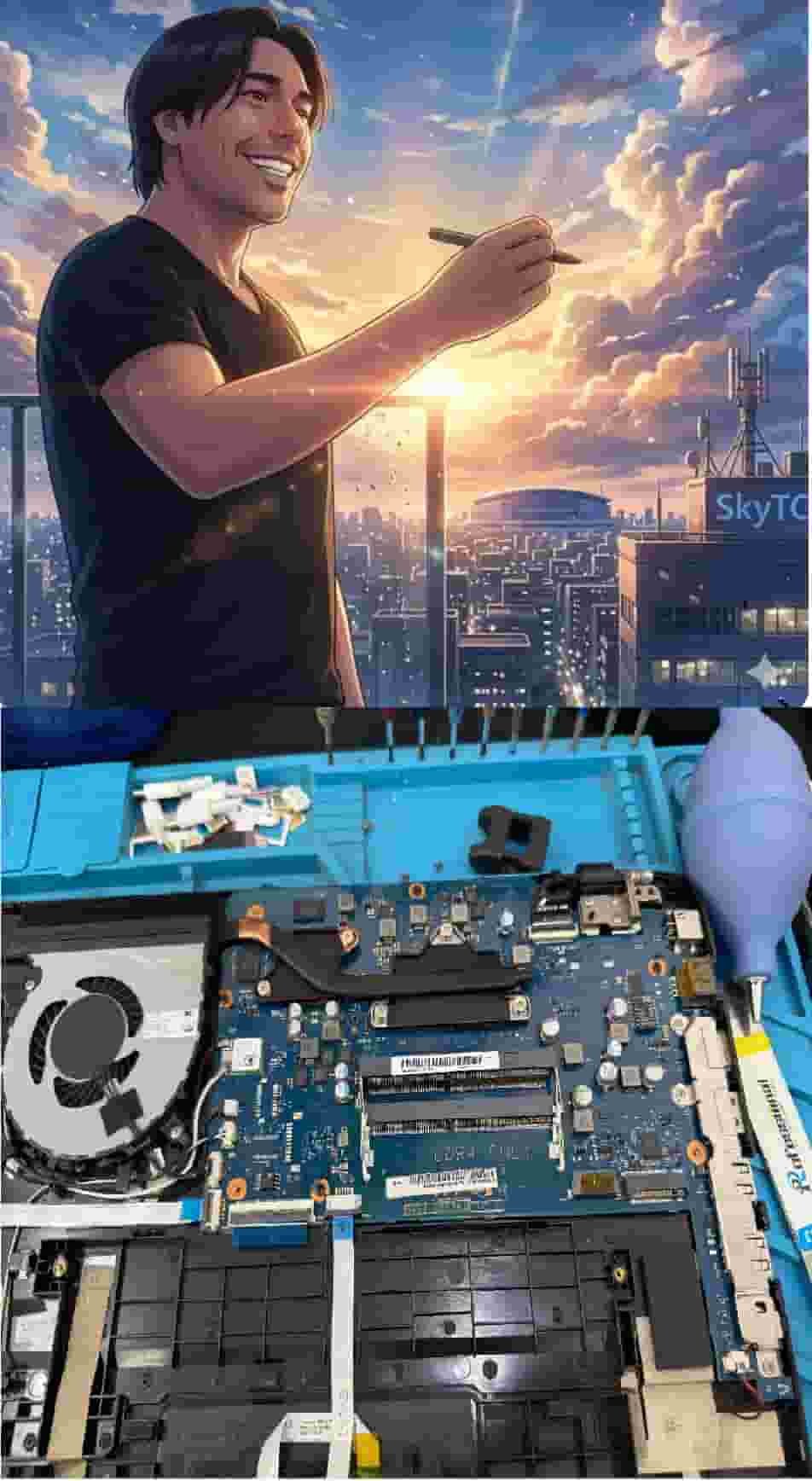
Technical Bio: Hardware & Laptops
“At SkyTC, technology is driven by engineering precision and real field experience. I am Valtersky, and I bring a unique background to the bench: from professional woodworking, the eye for structural integrity; from radiology, an absolute obsession with microscopic details.
As an ultra-endurance marathon runner, I don’t just browse store windows. I tear machines down, run intensive stress tests on thermal dissipation, and validate the actual build quality of every single component. My mission is to translate complex tech engineering and tech finances into smart decisions for your workflow.
Here, we speak straightforward, jargon-free English with the authority of someone who knows exactly what is inside the chassis.”
Read also: How to Extend Laptop Lifespan: Ultimate Care Guide for Pure Hardware Survival
Warning from the repair bench: prolonged thermal overheating tears BGA solder balls from motherboard pads, cooks display T-Con drivers into permanent blue-line dropouts, and blows unmonitored high-side VRM MOSFETs that send raw DC rail voltage straight into dead CPU silicon.