

Nothing ruins a heavy work sprint faster than plugging in your machine and watching your third monitor blink into an endless black void. You sit there aggressively wiggling video cables, cycling power buttons, and wondering why your workstation smells like baking fiberglass. It is pure misery.
When you are scouting the top triple display docking stations for advanced desks, you need raw silicon bandwidth and serious thermal routing, not corporate marketing fairy tales. Setting up three independent high-resolution panels without frame drops or hardware brownouts requires understanding what happens inside the dock chassis.
Most workers waste their budget on bargain-bin splitters that end up functioning as high-heat desk ornaments. Those unshielded boxes choke your graphics pipeline down to thirty Hertz and cook their own internal controllers within six months.
Fixing your desk topology with proper bench-grade hardware cuts out daily reboot rituals, shields your laptop logic board from voltage spikes, and gives you your visual workspace back. Here is the unvarnished engineering reality behind running three panels off a single port.
The Repair Shop Counter: The Intake Specification
Step up to the counter and listen close, because here is the bench diagnosis before you drop cash on a useless desk paperweight. Driving three discrete visual pipelines across one umbilical cable is not plug-and-play magic; it is high-speed signal integrity under extreme thermal stress.
If you are on Windows, you want a hardware dock built around a legitimate Thunderbolt 4 controller paired with a dedicated DisplayPort Multi-Stream Transport (MST) hub. That tactical cheat code routes three independent native GPU displays with zero compression lag.
If you are running macOS, Apple’s driver architecture stubbornly refuses to route MST over standard lines, meaning you cannot get three native independent screens from a single legacy port without external graphics compression hardware like a DisplayLink bridge.
Skip any enclosure that feels feather-light or lacks internal thermal transfer pads over the buck converters. High-load power delivery turns uncooled components into silicon toast, and when that bridge chip desolders itself, your monitors go permanently dark.
Engineering Triple Display Docking Stations for Advanced Desks: Architecture Teardown
To run three screens without your operating system having a seizure, you need to understand the board architecture. Inside every reliable dock sits a multiplexer, a power management integrated circuit (PMIC), and high-speed bridge silicon battling electromagnetic interference.
The table below breaks down the primary architectural classes we strip down on our repair benches. We evaluate controllers by their trace layout, silicon reliability, and thermal dissipation under continuous daily workstation abuse.
| Dock Architecture Class | Silicon Pipeline | Triple Screen Routing | Thermal Dispersion | Board Reliability Tier |
|---|---|---|---|---|
| Intel Goshen Ridge (TB4 Native) | Direct PCIe & DP 1.4 tunneling | Native MST (Host GPU driven) | Chassis-coupled thermal pads | Tier 1 (Enterprise Grade) |
| Synaptics DisplayLink Hybrid | USB data frame compression | Virtual GPU software stream | Internal sink; prone to soaking | Tier 2 (Platform Agnostic) |
| Modular Dual-USB-C Arrays | Dual Alt-Mode splitters | Split MST channels | Active internal fan cooling | Tier 2 (Workstation Class) |
| Budget USB-C Alt-Mode Hubs | Basic multiplexer switches | Shared DP 1.2/1.4 bandwidth | Zero thermal routing (Plastic) | Tier 4 (Disposable Grade) |
| Titan Ridge Legacy (TB3) | Legacy PCIe tunneling | MST dependent routing | Passive aluminum casing | Tier 3 (Phasing Out) |
The Bare-Metal Trial: Pros, Cons, and Real-World Wear
Let us talk about pure Thunderbolt 4 docks leveraging controllers like the Intel JHL8440.
The Good: They deliver pristine native display signals with hardware color accuracy, zero cursor latency, and support for high-refresh rates across multiple ultra-wide panels.
The Bad: These controllers generate massive thermal loads, and if your operating system drops an unoptimized sleep handshake, your entire triple-monitor desk layout resets into a microscopic resolution scramble that forces a cold system restart.
Next up are hybrid compression stations utilizing DisplayLink DL-6950 silicon.
The Good: This is the universal lab macete for Mac users, bypassing operating system hardware limitations to drive three discrete external screens effortlessly.
The Bad: It offloads display rendering directly onto your host CPU, turning your laptop processor into a thermal furnace during full-screen video playback while DRM-protected content streams black out completely.
Then we have the dual-port proprietary enterprise workhorses designed for heavy technical workstations.
The Good: Massive power delivery throughput that fuels power-hungry creator laptops without depleting the battery pack under heavy 3D rendering cycles.
The Bad: The dual-cable umbilical setup takes up excessive physical desk space, and the built-in mini fans scream like micro-turbines whenever ambient room temperatures climb during long summer editing sessions.
Scratch Risk: Chassis and Hinge Durability
Every gear manufacturer boasts about sleek space-gray aluminum enclosures and precision-machined edge chamfers in their product videos. But touch those shiny shells with real everyday office tools, and the cosmetic dream crumbles fast.
Micro-textured anodized coatings scuff the moment a steel watch band or mechanical keyboard frame grazes the faceplate. Worse, unweighted light chassis slide across desks whenever stiff braided monitor cables flex, gouging fine wood surfaces and rattling internal solder joints.
The mechanical leverage exerted by thick triple-display wiring harnesses creates devastating port torque. When three heavy HDMI or DisplayPort cables hang off the back of a lightweight dock, they act as mechanical pry bars against the surface-mount socket solder pads.
Over months of desk micro-vibrations, that continuous lateral leverage pulls micro-soldered ground pins straight off the circuit board. What starts as an intermittent screen flicker when you bump your coffee cup ends with lifted copper traces and a dead display rail.
The Daisy-Chained Power Brick Nightmare
Here is a classic disaster scenario our support team diagnoses every single week: the desk organizer who hides a high-output docking station inside a closed leather desk drawer or stacks it directly on top of their laptop charging brick.
The user plugs in three 4K monitors, an external solid-state drive, a webcam, and routes high-wattage power delivery back into their computer. Trapped with zero convective airflow, the docking station thermal mass hits critical soaking temperatures within forty-five minutes.
Inside the sealed dock, the primary step-down buck converters begin thermal throttling, causing the voltage rail feeding the display multiplexer to drop from a clean five volts down to erratic voltage spikes.
First, the third monitor starts dropping frames; then the dock controller panic-shuts down to prevent silicon liquefaction. The user blames their expensive laptop, completely unaware they just thermally choked their peripheral hardware into an early grave.
Guides for Your Next Workspace
Practical laptop guides covering performance, hardware, troubleshooting, care, and everyday productivity.
Professional Laptops
The definitive blueprint to selecting high-performance, enterprise-grade workstations engineered to scale your productivity.
Budget Tech Tools
Practical strategies and low-cost digital tools engineered to maximize office performance without breaking your budget.
Power User Gadgets
Advanced hardware, desk automation tools, and elite tech ecosystems built to eliminate workflow bottlenecks.
Diagnose Laptop Hardware Faults
The official bench guide for identifying, testing, and diagnosing common laptop hardware faults with practical troubleshooting methods.
Maximize Laptop Performance
An ultimate tuning guide for improving laptop speed, efficiency, responsiveness, and overall performance.
Extend Laptop Lifespan
The ultimate care guide for protecting laptop hardware, preventing premature wear, and extending device longevity.
The Assembly Line: High-Yield Deployment Checklist
- Deploy triple display docking stations for advanced desks properly. Expert Tip: Confirm that your host operating system architecture and internal GPU pipelines natively support three discrete external display data streams before selecting non-compression hardware.
- Verify host cable certification standards before desktop routing. Expert Tip: Using generic charging cables lacking active 40Gbps electronic markers forces your dock down to legacy USB transfer rates, instantly breaking multi-screen video links.
- Calculate total electrical system draw under heavy loads. Expert Tip: Always pair your dock with an external power brick exceeding your laptop intake capacity to eliminate battery drain during intensive triple-screen rendering sessions.
- Position docking hardware to optimize natural convective airflow. Expert Tip: Elevating the dock chassis off your desk with rubber standoffs prevents thermal throttling by keeping internal controller temperatures far below board-level failure limits.
- Anchor heavy display cable harnesses to minimize connector torque. Expert Tip: Relieving mechanical strain on the rear display ports prevents the physical shearing of surface-mount solder pads off the main circuit board.
- Audit video protocol revisions across all connected display panels. Expert Tip: Mixing legacy DisplayPort 1.2 monitors with modern DisplayPort 1.4 hardware across the same MST chain throttles total pipeline bandwidth and limits panel refresh rates.
- Disable deep operating system sleep states for connected buses. Expert Tip: Aggressive operating system power savings routinely fail to re-initialize chained display multiplexers, leaving external screens trapped in sleep mode upon wake.
- Flash updated firmware patches directly to the dock silicon. Expert Tip: Hardware makers frequently deploy microcode revisions to patch handshake timing bugs between display multiplexers and modern variable refresh rate workstation displays.
- Separate wireless radio transceivers from active video lines. Expert Tip: High-frequency data leaking from unshielded video ports creates severe 2.4GHz interference, causing frustrating wireless mouse stutter across your desk surface.
- Deploy validated graphics drivers for software compression bridges. Expert Tip: Running compression-based docks on default operating system drivers inflates CPU usage and creates perceptible visual lag during high-speed desktop navigation.
- Ground workstation electrical strips against dangerous transient static. Expert Tip: Winter static shocks transmitted into desk edges jump through peripheral housings, instantly blowing sensitive multiplexer protection diodes on the dock motherboard.
Forensic Breakdown: Microscopic Hardware Answers
Why do my external monitors flash black when my office chair shifts?
That is electromagnetic interference discharging straight through your workspace. Cheap video cables with shoddy shielding act like antennas. The static shock from your body leaves the chair, travels through your desk frame, hits the ungrounded cable, and crashes the dock’s display clock signal for a split second.
Can modern Apple silicon run three independent displays through standard native docks?
Base-tier Apple chips are physically limited by internal display engines to one or two external displays. To drive three independent displays, you must either step up to high-tier professional silicon variants or rely on DisplayLink compression hubs that emulate display outputs over standard USB data frames.
Why does the dock enclosure run boiling hot when my laptop is sleeping?
The integrated power delivery circuit remains active. Even while the host machine rests, the high-voltage buck converters, standby power rails, and Thunderbolt link controllers remain energized to supply immediate wake signals and battery trickle-charging, dissipating continuous baseline wattage through the aluminum shell.
Does running DisplayLink compression hurt visual creative color workflows?
Yes. DisplayLink relies on your host CPU to compress display frames before routing them over data lines. This introduces compression artifacts, minor cursor latency, and occasional frame drops during color-critical grading or rapid video timeline scrubbing, making it less ideal than native hardware pipes.
Why does my wireless mouse stutter when connected directly to the dock?
Poor electromagnetic containment on budget docking stations allows high-speed USB 3.0 and video signals to leak radio noise. This noise blasts directly into the 2.4GHz spectrum used by wireless peripheral dongles plugged into adjacent ports, dropping packets and making your mouse tracking hitch.
What makes Thunderbolt 4 docks physically superior to standard USB-C hubs?
Dedicated bandwidth allocation and tighter controller standards. Thunderbolt 4 guarantees fixed 40Gbps bi-directional PCIe and display bandwidth through certified Intel silicon. Standard USB-C hubs rely on variable, highly shared bandwidth pools that drop video quality the instant you transfer files across a flash drive.
Can driving triple monitors and 100W power delivery destroy a laptop motherboard?
If the dock has low-grade voltage regulators, yes. Cheap docks skimp on transient voltage suppression diodes. When power flickers or high-demand screens cycle states, voltage spikes can blast down the USB-C VBUS power line straight into your laptop’s charging controller, instantly vaporizing the micro-soldered power MOSFETs.
Why did my third monitor spontaneously lock its refresh rate to 30Hz?
Your hardware ran out of DisplayPort bandwidth. When driving three displays without Display Stream Compression (DSC) enabled on your GPU, the total pixel data exceeds the pipe’s physical throughput. The display controller aggressively drops refresh rates on the lowest-priority port to preserve video sync on the others.
Why Trust SKYTC Curated Gear?
At SKYTC, we simplify technology for you. We aren’t just another deals site; we are hardware experts obsessively focused on elite performance.
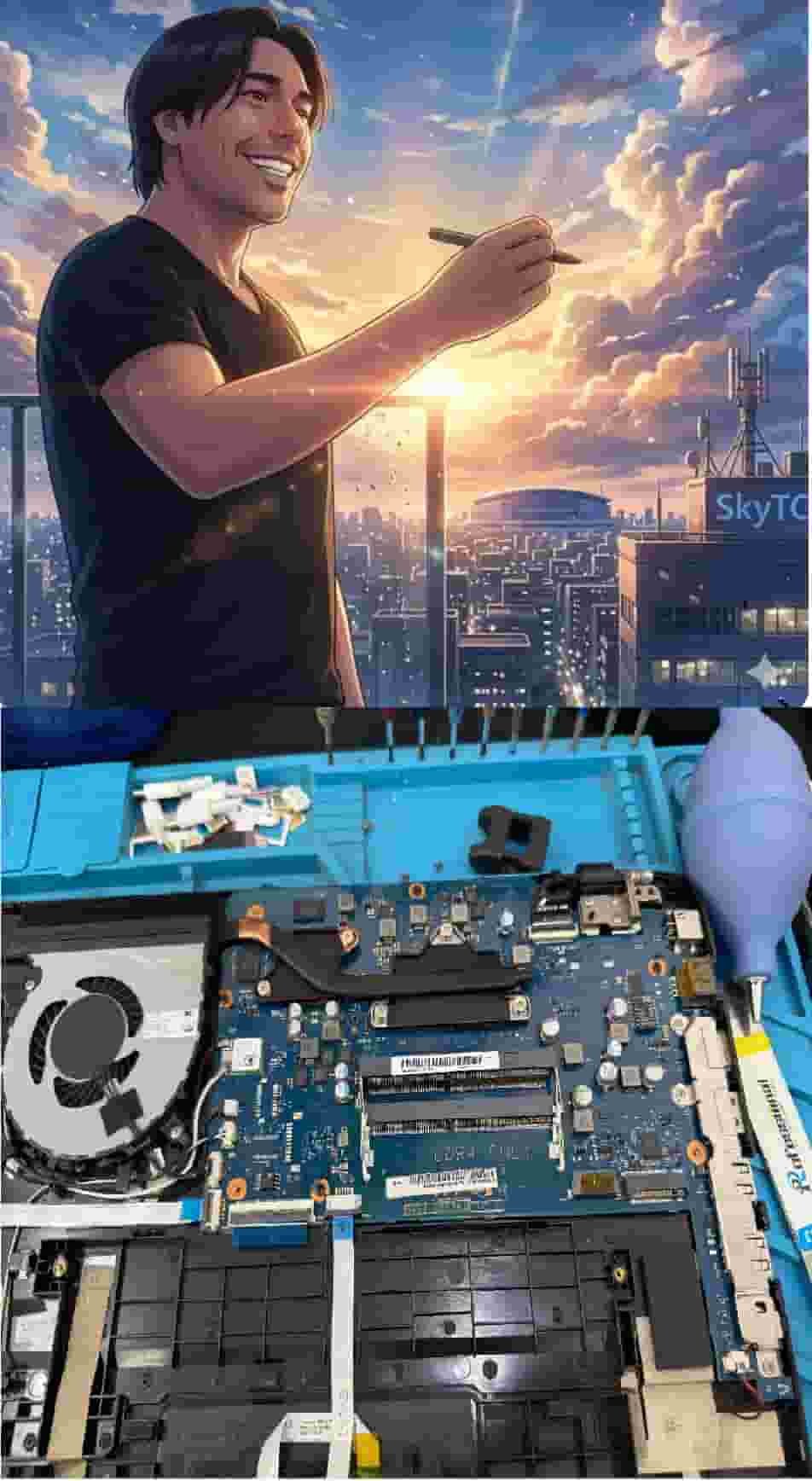
Technical Bio: Hardware & Laptops
“At SkyTC, technology is driven by engineering precision and real field experience. I am Valtersky, and I bring a unique background to the bench: from professional woodworking, the eye for structural integrity; from radiology, an absolute obsession with microscopic details.
As an ultra-endurance marathon runner, I don’t just browse store windows. I tear machines down, run intensive stress tests on thermal dissipation, and validate the actual build quality of every single component. My mission is to translate complex tech engineering and tech finances into smart decisions for your workflow.
Here, we speak straightforward, jargon-free English with the authority of someone who knows exactly what is inside the chassis.”
Read also: Best Thunderbolt Four Docking Stations for Power Users: The Micro-Soldering Architect’s Teardown
Warning from the micro-soldering bench: pushing continuous uncooled wattage through low-grade hub connectors induces severe BGA solder thermal cracks, triggers T-Con board overheating, and eventually drops subpixel blue-line faults across your expensive workstation panels.